Rugged Windows Tablet M101B/ M101BL User Guide
4.4.6 Using Barcode Reader
IMPORTANT
The 2D/1D Barcode Reader is optional for M101B Tablet PC and is not re-
workable by the end user. To use this feature, please make sure the tablet
PC is built-in barcode reader before use, or contact our sales contact
window for more details.
To enable the Barcode Reader feature, perform the following procedure:
1. Open Hottab utility by pressing (Menu) Button located on the front panel, OR
launching Hottab Utility application.
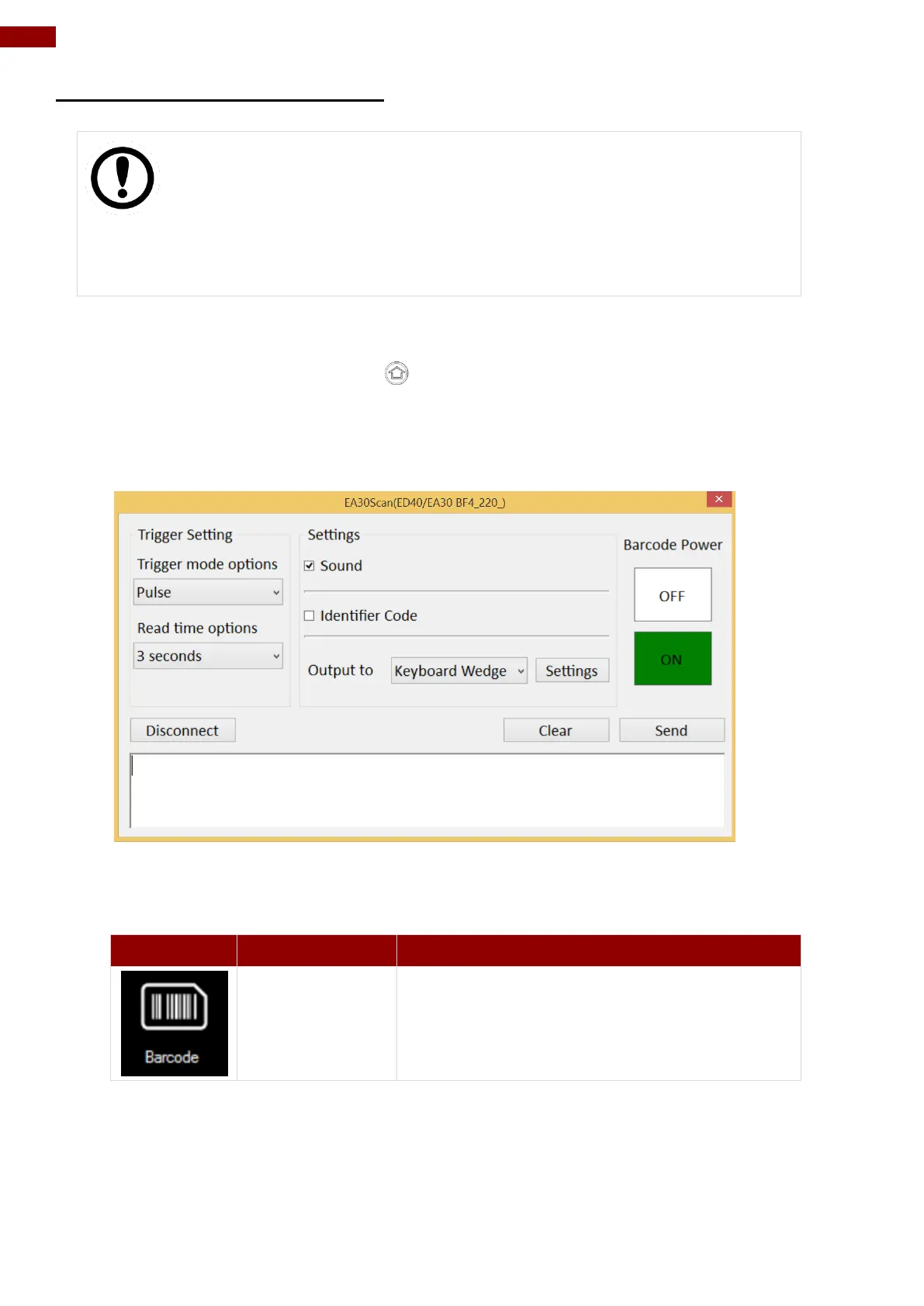
2. Choose “Device ON/OFF” and click on “Barcode”, and the setting utility will show up as
below:
3. Tap on the ON button.
4. Check the status color of the ON button is green, and the status color of the Barcode icon
on the Hottab menu is orange at the same time.
Barcode Reader is enabled. Reading will need
to be triggered manually thru Fn button.
Barcode Reader is disabled.
5. Open the application where barcode reader will be displaying the scanned barcode.
6. Trigger the barcode reader by pressing Fn2 function key.



 To Next Page