Chapter 4: Operating the Device
4.3 Camera
Using Camera Features
This Hottab menu option allows users take a picture or record a video. Before use, make sure the
Camera is powered on under Devices ON/OFF menu with the following scenarios:
1. Open the Hottab utility by press the (Menu) Button located on the front panel, OR
launching the Hottab Utility application.
2. Tap on "Device ON/OFF" button to check the built-in devices status.
3. Check the status color of the Camera icon:
4. If the Camera feature is disabled (white), tap on the Camera icon to enable it (orange).
5. Go back to the Hottab main menu by pressing the (Menu) Button located on the front
panel OR click on the back arrow on top.
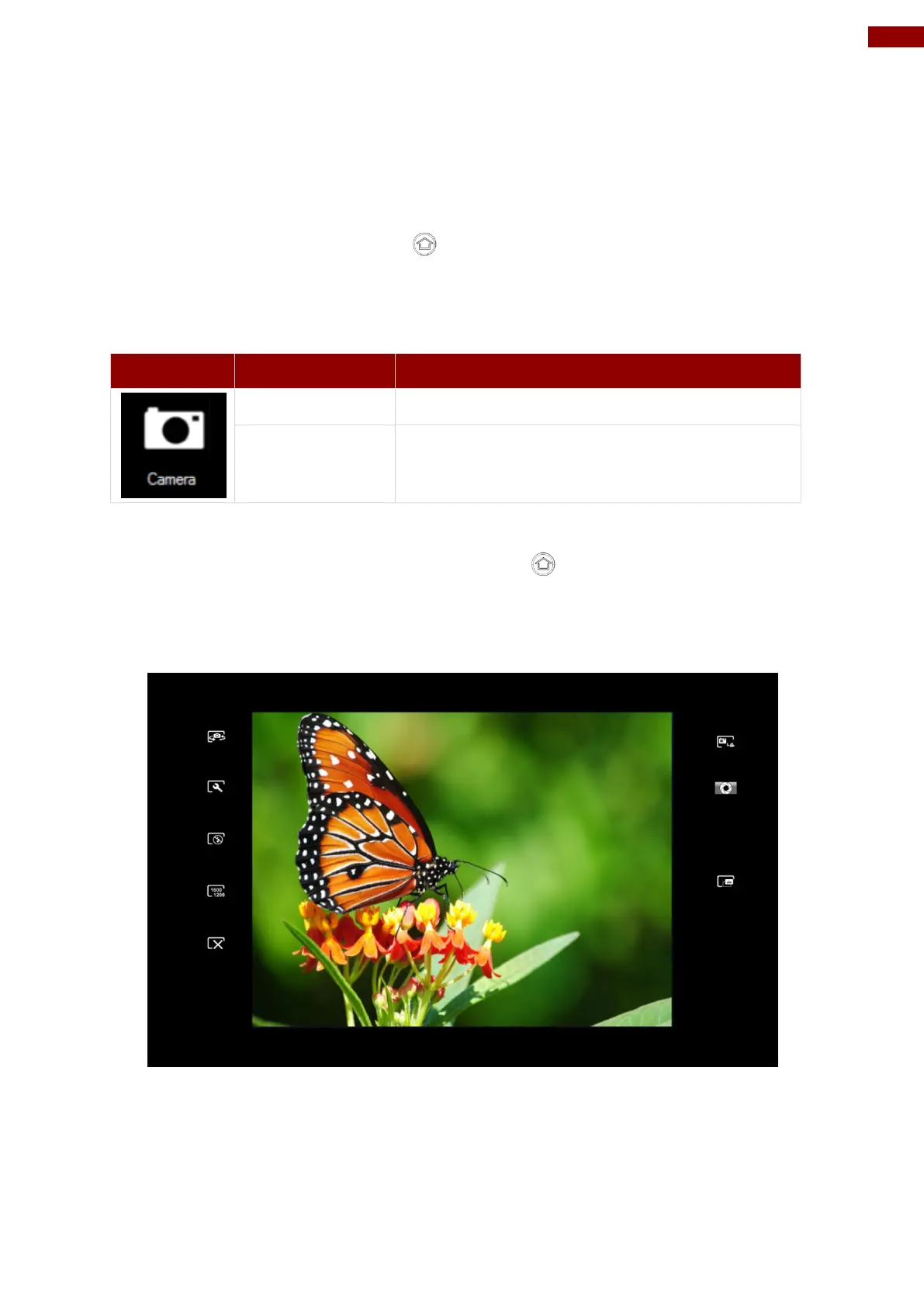
6. Tap on the Camera icon to go into the Camera menu. The Camera user interface will take
up the entire screen as shown below:



 To Next Page