Rugged Windows Tablet M101B/ M101BL User Guide
4.4.2 Using Wireless WAN (3G/LTE)
For tablets equipped with wireless WAN (3G or 4G/LTE) card. Install SIM-card first.
To use the wireless WAN feature to connect to the network, perform the following procedure:
1. Open the Hottab utility by press the (Menu) Button located on the front panel, OR
launching the Hottab Utility application.
2. Tap on the Device ON/OFF button.
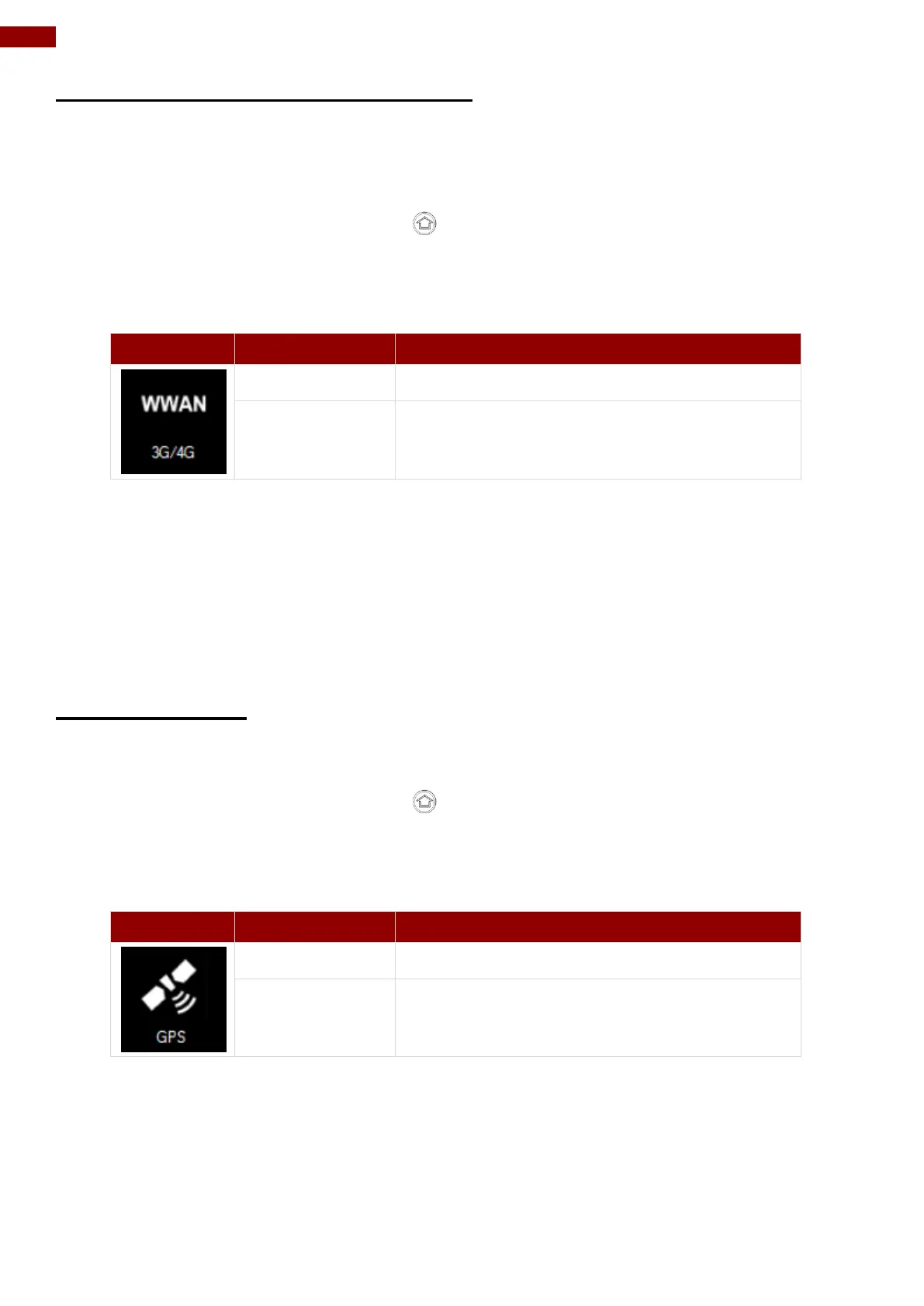
3. Check the status color of the WWAN icon:
WWAN (3G/4G) is disabled.
4. If the WWAN feature is disabled (white), tap on the WWAN icon to enable it (orange).
5. You can check the wireless WAN connection status through the wireless network
connection status icon in the Windows notification area. The more bars encompassed, the
better the signal is.
Note: For the Windows 7 operating system, you also can check the Access Connections
gauge, the Access Connections status icon, or the Access Connections wireless status icon
in the Windows notification area.
4.4.3 Using GPS
To enable the wireless GPS feature, perform the following procedure:
1. Open the Hottab utility by press the (Menu) Button located on the front panel, OR
launching the Hottab Utility application.
2. Tap on the Device ON/OFF button.
3. Check the status color of the GPS icon:
4. If the GPS feature is disabled (white), tap on the GPS icon to enable it (orange).
5. Now the GPS feature is ready to be used with an application utilizing the GPS.



 To Next Page