EasyManua.ls Logo

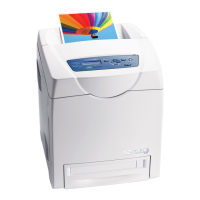
Xerox Phaser 6120 - User Manual

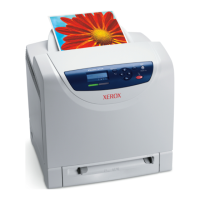
Xerox Phaser 6120
174 pages
Print Icon
To Next Page IconTo Next Page
Loading...
Användarhandbok
Gebruikershandleiding
Guia do Usuário
Guía del usuario
Benutzerhandbuch
Guida dell'utente
Guide d’utilisation
color laser printer
User Guide
www.xerox.com/office/support
Phaser
®
6120

Table of Contents

Other manuals for Xerox Phaser 6120

Questions and Answers

  • C
    Catherine DavisAug 18, 2025
    What to do if my Xerox Phaser 6120 power is not on?
    • C
      Cindy SingletonAug 18, 2025
      First, ensure the power cord is correctly plugged into the outlet. If it is, try plugging another electrical appliance into the same outlet to see if it works. Also, check that the power switch is in the on (I) position. If the issue persists, verify that the printer is connected to a power source matching the printer's specifications.
  • J
    jamesthorntonAug 20, 2025
    How to fix Xerox Phaser 6120 when media is misfeeding?
    • A
      angela72Aug 20, 2025
      First, remove the misfed media and reposition the media properly in the tray. Ensure that you are not exceeding the maximum number of sheets allowed in the tray. Adjust the media guides to match the media size. If you are using warped or wrinkled media, smooth it out or replace it. Also, if the media is moist, replace it with dry media. Special media must be loaded in Tray 1 only. Ensure that transparencies or label sheets are loaded according to the manufacturer's instructions and envelopes are loaded with the flaps facing down.
  • D
    Derrick RamirezAug 23, 2025
    What to do if my Xerox Phaser 6120 is printing blank pages?
    • B
      Bryan FitzpatrickAug 23, 2025
      Check the toner cartridges to make sure they are not empty or defective. If a cartridge is empty, the image will not print. Also, verify that the media type set in the driver matches the media loaded in the printer.
  • D
    David MartinezAug 26, 2025
    What to do if the paper jam message stays on Xerox Printer?
    • M
      Michael SilvaAug 26, 2025
      Open and close the top cover of the printer again to reset it. Also, recheck the media path to ensure all jammed paper has been removed.
  • P
    Philip BurnsAug 28, 2025
    Why does my Xerox Phaser 6120 keep resetting or turning off?
    • D
      Derek PopeAug 28, 2025
      Ensure the power cord is correctly plugged into the outlet. If the problem persists, contact your local Xerox service representative with the error information, as a system error may have occurred.
  • P
    Philip FullerAug 30, 2025
    What to do if several sheets go through my Xerox Printer together?
    • C
      Crystal OwensAug 30, 2025
      Make sure the front edges of the media are even. Remove the media, even up the front edges, and then reload it. If the media is moist, replace it with new, dry media. Also, avoid fanning transparencies, as this can cause static electricity.
  • E
    Emily BurgessSep 2, 2025
    What to do if my Xerox Phaser 6120 Printer duplex unit jams?
    • L
      Lauren HayesSep 2, 2025
      Use Xerox-approved media. Recheck the media path inside the duplex unit and remove all jammed paper.
  • S
    Seth PetersonSep 5, 2025
    Why does my Xerox Printer take too much time to print?
    • B
      Brandy BassSep 5, 2025
      If the printer is set to a slow printing mode for special media, it will take longer. Ensure the media type is set properly in the driver when using regular paper. Printing may also take longer if the printer is in power saving mode. Complex jobs also require more time. Insufficient printer memory and unapproved toner cartridges can also cause delays; add more memory or install an approved toner cartridge.
  • L
    lauraguzmanSep 7, 2025
    What to do if my Xerox Printer media is wrinkled?
    • R
      ronald69Sep 7, 2025
      Replace the moist media with new, dry media if humidity or water spillage is the cause. Check the media feed roller or fuser unit for damage. Use Xerox-approved media. Before printing envelopes, place both green fuser separator levers in the envelope position.
  • D
    David RobersonSep 9, 2025
    What to do if I hear unusual noises from my Xerox Printer?
    • J
      Jasmine DavisSep 9, 2025
      Ensure the printer is on a flat, hard, level surface. Remove the tray and reinsert it completely. If there is a foreign object stuck inside, turn off the printer and remove it. If you cannot remove it, contact Technical Support.

Summary

Network Printing

Network Connection

Explains how to connect the printer to a TCP/IP network environment.

About the Software

Selecting Driver Options;Defaults (for Windows)

Guides on configuring printer driver settings for Windows OS.

Printer Control Panel and Configuration Menu

PAPER MENU

Settings for managing media loaded in the printer trays.

QUALITY MENU

Settings for controlling print quality and toner management.

Using Media

Replacing Supplies

Replacing Consumables

Information about replacing printer consumables, specifically toner.

Replacing a Toner Cartridge

Detailed step-by-step instructions for replacing toner cartridges.

Replacing Routine Maintenance Items

Procedures for replacing routine maintenance components.

Maintaining the Printer

Cleaning the Printer

General precautions and guidelines for cleaning the printer.

Troubleshooting

Clearing Paper Jams

General procedures and warnings for clearing paper jams.

Solving Problems with Paper Jams

Troubleshooting table for common paper jam symptoms, causes, and solutions.

Solving Other Problems

Troubleshooting table for various printer issues like power, control panel, and page printing.

Solving Problems with Printing Quality

Troubleshooting table for print quality issues like blank pages, density, and smudges.

Status, Error, and Service Messages

Explains status, warning, operator call, and service messages.

Installing Options

Antistatic Protection

Crucial safety instructions for preventing electrostatic damage to printer components.

Appendix A

User Safety Summary

Comprehensive safety guidelines for operating and maintaining the printer.

Xerox Phaser 6120 Specifications

General IconGeneral
ColorYes
Print technologyLaser
Time to first page (black, normal)13 s
Time to first page (color, normal)22 s
Print speed (black, normal quality, A4/US Letter)20 ppm
Print speed (color, normal quality, A4/US Letter)5 ppm
Internal memory128 MB
Processor model300 MHz, 32 bit RISC
Maximum print size210 x 297 mm
Maximum ISO A-series paper sizeA4
I/O portsUSB
Power requirements200 – 240 VAC / 100 – 127 VAC 50/60 Hz
Networking featuresEthernet/Fast-Ethernet
Non-operating relative humidity (non-condensing)10 - 85 %
Total input capacity200 sheets
Maximum input capacity500 sheets
Printer fontsPostScript
Maximum duty cycle35000 pages per month
Number of PostScript fonts139
Power consumption (printing)380 W
Storage temperature (T-T)-20 - 40 °C
Operating temperature (T-T)10 - 32 °C
Operating relative humidity (H-H)10 - 80 %
Weight and Dimensions IconWeight and Dimensions
Dimensions (WxDxH)442 x 395 x 341 mm

Related product manuals