Control Center & Flexikey®
Overview B - 7
B
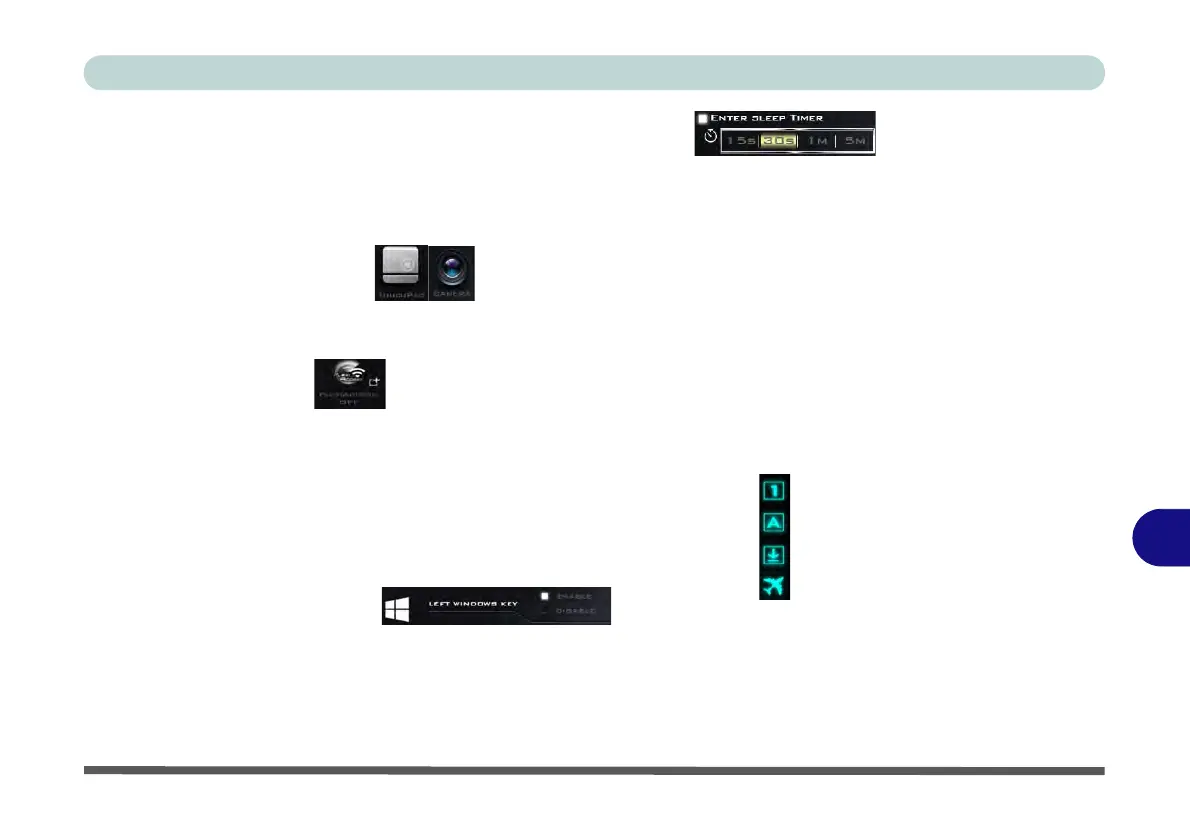
Backlight Keyboard (optional) - Enter Sleep Timer (Device)
Enable and then select the amount of time the system for which
the system is idle before the keyboard LED enters sleep mode (i.e. the LED keyboard illumination will turn off
to save power).
TouchPad/Camera (Device)
Click either of these buttons
to toggle the TouchPad or camera module’s power status. The icon will appear dimmed when it is off
.
Note that the
power status of the camera module is also effected by the
Power Mode
selected (see
Table B - 1, on page B - 3
).
FlexiAccess (Device)
Click the button to run the FlexiAccess application in conjunction with your overclocked GPU (see “Flexikey®
Application” on page B - 21). Mouse over the small icon on the right to get the QR Code for the FlexiAccess
Android App (see “FlexiAccess Application” on page B - 19).
Caps Lock/Scroll Lock/ Number Lock/Airplane Mode
Click the button to toggle the appropriate lock mode and Airplane Mode.
Left Windows Key (Gaming)
Click Disable to disable the Windows Key on the left side of the keyboard. This may be useful if you are using
the gaming keys (W, A, S & D) and wish to avoid accidentally triggering menus with the Windows Key.


 To Next Page