Storage Devices, Mouse, & Audio
2 - 4 Audio Features
2
Audio Features
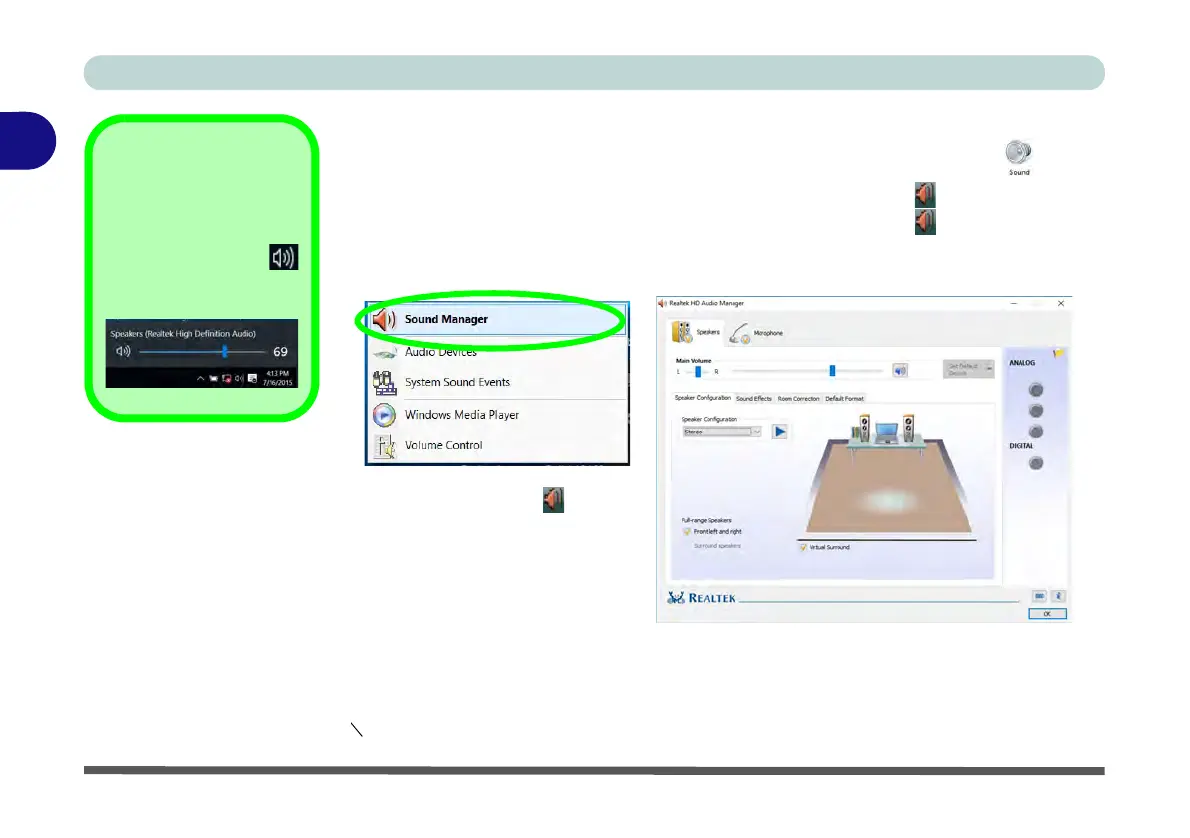
You can configure the audio options on your computer from the Sound control
panel in Windows, or from the Realtek HD Audio Manager icon in the notifi-
cation area/control panel (right-click the notification area icon to bring up an au-
dio menu and select Sound Manager). The volume may also be adjusted by means
of the Fn + F5/F6 key combination (see Table 1 - 5, on page 1 - 20).
Volume Adjustment
The sound volume level
can be clicking using the
volume control icon
in the notification area
of the taskbar.
Figure 2 - 2
Realtek Audio
Manager
See “HDMI Audio Configuration” on page C - 9 for a description of the audio configuration
when connecting an HDMI supported display device.
See Sound Blaster Audio (“Setup for External Speakers/Headphones” on page 6 - 48)
for information on configuring the audio for the best sound balance when using external speak-
ers/headphones.
Right-click the icon to ac-
cess the menu above, and then
select Sound Manager.



 To Next Page