Storage Devices, Mouse, & Audio
2 - 8 Audio Features
2
Setup for Audio Devices - 2-In-1 Audio Jack
To connect either headphones or speakers to the 2-In-1 Audio jack follow the in-
structions below:
1. Plug either the headphones or speakers in to the 2-In-1 Audio jack .
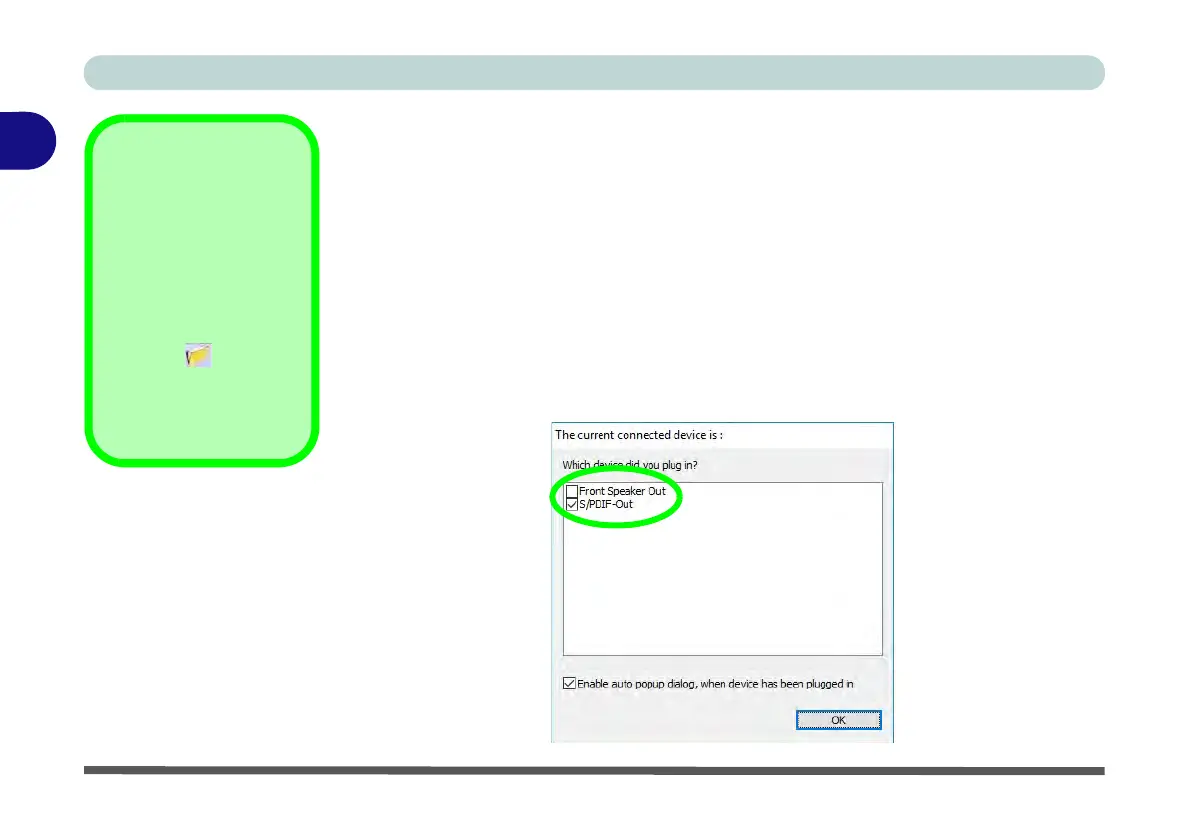
2. When the pop-up menu appears make sure you select S/PDIF-Out by putting a
check in the box alongside it and clicking OK (failure to do so may result in sound
coming through the connected
headphones/speakers
and the internal speakers at
the same time).
3. To make sure the pop-up menu appears see sidebar.
4. See Sound Blaster Audio (“Setup for External Speakers/Headphones” on
page 6 - 48) for information on configuring the audio for the best sound balance
when using external speakers/headphones.
Auto Pop-Up Dialog
You should enable the
auto pop-up dialog to
automatically detect
when a device has been
plugged-in. If disabled,
double-click connector
settings and click
the box to enable the
auto pop-up detection of
plugged-n devices.
Figure 2 - 5
Pop-Up Menu for
Audio Devices



 To Next Page