1 - 34 Video Features
Quick Start Guide
1
Microsoft Hybrid Graphics Or Discrete Graphics Mode
Your computer features a dedicated Discrete Graphics Mode, and a Microsoft Hybrid Graphics Mode fea-
turing switchable graphics technology.
Microsoft Hybrid Graphics Mode - This seamless technology is designed to get best performance from the
graphics system while allowing longer battery life, without having to manually change settings. The computer’s
operating system (and some applications) will automatically switch between the integrated GPU and the dis-
crete GPU when required by the applications in use. This switch is seamless to the user (see Appendix C).
MSHybrid mode is selected by default. To configure displays in Hybrid mode use the Intel HD Graphics Con-
trol Panel (see page C - 36).
Discrete Graphics Mode - Discrete Graphics Mode will use the dedicated Graphics Processing Unit (GPU)
which is more powerful, and therefore more suitable for playing games, watching HD video or running GPU-
based applications. To configure displays in Discrete mode use the NVIDIA Control Panel (see page C - 5).
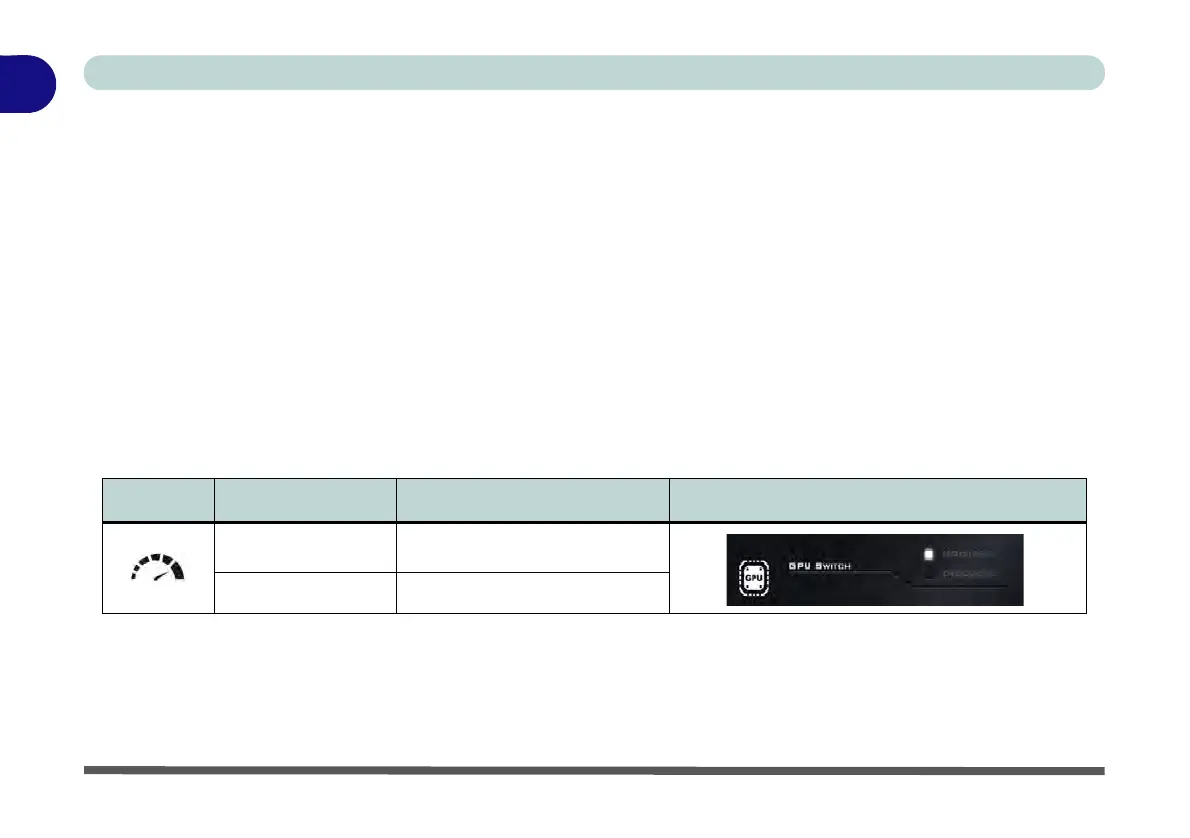
Table 1 - 6 - GPU Mode LED Indicator
You can choose either Discrete Mode or MSHybrid mode by selecting the appropriate option from GPU
Switch in the Control Center, or in the BIOS (see page B - 8 or page 5 - 9). You will need to restart the system
after making changes to the selected graphics mode.
Icon Color Graphics Mode GPU Switch Button (Control Center)
Off MSHYBRID Mode
Green Discrete Mode


 To Next Page