Storage Devices, Mouse, & Audio
Audio Features 2 - 5
2
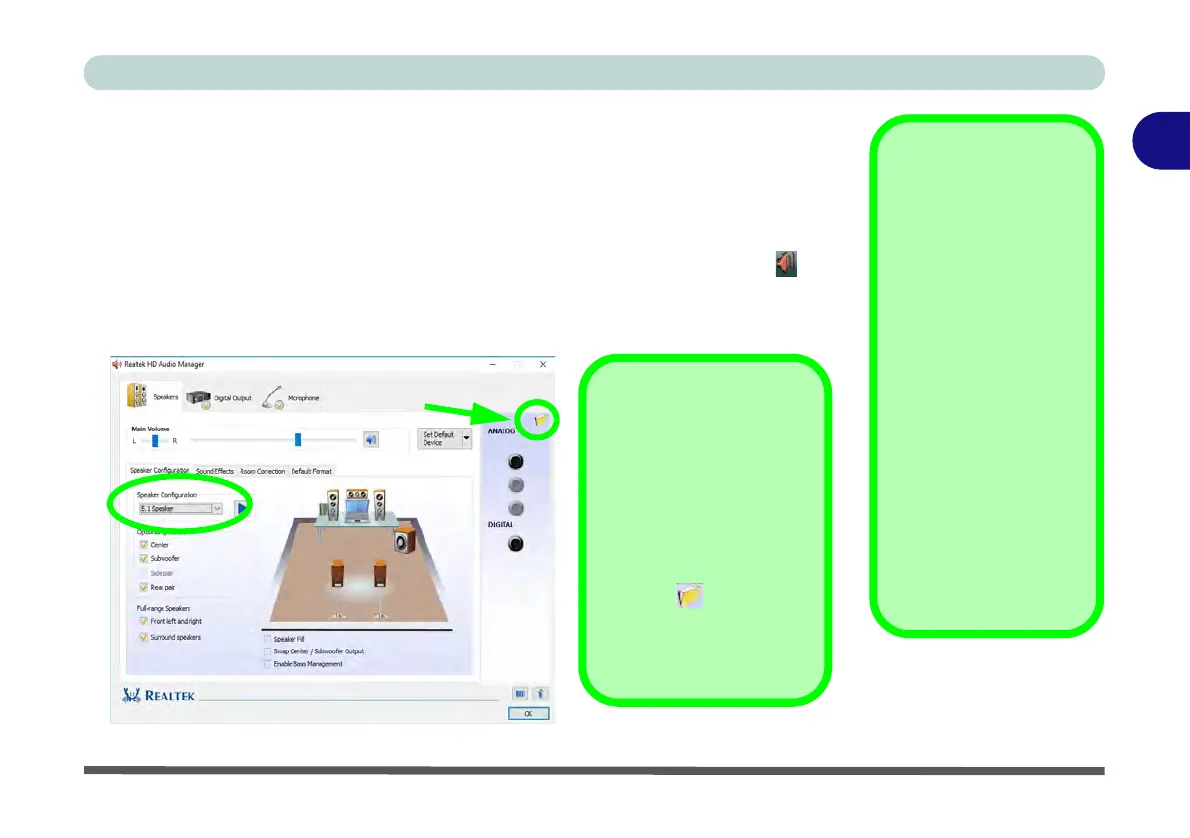
Setup for 5.1 Surround Sound
To setup your system for 5.1 surround sound you will need to connect the audio ca-
bles to the 2-In-1Audio, Microphone-In and Headphone-Out jacks.
1. Click
Start
, and click
Control Panel
(or point to
Settings
and click
Control Panel
)
and make sure you are in
Classic View
.
2. Click Realtek HD Audio Manager (or right-click the notification area icon and
select Sound Manager).
3. Click Speakers (tab) and click Speaker Configuration (tab).
4. Select 5.1 Speaker from the Speaker Configuration pull-down menu.
Volume Adjustment
The sound volume level
is set using the volume
control within Windows
(and the volume func-
tion keys on the comput-
er). Click the volume
icon in the notification
area to check the set-
ting.
Headphone
Configuration
It is recommended that
you set the Speaker
Configuration to Ste-
reo (not to 5.1 Speaker)
when listening through
headphones in order to
maximize audio quality.
Figure 2 - 3
Realtek Audio
Manager - Speakers
5.1 Surround
Auto Popup Dialog
You should enable the
auto popup dialog to au-
tomatically detect when a
device has been
plugged-in. If disabled,
double-click connector
settings and click the
box to enable the auto
popup detection of
plugged-n devices.
Connector Settings



 To Next Page