❑ Using the WPS PIN code
If you select “PIN Code” as the connection method, the list of
available access points appears on the TV screen.
1
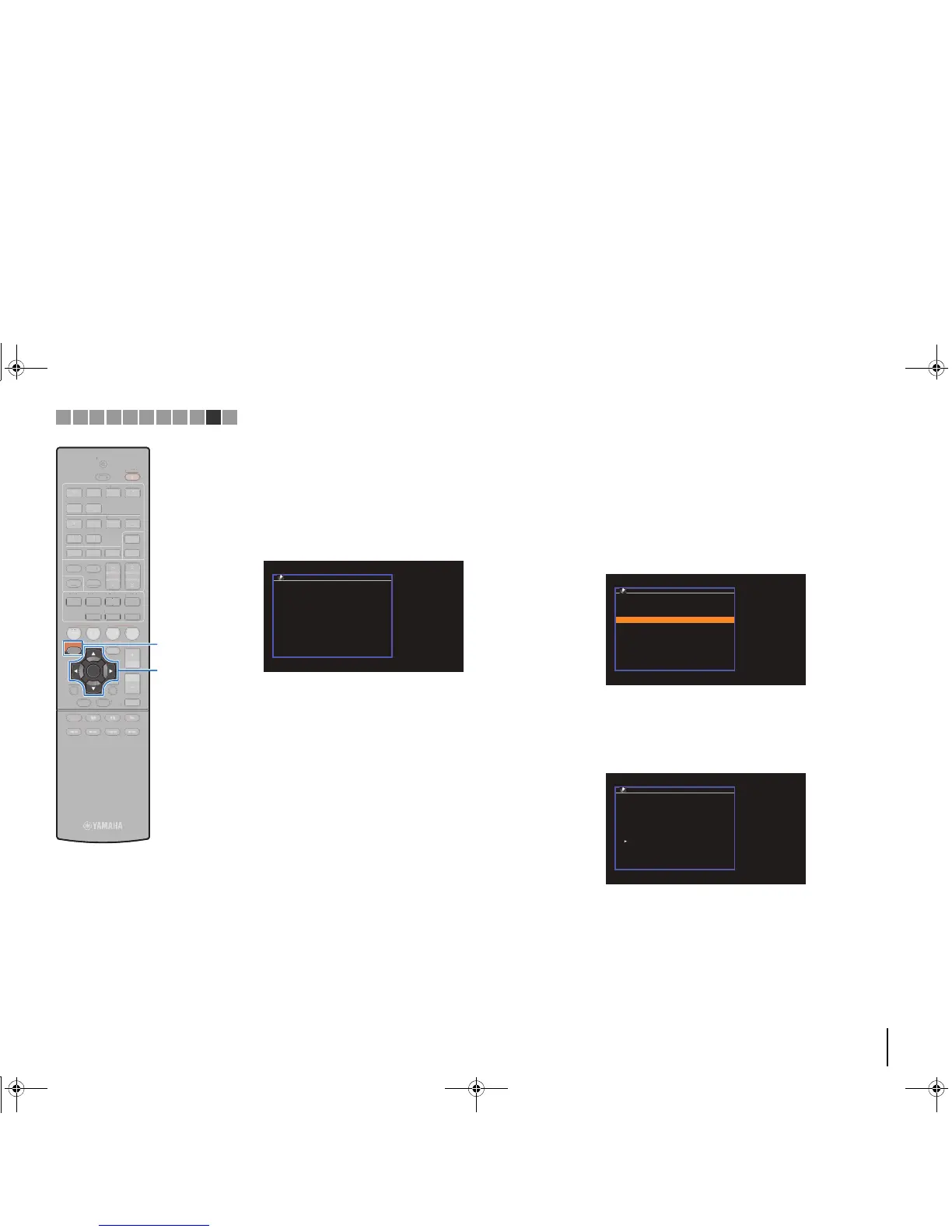
Use the cursor keys (q/w) to select the desired
access point and press ENTER.
The PIN code of the unit appears on the TV screen.
2
Enter the unit’s PIN code into the wireless router
(access point).
For details on settings, refer to the instruction manual of the
wireless router (access point).
3
Press ENTER to start the connection process.
When the connection process finishes, “Completed”
appears on the TV screen.
If “Not connected” appears, repeat from step 1 or try
another connection method.
4
To exit from the menu, press SETUP.
❑ Searching for an access point
If you select “Access Point Scan” as the connection method, the
unit starts searching for access points. After a while, the list of
available access points appears on the TV screen.
1
Use the cursor keys (q/w) to select the desired
access point and press ENTER.
The wireless connection setting screen appears on the TV.
2
Press ENTER.
3
Use the cursor keys and ENTER to enter the
security key.
Button functions
[←]/[→]: Moves the cursor left and right.
[Aa]: Switches the letter cases (upper/lower).
[BKSP]: Deletes the character to the left of the selected one.
[Space]: Enters a space.
[DEL]: Deletes the selected character.
When finished entering the key, select “OK” to return to the
previous screen.
Network Connection
OK
CANCEL
CLEAR
abc_
( ) [ ] { } < > * ! ? # % &
. , : ; _ | / \ $ ~^´ ’ `
0 1 2 3 4 5 6 7 8 9 + - =
← Aa BKSP Space DEL →
a b c d e f g h i j k l m
n o p q r s t u v w x y z


 To Next Page