EasyManua.ls Logo

Yamaha RX5 - Page 33

Yamaha RX5
81 pages
Print Icon
To Next Page IconTo Next Page
To Previous Page IconTo Previous Page
Loading...
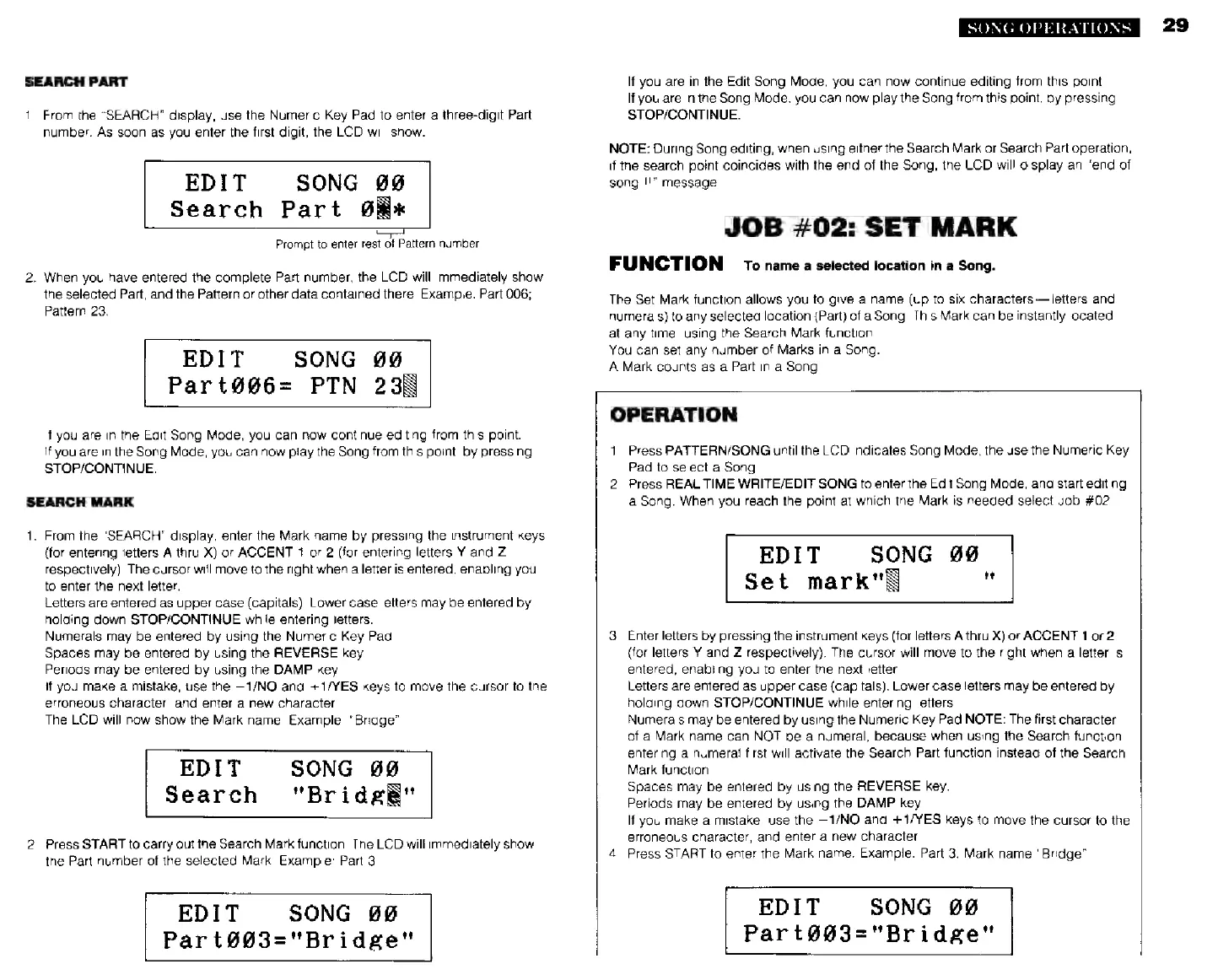
SEARCH
PART
1.
From
the
"SEARCH"
display,
use
the
Numeric
Key
Pad
to
enter
a
three-digit
Part
number.
As
soon
as
you
enter
the
first
digit,
the
LCD
will
show.
EDIT SONG
8468
Search
Part
08&*
Prompt
to
enter
rest
of
Pattern
number
2.
When
you
have
entered
the
complete
Part
number,
the
LCD
will
immediately
show
the
selected
Part,
and
the
Pattern
or
other
data
contained
there.
Example:
Part
006;
Pattern
23.
EDIT
SONG
00
Part@@6=
РТМ
235
you
are
in
the
Edit
Song
Mode,
you
can
now
continue
editing
from
this
point.
If
you
are
in
the
Song
Made,
you
can
now
play
the
Song
from
this
point,
by
pressing
STOP/CONTINUE.
SEARCH
MARK
1.
From
the
"SEARCH"
display,
enter
the
Mark
name
by
pressing
the
instrument
keys
(for
entering
letters
A
thru
X)
or
ACCENT
t
or
2
(for
entering
letters
Y
and
Z
respectively).
The
cursor
will
move
to
the
right
when
a
letter
is
entered,
enabling
you
to
enter
the
next
letter.
Letters
are
entered
as
upper
case
(capitals).
Lower
case
letters
may
be
entered
by
holding
down
STOP/CONTINUE
while
entering
letters.
Numerals
may
be
entered
by
using
the
Numeric
Key
Pad
Spaces
may
be
entered
by
using
the
REVERSE
key.
Periods
may
be
entered
by
using
the
DAMP
key.
if
you
make
a
mistake,
use
the
—1/NO
and
+1/YES
keys
to
move
the
cursor
to
the
erroneous
character,
and
enter
a
new
character.
The
LCD
will
now
show
the
Mark
name.
Example:
"Bridge".
EDIT
Search
SONG
99
"Bri
age"
.
Press
START
to
carry
out
the
Search
Mark
function.
The
LCD
will
immediately
show
the
Part
number
of
the
selected
Mark.
Example:
Part
3.
EDIT
SONG
68
Par
t@@3="Bridge"
SONG
OPERATIONS
If
you
are
in
the
Edit
Song
Mode,
you
can
now
continue
editing
from
this
point.
If
you
are
in
the
Song
Mode,
you
can
now
play
the
Song
fram
this
point,
by
pressing
STOP/CONTINUE.
NOTE:
During
Song
editing,
when
using
either
the
Search
Mark
or
Search
Part
operation,
if
the
search
point
coincides
with
the
end
of
the
Song,
the
LCD
will
display
an
“end
of
song
!!"
message
JOB
#02:
SET
MARK
FUNCTION
то
name
a
selected
location
in
а
Song.
The
Set
Mark
function
allows
you
to
give
a
name
(up
to
six
characters
letters
and
numerals)
to
any
selected
location
(Part)
of
a
Song.
This
Mark
can
be
instantly
located
at
any
time,
using
the
Search
Mark
function.
You
can
set
any
number
of
Marks
in
a
Song.
A
Mark
counts
as
a
Part
in
a
Song
OPERATION
1.
Press
PATTERN/SONG
until
the
LCD
indicates
Sang
Mode,
the
use
the
Numeric
Key
Pad
to
select
a
Song.
2.
Press
REAL
TIME
WRITE/EDIT
SONG
to
enter
the
Edit
Song
Mode,
and
start
editing
a
Song.
When
you
reach
the
point
at
which
the
Mark
is
needed
select
Job
402
EDIT
SONG
909
Set
mark"E
"
3.
Enter
letters
by
pressing
the
instrument
keys
(for
letters
A
thru
X)
or
ACCENT
1
or
2
(for
letters
Y
and
Z
respectively).
The
cursor
will
move
to
the
right
when
a
letter
is
entered,
enabling
you
to
enter
the
next
letter.
Letters
are
entered
as
upper
case
(capitals).
Lower
case
letters
may
be
entered
by
holding
down
STOP/CONTINUE
while
entering
letters
Numerals
may
be
entered
by
using
the
Numeric
Key
Pad
NOTE:
The
first
character
of
a
Mark
name
can
NOT
be
a
numeral,
because
when
using
the
Search
function,
entering
a
numerat
first
will
activate
the
Search
Part
function
instead
of
the
Search
Mark
function.
Spaces
may
be
entered
by
using
the
REVERSE
key.
Periods
may
be
entered
by
using
the
DAMP
key.
If
you
make
a
mistake,
use
the
—1/NO
and
+1/YES
keys
to
move
the
cursor
to
the
erroneous
character,
and
enter
a
new
character.
4.
Press
START
to
enter
the
Mark
name.
Example:
Part
3,
Mark
name
"Bridge".
EDIT
SONG
99
Part693z"Bridge"