EasyManua.ls Logo

Yamaha RX5 - Page 41

Yamaha RX5
81 pages
Print Icon
To Next Page IconTo Next Page
To Previous Page IconTo Previous Page
Loading...
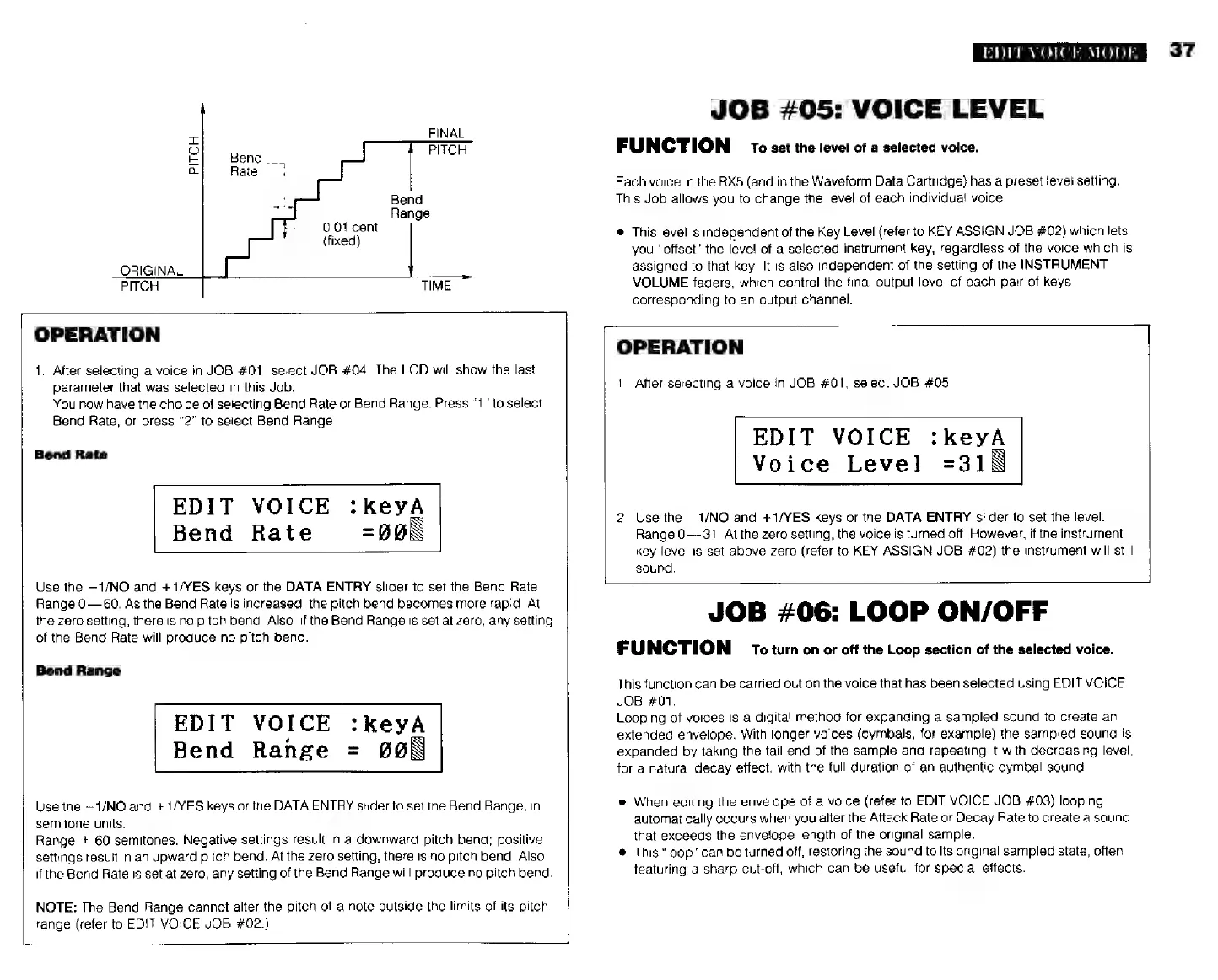
PITCH
Bend
Range
----
0.01
cent
(fixed)
ORIGINAL
-
PITCH
TIME
OPERATION
1.
After
selecting
a
voice
in
JOB
#01,
select
JOB
#04.
The
LCD
will
show
the
last
parameter
that
was
selected
in
this
Job.
You
now
have
the
choice
of
selecting
Bend
Rate
or
Bend
Range.
Press
“1”
to
select
Bend
Rate,
or
press
“2”
to
select
Bend
Range.
Bend
Rate
EDIT
VOICE
:keyA
Bend
Rate
=96N
Use
the
—1/NO
and
+1/YES
keys
or
the
DATA
ENTRY
slider
to
set
the
Bend
Rate.
Range
0—
60.
As
the
Bend
Rate
is
increased,
the
pitch
bend
becomes
more
rapid.
At
the
zero
setting,
there
is
no
pitch
bend.
Also,
if
the
Bend
Range
is
set
at
zero,
any
setting
of
the
Bend
Rate
will
produce
no
pitch
bend.
Bend
Range
EDIT
VOICE
:keyA
Bend
Range
=
#88
Use
the
—1/NO
and
+
1/YES
keys
or
the
DATA
ENTRY
slider
to
set
the
Bend
Range,
in
semitone
units.
Range
+
60
semitones.
Negative
settings
result
in
a
downward
pitch
bend;
positive
settings
resuit
in
an
upward
pitch
bend.
At
the
zero
setting,
there
is
no
pitch
bend.
Also,
ifthe
Bend
Rate
is
set
at
zero,
any
setting
of
the
Bend
Range
will
produce
no
pitch
bend.
NOTE:
The
Bend
Range
cannot
alter
the
pitch
of
a
note
outside
the
limits
of
its
pitch
range
(refer
to
EDIT
VOICE
JOB
#02.)
JOB
#05:
VOICE
LEVEL
FUNCTION
то
set
the
level
of
a
selected
volce.
Each
voice
in
the
RX5
(and
in
the
Waveform
Data
Cartridge)
has
à
preset
level
setting.
This
Job
allows
you
to
change
the
level
of
each
individual
woice.
*
This
level
is
independent
of
the
Key
Level
(referto
KEY
ASSIGN
JOB
$02)
which
lets
you
"offset"
the
level
of
a
selected
instrument
key,
regardless
of
the
voice
which
is
assigned
to
that
key.
It
is
also
independent
of
the
setting
of
the
INSTRUMENT
VOLUME
faders,
which
control
the
final
output
level
of
each
pair
of
keys
corresponding
to
an
output
channel.
EDIT
VOICE
MODE
OPERATION
1.
After
selecting
a
voice
in
JOB
#01,
select
JOB
#05.
EDIT
VOICE
:keyA
Voice
Level
=31Ё
2.
Use
the
1/NO
and
+
1/YES
keys
or
the
DATA
ENTRY
slider
to
set
the
level.
Range
0
31.
At
the
zero
setting,
the
voice
is
turned
off.
However,
if
the
instrument
key
level
is
set
above
zero
(refer
to
KEY
ASSIGN
JOB
#02)
the
instrument
will
still
sound.
JOB
#06:
LOOP
ON/OFF
FUNCTION
то
turn
on
or
off
the
Loop
section
of
the
selected
voice.
This
function
can
be
carried
out
on
the
voice
that
has
been
selected
using
EDIT
VOICE
JOB
#01.
Looping
of
voices
is
a
digital
method
for
expanding
a
sampled
sound
to
create
an
extended
envelope.
With
longer
voices
(cymbals,
for
example)
the
sampled
sound
is
expanded
by
taking
the
tail
end
of
the
sample
and
repeating
it
with
decreasing
level,
for
a
natural
decay
effect,
with
the
full
duration
of
an
authentic
cymbal
sound.
*
When
editing
the
envelope
of
a
voice
(refer
to
EDIT
VOICE
JOB
#03)
looping
automatically
occurs
when
you
alter
the
Attack
Rate
or
Decay
Hate
to
create
a
sound
that
exceeds
the
envelope
length
of
the
original
sample.
®
This
"loop"
can
be
turned
off,
restoring
the
sound
to
its
original
sampled
state,
often
featuring
a
sharp
cut-off,
which
can
be
useful
for
special
effects.
37