EasyManua.ls Logo

Yamaha V50 - Changing the Power-On Display; Compatibility with Other Devices Oo; Data Compatibility with Other Devices; Gcartinid Fess Roarai Aa ANE ERE

Yamaha V50
81 pages
Print Icon
To Next Page IconTo Next Page
To Previous Page IconTo Previous Page
Loading...
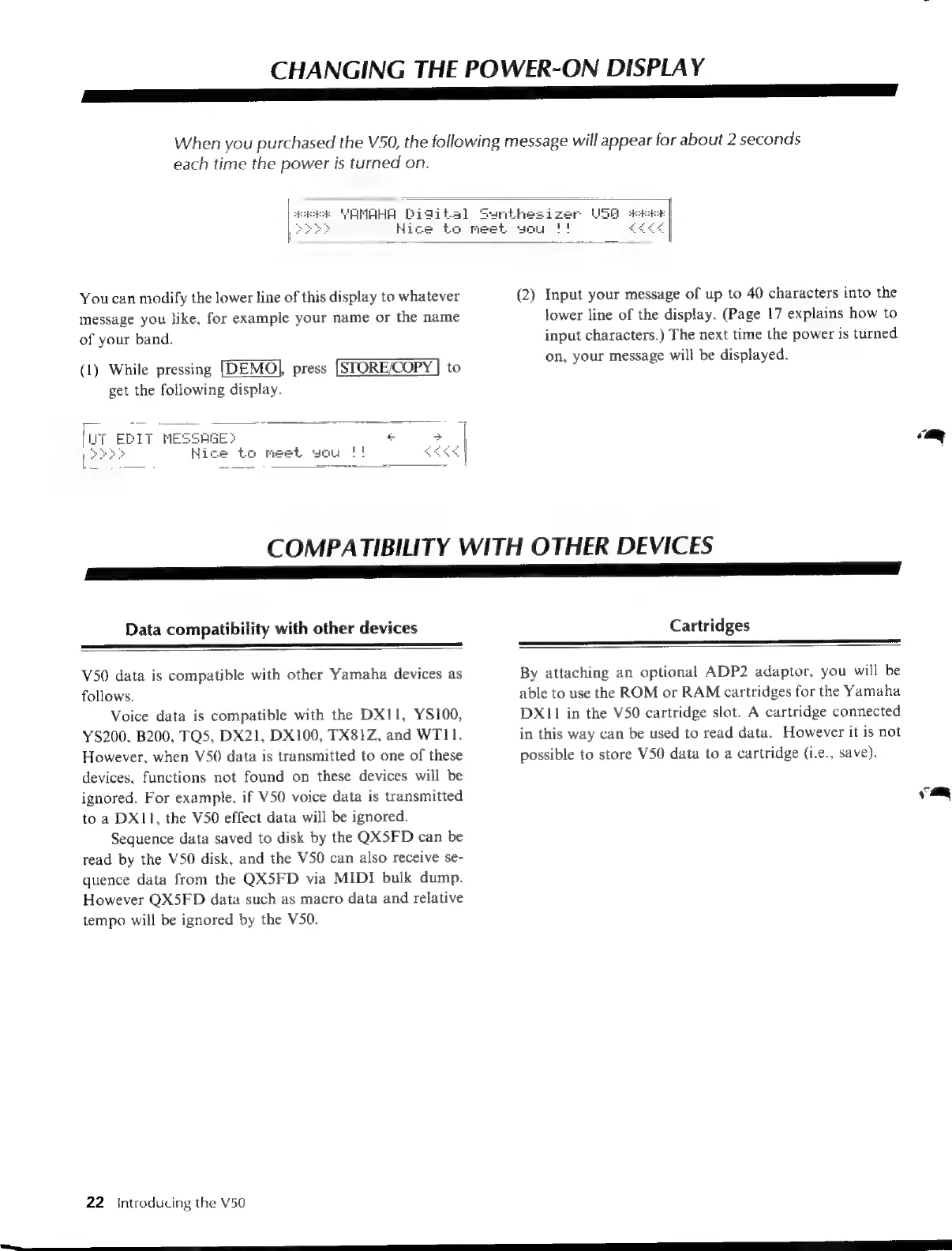
CHANGING
THE
POWER-ON
DISPLAY
a
E
When
you
purchased
the
V50,
the
following
message
will
appear
for
about
2
seconds
each
time
the
power
is
turned
on.
You
can
modify
the
lower
line
of
this
display
to
whatever
message
you
like,
for
example
your
name
or
the
name
of
your
band.
(1)
While
pressing
[DEMO],
press
[STORE/COPY
|
to
get
the
following
display.
[UT
EDIT
MESSAGES
+
Hice
to
meet
ucy
|!
(2)
Input
your
message
of
up
to
40
characters
into
the
lower
line
of
the
display.
(Page
17
explains
how
to
input
characters.)
The
next
time
the
power
is
turned
on,
your
message
will
be
displayed.
COMPATIBILITY
WITH
OTHER
DEVICES
a
O
O
OE
I
a
Data
compatibility
with
other
devices
V50
data
is
compatible
with
other
Yamaha
devices
as
follows.
Voice
data
is
compatible
with
the
DXI1,
YS100,
YS200,
B200,
TQ5,
DX21,
DX100,
TX81Z,
and
WT11.
However,
when
V50
data
is
transmitted
to
one
of
these
devices,
functions
not
found
on
these
devices
will
be
ignored.
For
example,
if
V50
voice
data
is
transmitted
to
a
DXI11,
the
V50
effect
data
will
be
ignored.
Sequence
data
saved
to
disk
by
the
QX5FD
can
be
read
by
the
V50
disk,
and
the
V50
can
also
receive
se-
quence
data
from
the
QX5FD
via
MIDI
bulk
dump.
However
QX5FD
data
such
as
macro
data
and
relative
tempo
will
be
ignored
by
the
V50.
22
=
Introducing
the
V50
Cartridges
By
attaching
an
optional
ADP2
adaptor,
you
will
be
able
to
use
the
ROM
or
RAM
cartridges
for
the
Yamaha
DX11
in
the
V50
cartridge
slot.
A
cartridge
connected
in
this
way
can
be
used
to
read
data.
However
it
is
not
possible
to
store
V50
data
to
a
cartridge
(i.e.,
save).
ee

Table of Contents

Other manuals for Yamaha V50

Related product manuals