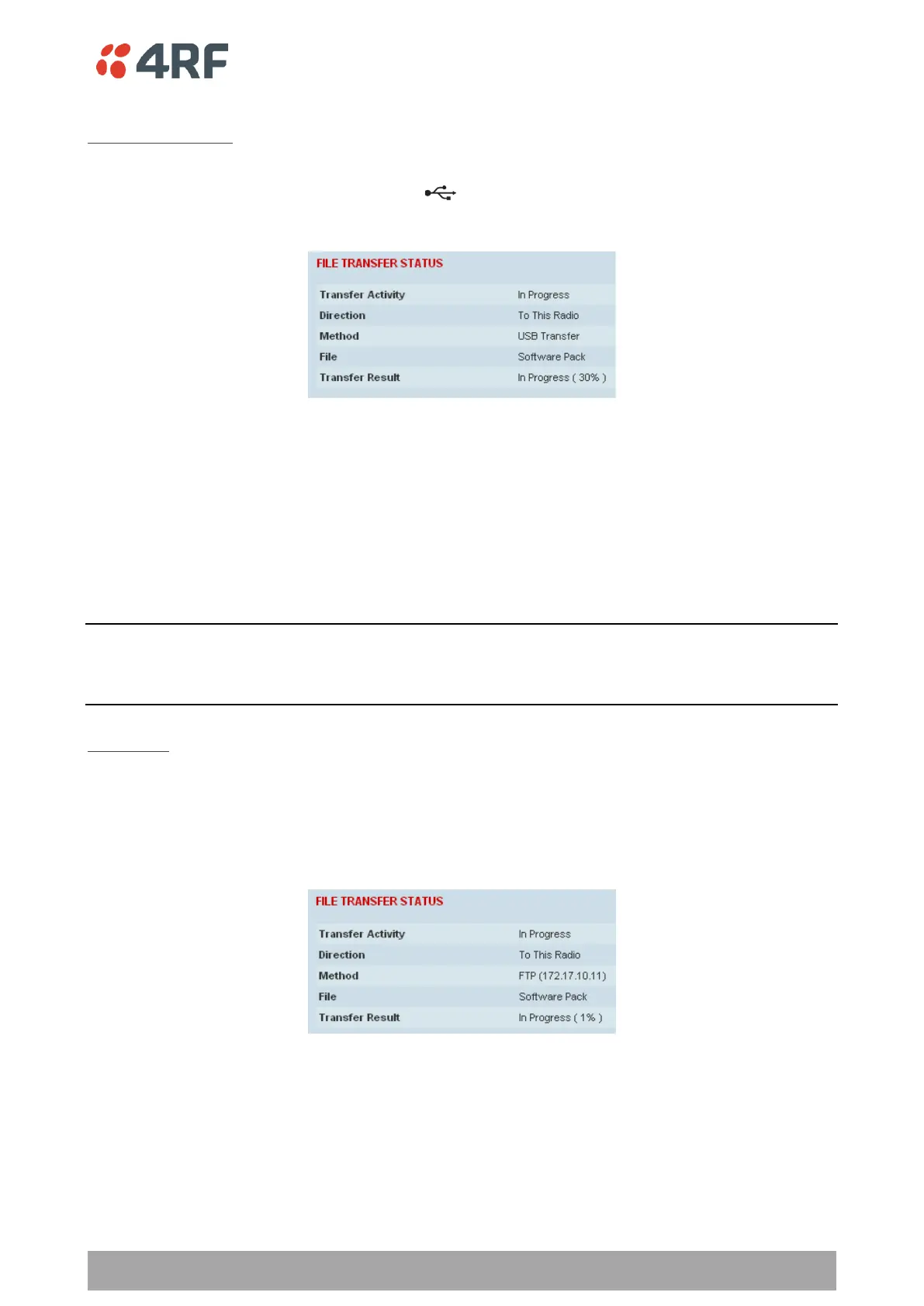
To transfer software into the Aprisa SR+ radio:
USB Transfer Method
1. Unzip the software release files into the root directory of a USB flash drive.
2. Insert the USB flash drive into the host port .
3. Click on ‘Start Transfer’.
4. When the transfer is completed, remove the USB flash drive from the host port. If the SuperVisor ‘USB
Boot Upgrade’ setting is set to ‘Disabled’ (see ‘USB Boot Upgrade’ on page 292), the USB flash drive
doesn’t need to be removed as the radio won’t try to load from it.
Go to Supervisor > Software > Manager and activate the Software Pack (see ‘Software > Manager’ on page
297). The radio will reboot automatically.
If the file transfer fails, check the Event History page (see ‘Events > Event History’ on page 279) for more
details of the transfer.
Note: 4RF radios only support the FAT32 file system for flash drives. If the flash drive is a different format
such as exFAT or NTFS, you will need to reformat it to FAT32.
Also, some brands of USB flash drives may not work with 4RF radios.
FTP Method
1. Unzip the software release files into a temporary directory.
2. Open the FTP server and point it to the temporary directory.
3. Enter the FTP server IP address, Username and password into SuperVisor.
4. Click on ‘Start Transfer’.
Go to Supervisor > Software > Manager and activate the Software Pack (see ‘Software > Manager’ on page
297). The radio will reboot automatically.
If the file transfer fails, check the Event History page (see ‘Events > Event History’ on page 279) for more
details of the transfer.



 To Next Page