Manual Power Quality Filter PQFS The PQF-Manager user interface 91
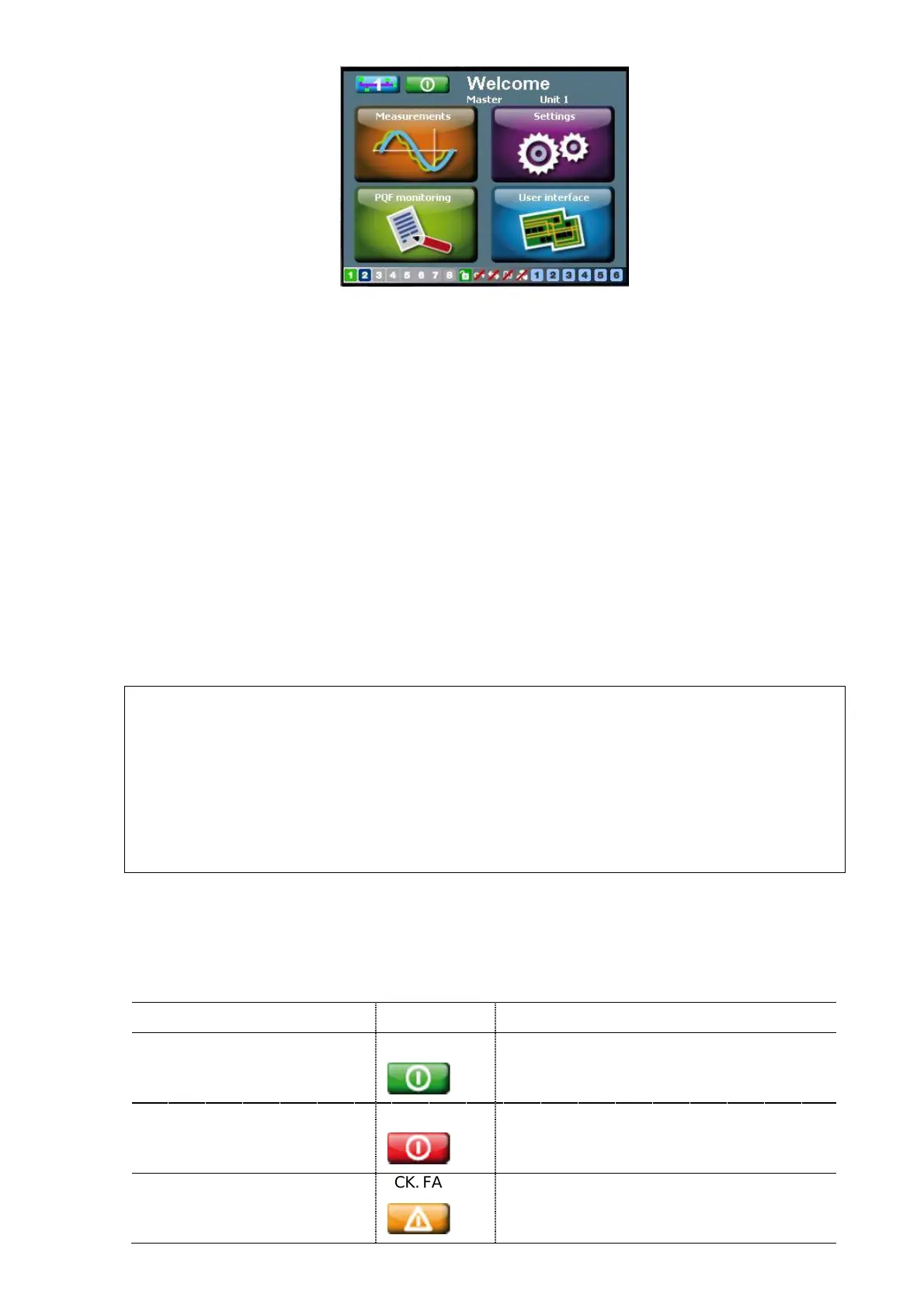
Figure 70 Main screen of the PQF-Manager
7.3 PQF-Manager overview and navigation
All user inter-action with the filter is channeled through the PQF-Manager. It provides for
the following main functions (Cf. Figure 69):
− Filter starting, filter stopping and acknowledgement of faults
− Selection of power module for which the relevant data is displayed
− Measuring, analyzing, logging
− Setting up the filter
− Monitoring the filter load, event logging and status of individual units
− Providing filter identification information
Figure 71 outlines the principle menus that are accessible through the ‘Welcome’ screen.
In a multi master configuration (several master units in parallel in a single filter), the
PQF-Manager on the “Master” unit has all the menus and options active. The PQF-
Manager(s) on the “Slave” unit(s) have different screens in the sense that certain items
(menu, buttons etc.) are “non-active” and may appear “greyed”. In case the maser unit
fails and the next unit in the order takes over as new master (due to redundancy
feature of PQF), the menu of the new master automatically adapts to this new
situation.
7.4 Icons and main screen
Following icons and menu are present on the main screen:
Table 36 Filter status icons
Touching the button results in …
Filter stopped, no critical error
present (i.e. ‘normal’ stop
condition)
Filter running, no critical error
present (i.e. ‘normal’ running
condition)
Filter stopped on critical fault


 To Next Page