19
INSTALLATIONCONFIGURATIONOPERATION
FURTHER
INFORMATION
INDEX
RESTORING A NODE
In order to obtain the full benet of the conguration wizard when creating a new
installation, it may be necessary to restore the default settings to your XDIP nodes.
Note:Arestoreoperationwillresetallcongurationsettingsandcannotbeundone.
A restore operation can be invoked in various ways:
• [Receivers] Display the channel list and then click the icon in the top right corner. If
requested, enter the admin password and then choose the Software Upgrade page.
Click the Restore button:
ADMIN - Software Settings and Upgrade
Receiver 1
Software Settings and Upgrade
General
Bootloader Recovery
ActiveAlternate
v1.00 - 18:15 30/07/17 v1.00 - 18:15 30/07/17
v1.00.0066 - 13:37 30/07/17 v1.0021 - 18:15 19/06/17
Select Upgrade File
Switch to AlternativeVersion
Restore Default Settings
Reboot Node
OSD Settings
Setup Channels
Manage Ports
Advanced
Software Upgrade
RECEIVER
Review the software versions present on this node. Upgrade, switch to the alternative software
version, restore or reboot this node.
Select File Upgrade
Switch
Restore
Reboot
RECOVERY - Software Settings and Upgrade
Review the software versions present on this node. Upgrade,
switch to the alternative software version, restore or reboot this
node.
Bootloader: Recovery:
Preferred: Alternate:
v1.00 - 18:15 30/07/17 v1.00 - 18:15 30/07/17
v1.00 - 18:15 30/07/17 v1.00 - 18:15 30/07/17
Select Upgrade File
Switch to AlternativeVersion
Restore Default Settings
Reboot Node
Select File Upgrade
Switch
Restore
Reboot
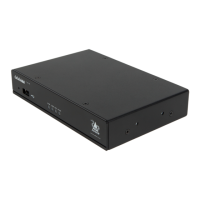
• [Receivers or transmitters] Use a narrow implement
(such as a straightened out paper clip) to press and
hold the recessed reset button on the front panel
(while power is applied) for just over ten seconds
until the front panel PWR indicator ashes; then
release the button and wait for the node to
reboot and display the Recovery page. Click the
Restore button.
Notes:
• The reset button is within the hole to the left of the
USB socket.
• You will need a minimum of a monitor and either
keyboard/mouse connected to the node being
restored.
• [Transmitters] From any connected receiver node, display the channel list and then click
the icon in the top right corner. If requested, enter the admin password and then
choose the Setup Channels page.
• Click the icon shown next to the name of the transmitter that you wish to restore,
then choose the Software Upgrade page and click the Restore button:
ADMIN - Software Settings and Upgrade
Transmitter 2
General
Manage Ports
Advanced
Software Upgrade
TRANSMITTER
Review the software versions present on this node. Upgrade,switch to the alternative software
version, restore or reboot this node.
Software Settings and Upgrade
Bootloader Recovery
Active Alternate
v1.00 - 18:15 30/07/17 v1.00 - 18:15 30/07/17
v1.00.0066 - 13:37 30/07/17 v1.0021 - 18:15 19/06/17
Select Upgrade File
Switch to AlternativeVersion
Restore Default Settings
Reboot Node
Upgrade
Switch
Restore
Reboot
Select File


 To Next Page