3
86 AhnLab TrusGuard Installation Guide
Log in with TrusAnalyzer Account
1 Open a web browser on the administrator’s computer.
2 Enter TrusGuard
’s address.
https://10.2.2.153:59005 // TrusGuard’s IPv4 address
https://[2001:f201:f::1]:59005 // TrusGuard’s
IPv6 address
• Enter TrusGuard
’s IP address.
• The port number for administrator's sessi
on is 59005.
3 When the
login window appears, enter the ID and password, and press the Enter key.
Connect to Remote Log Server
Device with a hard disk can run TrusAnalyzer and manage logs. Device without a hard disk needs to
connect to a remote log server. If you need to use the device in an environment where performance
and stability are most important, it is advisable to manage your logs with TrusAnalyzer, which is
operated separate from the device. More so, if you want to use HA mode.
Step 1: SNMP Settings
System > SNMP
To register TrusAnalyzer in TrusGuard, use the
SNMP information provided by the system, or enter the
system information in TrusAnalyzer yourself. The method to register TrusAnalyzer using SNMP
information is as below.
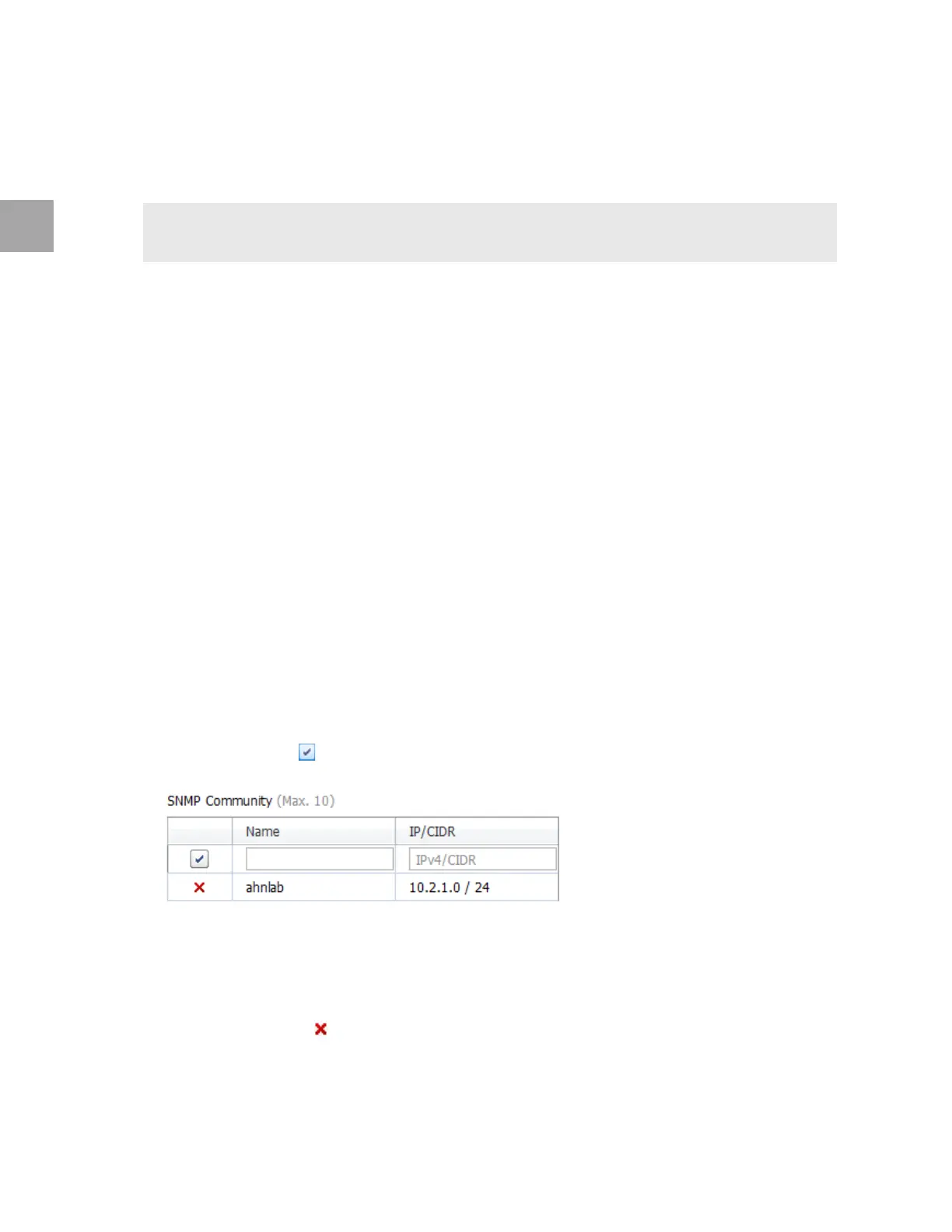
1 To communicate with SNMPv1 and SNMPv2 se
rvers, set the SNMP community. Enter the name
and IP/CIDR and click
.
2 The Name is used to identify an SNMP community.
3 The IP
/CIDR should be small to only include the IP address of the server that requested SNMP
message only (e.g.: 10.2.1.71/32).
4 If
you set it wrong, click to remove the SNMP community, and add it again.


 To Next Page