HM135/HM435 Programmer software guide
Preliminary version Page 5
2 INSTALLATION
2.1 Unpacking
The following items are in the programmer’s package:
(a) CD with the programming software
(b) Programming operating instructions (this book!)
(c) Connection cable (serial to transceiver’s microphone port)
If something is missing, please promptly advise your supplier.
2.2 System requirements
To use the CTE Programming Software for HM135/HM435 you need the following hardware and software:
(a) IBM-compatible personal computer with Pentium (I) processor or higher (basically depending on the operating system)
(b) Operating system Windows 95 or higher.
(c) Hard drive - at least 2MB of free disk space and CD drive
(d) Random access memory (RAM) - basically depending on the O.S. (at least 32 MB; 64 MB recommended)
2.3 Installing programming Software (Programmer)
Setting up your programming software is easy and fast, thanks to the Installing Wizard, a step-by-step installing program. Just
please follow these steps.
Steps can be slightly different according to the O.S. you are using
1) Start Windows, if it is not already running.
2) Insert the CD with the software in your drive.
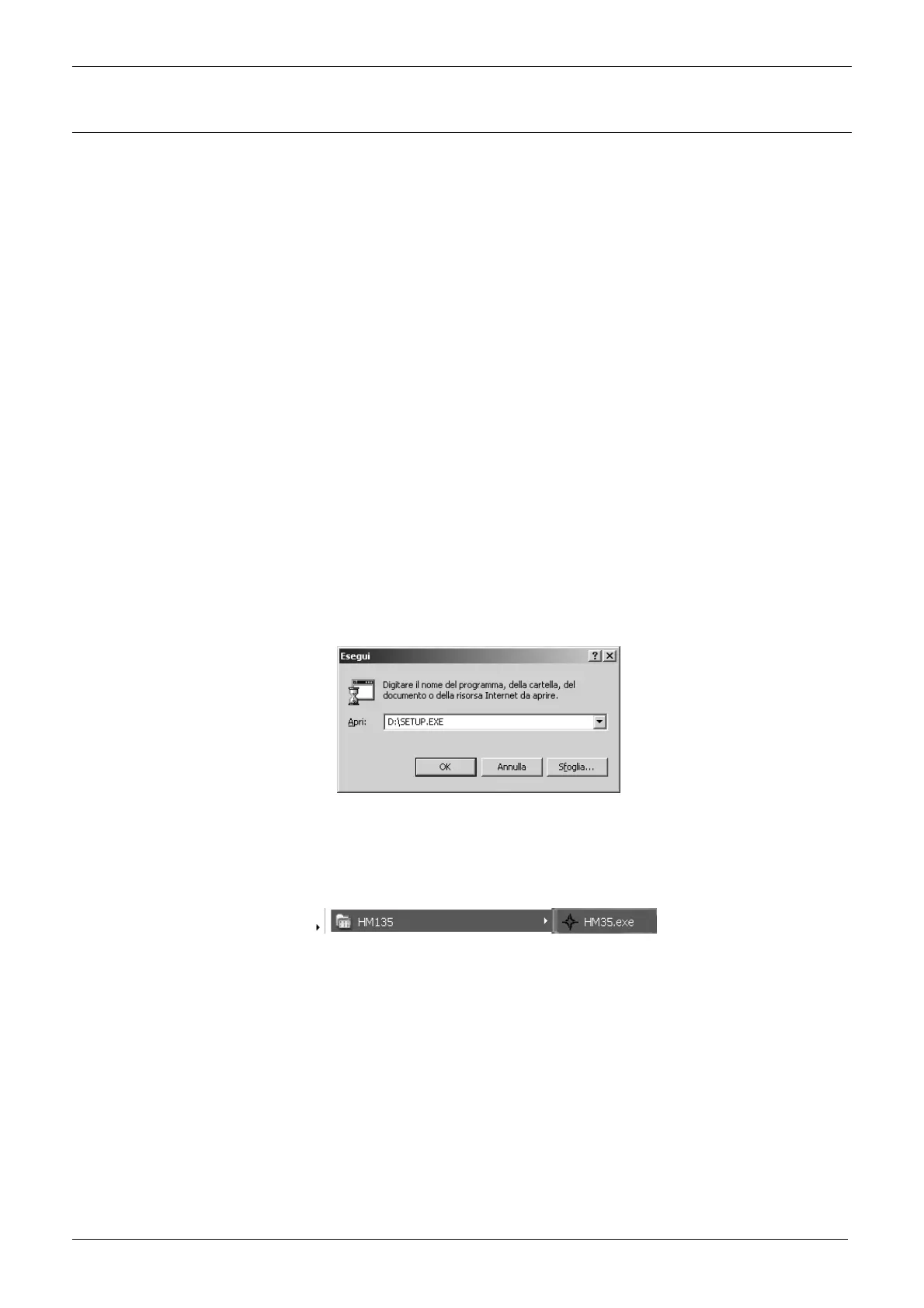
3) Click the Start button, then click Run: you will see the Run dialog box.
4) Type D:\setup.exe
(where D: indicates your CD drive) or click the Browse… button and use the Browse commands in order to select
the said path and the executable (.exe) file.
5) Click OK and then follow the instructions which appear.
6) Several windows will ask you to insert your user’s information, choose a destination location for the program and finally select the
program folder. To accept the default information and go ahead with the next window click NEXT> button.
7) When installation is complete, the software will ask you to restart Windows. Select Yes, I want to restart my computer now then press
the Finish button. Windows will restart.
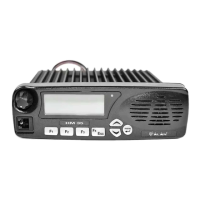
8) When Windows is restarted, the HM135 programmer’s icon appears in Start – Programs – HM135 folder
If in the installing procedure you’ll get error messages, copy the software in a temporary directory on your hard disk (e.g. C:\temp), then
retry installing the software from the hard disk instead from the CD
Please see your computer’s operating instructions if you need help.
2.4 Connecting the radio with your computer
This section explains how to connect the transceiver to your computer’s serial port. You will need to use the supplied serial
cable (item c previously described in “Unpacking”).
1) Make sure that the transceiver is turned off.
2) If the microphone is connected to the transceiver, unplug it as described in the user’s manual
3) Insert the end of the supplied serial cable provided with RJ connector in the transceiver’s microphone connector
4) Push gently the cable’s RJ connector into the transceiver’s microphone socket until you hear a mechanical click and it’s firmly in place.
5) Connect the other end of the serial cable to your computer’s serial port and make sure it’s firmly in place.


 To Next Page