HM135/HM435 Programmer software guide
Preliminary version Page 8
If you need to create a new programming data set (because you haven’t previously stored same/similar programming data in
your PC or in a transceiver) please start from the following paragraph 3.6.
If you want to use a data set previously stored in a transceiver (you will download the data from it) or in your PC (you will use a
data file), because either of them contain same/similar programming data, we recommend to “jump” to the chapter 8.1, follow it,
and then go back to the chapter 3.7 below described (i.e. skipping the next paragraph 3.6).
3.6 Create a new programming filename
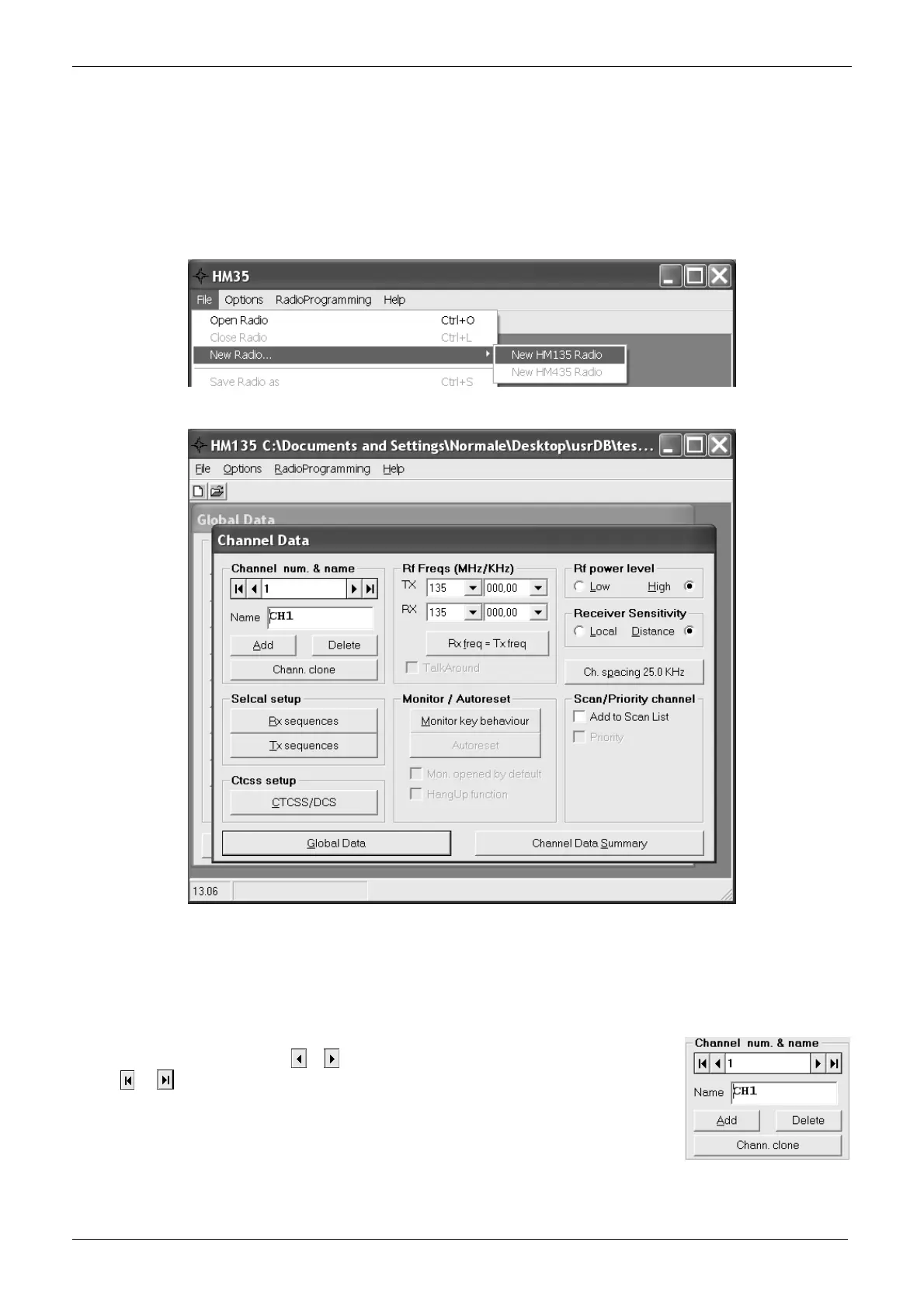
1) If you have just started the programmer software in your PC you will see a blank window.
2) From the menu File select New radio…, then click one of the New HM135 Radio… or New HM435 Radio… (depending on the
operating band of the radio to be programmed).
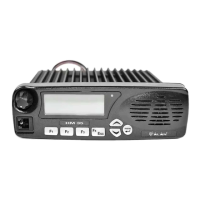
3) A new file creation will open.
Type the database name you want to create (any name will do, anyway we recommend to type the
customer’s name), then press the Save button: the Channel Data window will open.
Important: we’ll always refer this window as “Channel Data window”. As you will see in Chapter 4, this is one of the two main windows
in this program (Channel data and Global Data).
3.7 Basic parameters: TX/RX frequency, channel spacing, RF power etc.
1) Make sure that the Channel num. & name dialog box is displaying the channel number/name you are going to setup (if it is the first
channel you are programming, only CH1 is available).
If you are not creating a new channel, but just editing a previous one, and the channel number is not
the one you want to edit, press the
or buttons in order to select the needed one. You can also use
the
or buttons in order to quickly jump, respectively, to the first or to the last programmed
channels
2) (option) - Type in the Name box an alphanumeric label (12 characters max) to identify the over stated
channel (e.g. if you are programming the 1st channel of a Fire Corp, you may want to type FireCorp
Ch1). The said 12 letters will appear on the LCD when the channel will be selected.


 To Next Page