HM135/HM435 Programmer software guide
Preliminary version Page 29
8 ADDITIONAL OPTIONS
8.1 Modifying previously programmed parameters
If you already have saved programming data in a transceiver unit or in a PC file and you need to “clone” them to other
transceiver(s),
or the said programming data are very close to a new programming data you have to set up, you can
download previously stored programming data from a HM135/435 transceiver or open a programming file previously stored in
your PC as follows:
8.1.a Open a programming data file in the PC
1) Connect the programming cable to the radio and start the programmer software (as previously described in paragraphs 2.4 and 3.1).
2) From the menu File select Open Radio (ore use the
button): the Select radio window will open.
3) Use the File type: drag down button (at the bottom of the window) to select either HP VHF radio (*.hmv) or HP UHF radio (*.hmu)
depending if you are programming respectively a VHF or UHF radio of the HMx35 series.
4) In the Filename: box, type the name of the file containing the required programming data or browse it using the directory tree in folder
box (programming files use the extension .hmv or .hmu and are usually placed in the directory C:\Programs\HM135
Programmer\usrDB).
5) As soon as you have selected the appropriate file name, click the OK (or Open) button: the Channel Data window will open and will
show the parameters previously programmed in the file.
8.1.b Modifying data previously stored in a radio
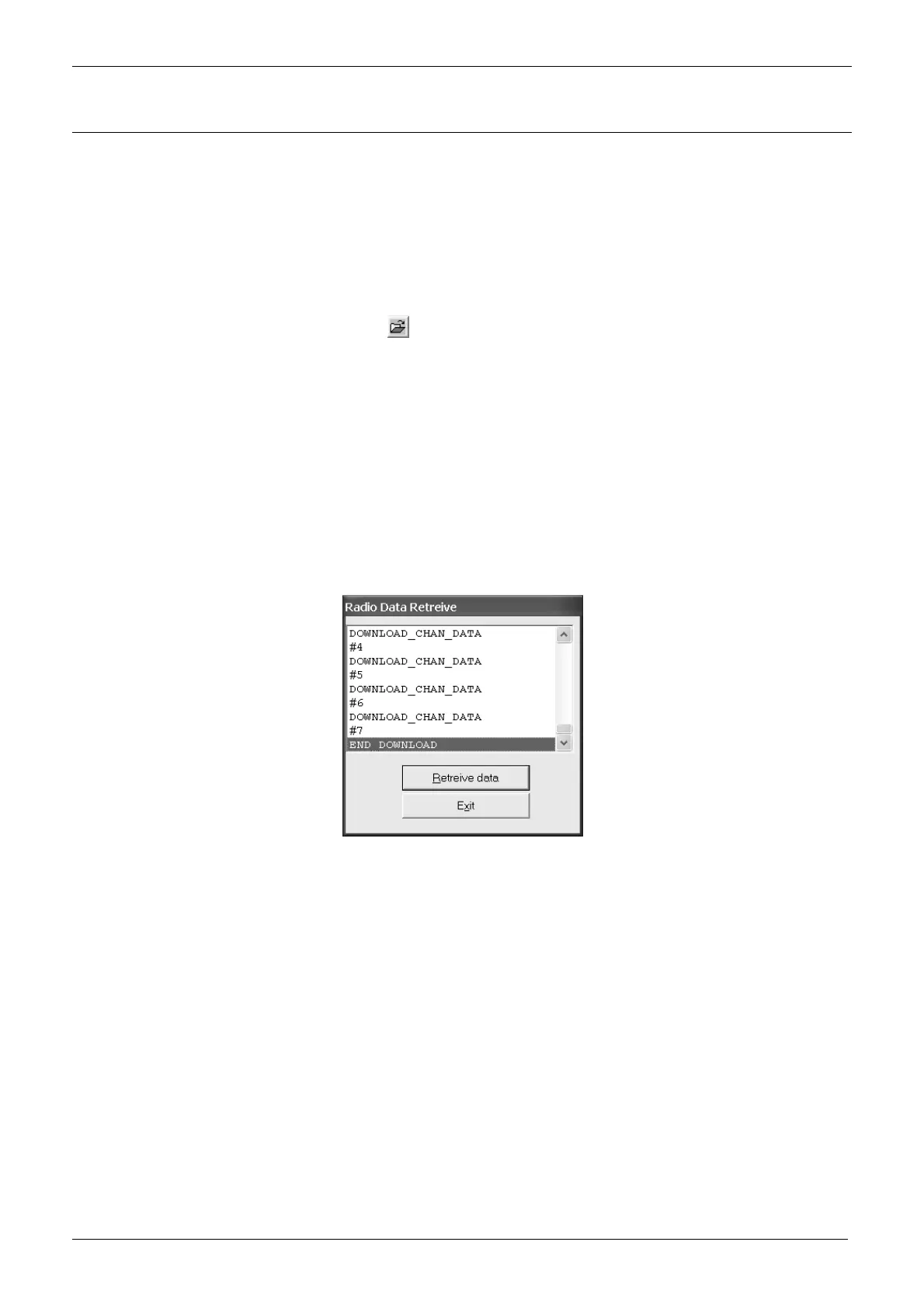
1) From RadioProgramming menu select Retrieve radio data (or use the shortcut Ctrl+R): the Radio data retrieve dialog box will open
2) Make sure that the radio is properly connected to the PC and switched on in programming mode, then click on Retrieve data button (or
press Exit in case of mistakes): a dialog box will ask you to type a PC file name for the data to be stored
3) In the Filename box type a file name (we recommend to use the customer’s name).
4) Click the Save button: the transceiver’s data will be copied into the file showing some messaging similar to the table stated in par. 7.1
(DOWNLOAD instead of UPLOAD). If the operation will be successful you will see the message End download
5) Click the Exit button: Channel Data window will open and will show the parameters previously programmed in the radio.


 To Next Page