HM135/HM435 Programmer software guide
Preliminary version Page 26
the related drag down button (leave disabled if you don’t need this function)
14) Click the OK button to confirm or Cancel to exit without changing the previous settings
6.10 Customizing the menu and F keys
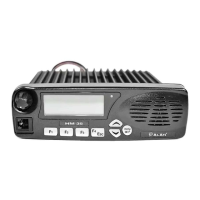
You can make available or not the various menus and submenus in the radio (to be accessed when the M key). Moreover,
you can assign shortcuts of the menus to the various
F keys in order to quickly recall the most frequently used commands
with one-touch operation. You might also decide to assign selcalls to one or more
F key(s).
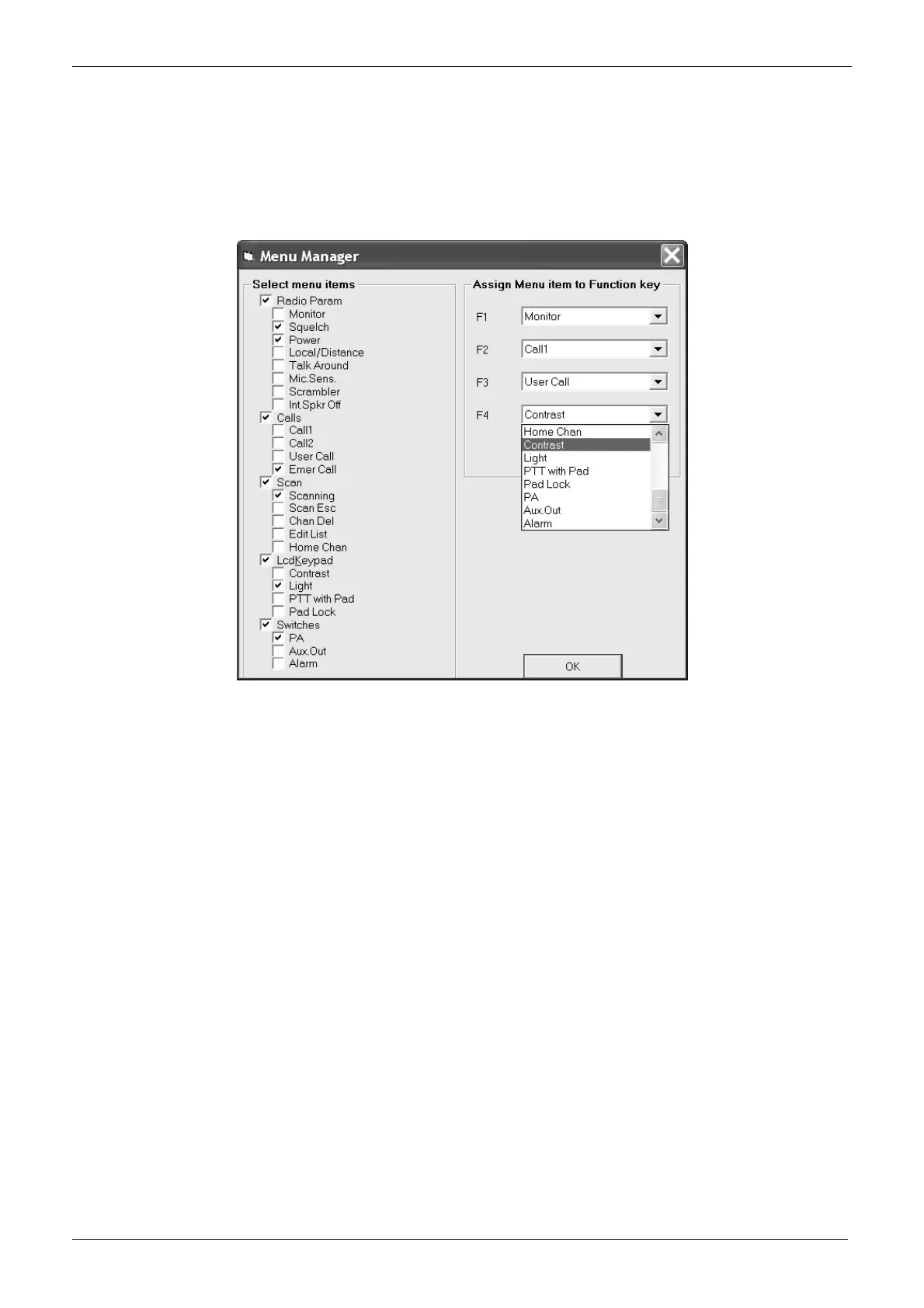
1) From the Global Data window - Tables area - click the Menu manager button: the Menu manager window will open.
2) To enable a menu or submenu, go to the Select menu items area and just tick the related checkbox.
In the example we activated all the main menus and activated only the submenus Squelch, Power, Emer Call, Scanning, Light and
PA.
3) To assign a function or selcall to one or more F key(s), go to the Assign menu item to Function key area and use each drag down
buttons to select the proper function or selcall (Call1, Call2, User Call or Emergency Call) to the related key.
In the example we assigned F1 to Monitor function, F2 to Call1 selcall, F3 to User call selcall and F4 to Contrast adjusting.


 To Next Page