HM135/HM435 Programmer software guide
Preliminary version Page 10
12) If you need to add/modify/delete new channels, you have two convenient options:
If you need to create a new channel which has completely different parameters, press
Add
and go back to step 1)
If you need to program a new channel that only slightly differs between the current one,
you can save time by pressing the Chann. Clone. You’ll create a new channel with the
same parameters. Just go back to the step(s) related to the parameter(s) you need to modify
If you need to delete a channel (in case of total mistake), select it with the
or buttons, then click the Delete
button. The selected channels will be immediately deleted.
3.8 CTCSS/DCS Tx Rx Setup (CTCSS/DCS button)
As you may know CTCSS (continuous tone code squelch system) is a system which uses a sub audio frequency TX tone as an access
“key” to work a repeater (encoder) or to unlock the party’s sub audio tone sensitive squelch. On the other side you may want to receive
only signals provided with a proper sub audio tone, in this case you’ll select the decoder (tone squelch) features as well. DCS (Digital
Coded Squelch) works in a similar way, but using a code instead of a fixed frequency.
1) Make sure you are programming the CTCSS/DCS in the right channel by checking the Channel num. & name box located in the upper
left most position of the window.
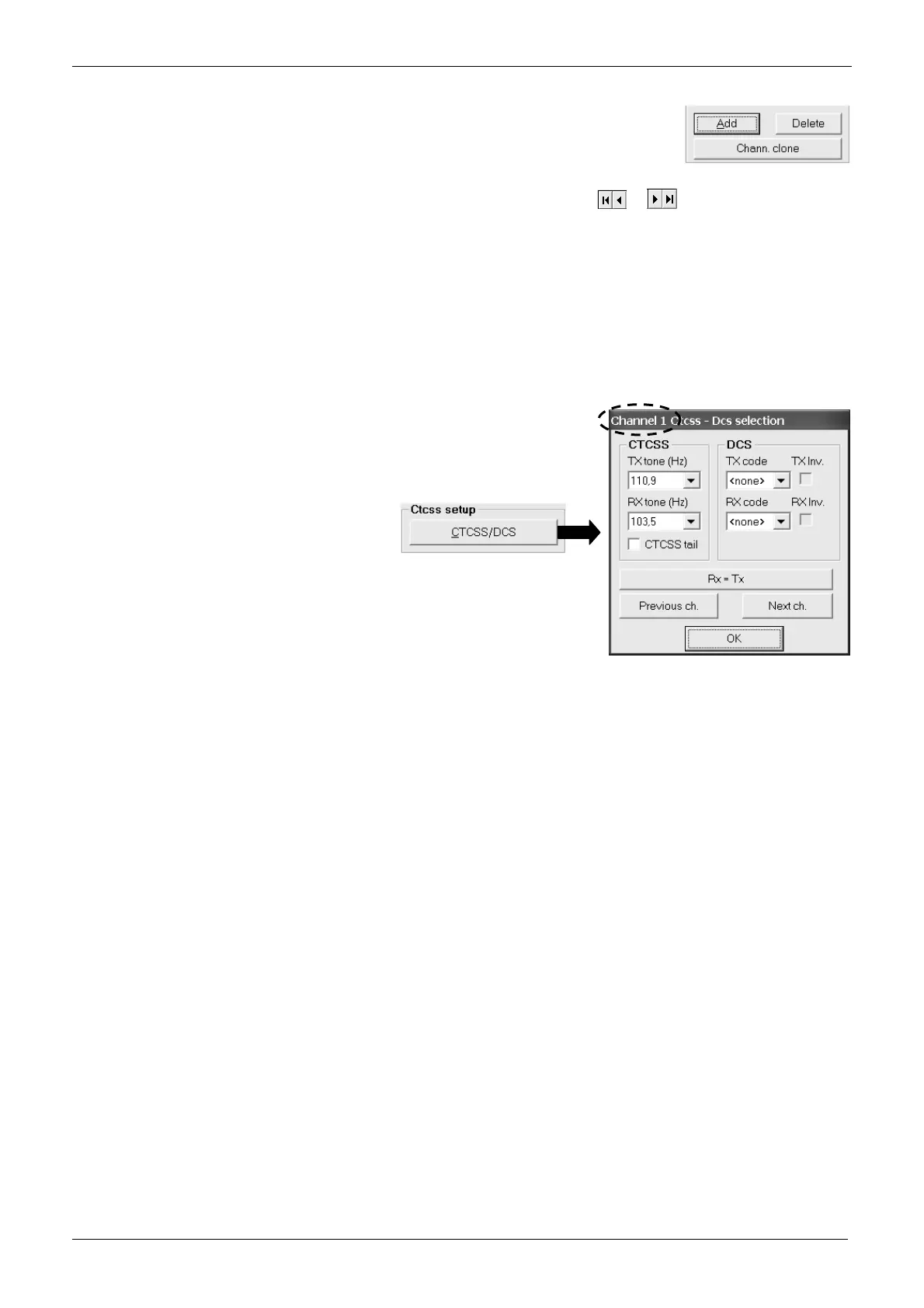
2) Click on CTCSS/DCS button in the CTCSS setup area: the window Channel x Ctcss – Dcs selection (channel 1 in the figure) will open
3) If you need to activate the CTCSS encoder click on
the TX tone (Hz) drag down button and select the
tone encoding frequency you need (e.g. 110.9 Hz)
4) If you need to activate the CTCSS decoder as well,
click on the RX tone (Hz) drag down button and
select the tone decoding frequency you need (e.g.
103.5 Hz)
If in you need to set up the same RX and TX tone
frequency, just click on the TX = Rx button: the RX
tone will be copied from the TX tone
5) If you want to leave the radio in TX for 150 ms after
each release of the PTT without transmitting the sub
audio tone, tick the checkbox CTCSS tail. It is useful
to avoid that the repeater to be used could make its
tail noise heard by the receiving party at the end of
each transmission.
6) If you need to activate the DCS codes repeat steps
3) and 4) in the DCS area with TX code and RX code drag down buttons. Should you have code compatibility problems with an existing
radio network, you can try by activating the TX and/or the RX code inversion by ticking the TX Inv. and/or RX Inv. checkboxes.
7) Now, if you want to program CTCSS/DCS in the next or previously programmed channel, click respectively on either Next ch. or
Previous ch. button: you will see the window’s name Channel x Ctcss – Dcs selection showing the selected channel. Go back to step
3).
If you click either on Next ch or Previous ch. buttons, but you won’t obtain any effect, it means that there are no adjacent
preprogrammed channels (higher or lower respectively). In this case click the OK button and check the programmed channels.
8) If you have finished to program CTCSS/DCS, click on the OK button: the CTCSS – Dcs selection window will close.


 To Next Page