APOC0274 Ed.3a
Page 22 of 35
+44 (0)1235 861 483 | aleretoxicology.co.uk
Alere™ DDS
®
2 Mobile Analyser User Guide | 9. Accessing Stored Results
9 Accessing Stored Results
The Alere DDS2 Mobile Analyser will store test information and results which can then be viewed and printed.
9.1 View results from memory
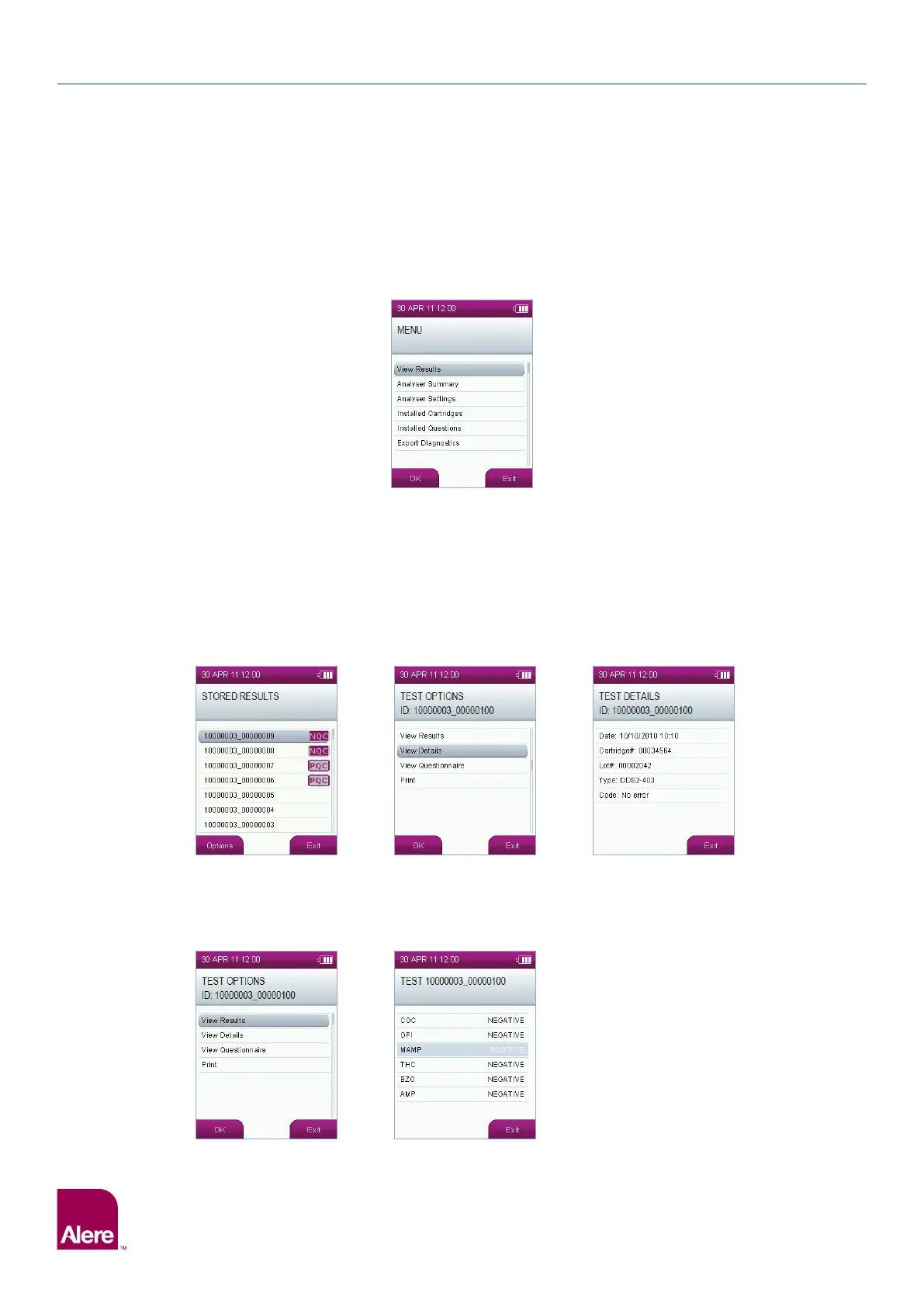
Step 1: From the main menu, select the View Results option.
Step 2: The stored results screen will display the last 100 tests performed if they haven’t been downloaded to the
Alere Software Application Suite. Select the test you wish to view using the five way navigation key to scroll
up and down through the tests, then press the Options button using the left selection key. The most recent
tests are at the top of the screen. Tests are identified by a unique test ID number. This number is also printed
on the results printout.
Step 3: The test options screen will then be displayed. From this screen, you can view the test details by selecting
View Details and pressing OK. The screen will then display the following information about the selected test
(this is an example test):
Step 4: Exit this screen to return to the test options screen.
Step 5: From the test options screen, highlight and select View Results to see test results (this is an example test).
Step 6: The results for the selected test are then displayed (this is an example test).
Step 1
Step 2 Step 3 Step 3
Step 5 Step 6


 To Next Page