APOC0274 Ed.3a
Page 23 of 35
+44 (0)1235 861 483 | aleretoxicology.co.uk
Alere™ DDS
®
2 Mobile Analyser User Guide | 9. Accessing Stored Results
If an error has occurred during the test, the results will not be available to view, so this option will
not be displayed on the test options screen.
9.2 Print results from memory
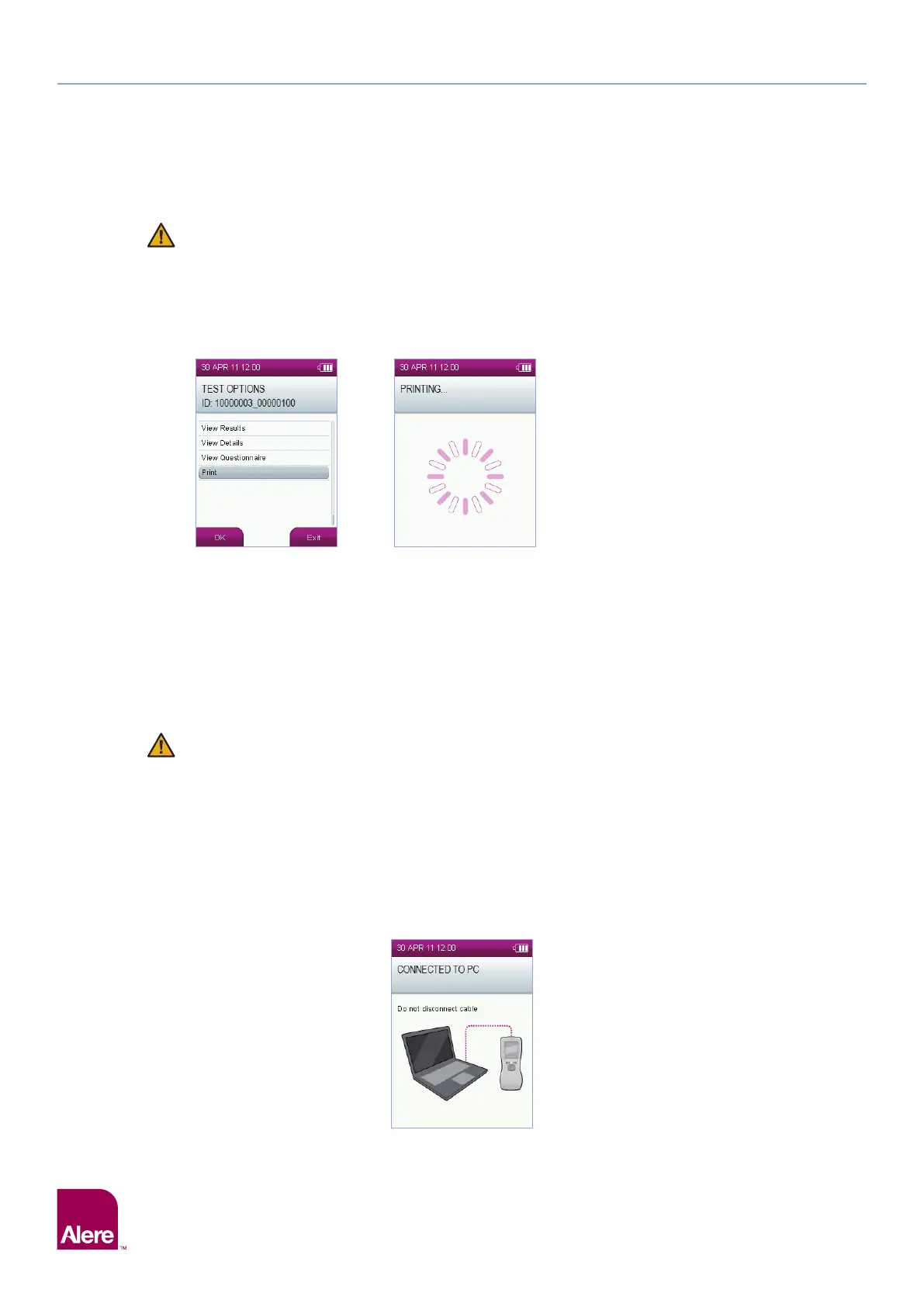
Step 1: From the test options screen, highlight and select Print. Before selecting print, ensure that the printer is
connected and online. See section 3.1 Connecting the printer.
Step 2: Printing will then start.
9.3 Downloading results to the Alere Software Application Suite
If the Alere Software Application Suite is being used, test data stored on the Alere DDS2 Mobile Analyser can
be downloaded by connecting the analyser to a PC on to which the Software Application Suite has been
installed. The Software Application Suite can be used to store and view test data and allows generation
of reports from the stored data. The Software Application Suite is not compatible with Apple Macintosh/
Mac operating systems. For details of the PC operating systems which are compatible with the Software
Application Suite, please refer to the Software Application Suite user guide which can be found on the
Software Application Suite CD-ROM.
The analyser must not be connected to the Software Application Suite whilst a test is in progress.
Step 1: Ensure the Software Application Suite is installed on the PC. For installation instructions, refer to the Software
Application Suite user guide on the Software Application Suite CD-ROM.
Step 2: When the analyser is on the main menu screen, physically connect the analyser to the PC via the micro USB
cable provided. The USB connector is beneath the rubber flap at the top of the analyser. See section 2.1
Alere DDS2 Mobile Analyser at a glance.
Step 3: Launch the Software Application Suite on the PC by double clicking the Software Application Suite icon.
Step 4: The analyser will appear in the analyser main menu of the Software Application Suite. Click on this to connect
to the analyser.
Step 5: Once connected to the Software Application Suite, the analyser will display the following screen:
Step 1 Step 2
Step 5


 To Next Page