APOC0274 Ed.3a
Page 28 of 35
+44 (0)1235 861 483 | aleretoxicology.co.uk
Alere™ DDS
®
2 Mobile Analyser User Guide | 11. Using the SD Card
The Alere DDS2 Mobile Analyser has a microSD card slot. Refer to section 2.1 Alere DDS2 Mobile Analyser at
a glance for the location of the SD card cover panel. The SD card socket can only be accessed by unscrewing
the SD card cover panel. For this a small Phillips head screw driver is needed. This tool is not supplied with the
Alere DDS2 Mobile Test System. Please contact Product Support if access to the SD card is required.
The SD card can be used for applying firmware updates to the analyser, adding new Alere DDS2 Test
Cartridge types or versions to the analyser and exporting of diagnostic data from the analyser to the card.
11.1 Updating firmware
When firmware updates are available these may be provided by the manufacturer by way of a replacement
SD card.
Data may be lost during the updating process. Where possible please ensure that data is backed
up prior to completing the update.
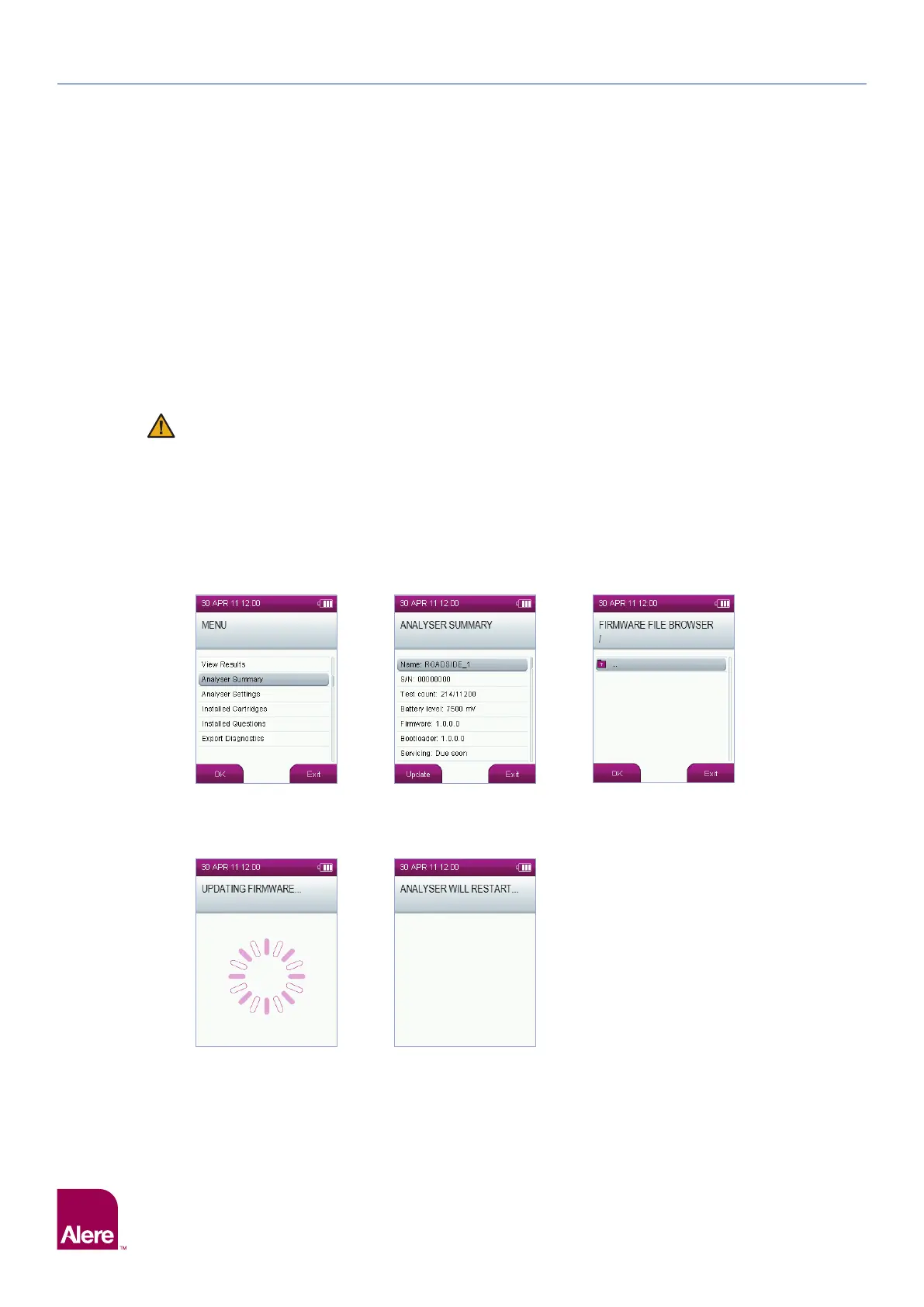
To update Alere DDS2 Mobile Analyser firmware using the SD card, follow these steps:
Step 1: Ensure that the new SD card is inserted in the analyser before starting this procedure.
Step 2: From the main menu, select the Analyser Summary option.
Step 3: When in the Summary Screen, press the Update button on the bottom left of the screen.
Step 4: The analyser will display the list of files and folders carried on the inserted SD card. To open a folder, highlight
the folder using the five way navigation key, then press the Enter button. To exit a folder, select the top folder
marked with an arrow, then press the Enter button.
Step 5: Select the desired firmware file and press the Enter button.
Step 6: If the firmware file is valid, the analyser will automatically update the firmware and reboot itself.
Step 1 Step 3
Step 4
Step 6 Step 6
11 Using the SD Card


 To Next Page