APOC0274 Ed.3a
Page 29 of 35
+44 (0)1235 861 483 | aleretoxicology.co.uk
Alere™ DDS
®
2 Mobile Analyser User Guide | 11. Using the SD Card
11.2 Updating Alere DDS2 Test Cartridge types
To use a drug Alere DDS2 Test Cartridge on the Alere DDS2 Mobile Analyser, the test cartridge type must
be installed in order that the analyser recognises the test cartridge. New test cartridge types can be added
to the analyser via the Alere Software Application Suite software or via the SD card. If using the Software
Application Suite, please refer to the Software Application Suite user guide (which can be found on the
Software Application Suite CD-ROM), for instructions on how to update test cartridge types.
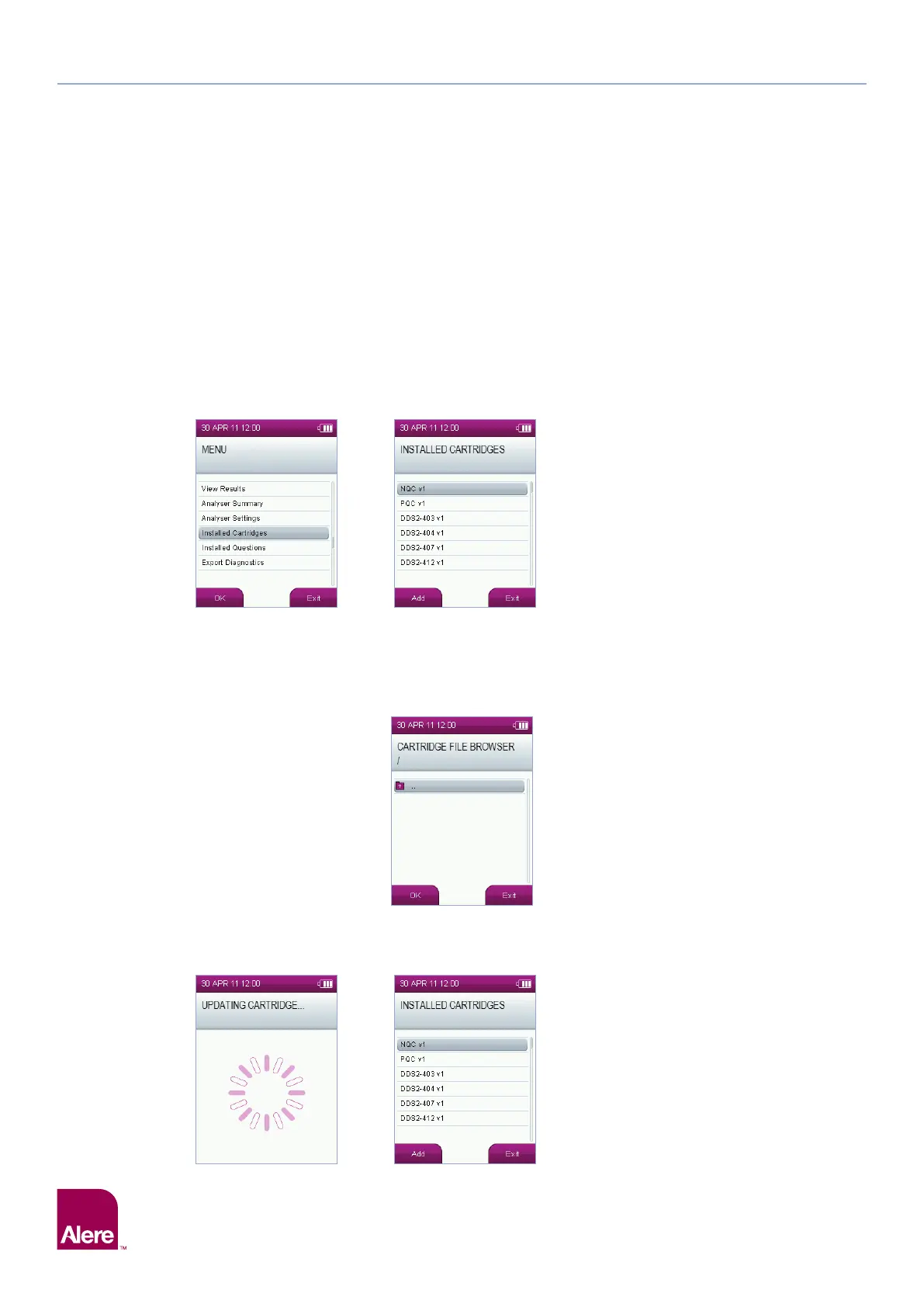
To add a new test cartridge type using the SD card, follow these steps:
Step 1: Insert the SD card into the analyser before starting this procedure.
Step 2: From the main menu, select the Installed Cartridges option.
Step 3: In the installed cartridges screen, press Add, on the bottom left of the screen.
Step 4: The analyser will display the list of files and folders carried on the inserted SD card. To open a folder, select
the folder, then press the OK button. To exit a folder, select the top folder marked with an arrow, then press
the OK button.
Step 5: Select the desired test cartridge file and press the Enter button.
Step 6: If the test cartridge file is valid, the analyser will update its test cartridge library and navigate back to the
installed test cartridge screen. The new test cartridge will now appear on the list of installed test cartridges.
Step 5
Step 6Step 6
Step 2 Step 3


 To Next Page