APOC0274 Ed.3a
Page 24 of 35
+44 (0)1235 861 483 | aleretoxicology.co.uk
Alere™ DDS
®
2 Mobile Analyser User Guide | 9. Accessing Stored Results
Step 6: Follow the Software Application Suite instructions. Do not disconnect the analyser during data transfer.
Step 7: It is recommended that results stored on the analyser are regularly downloaded to the Software Application
Suite to ensure that data is backed up. Frequency of downloads will be dependent on testing volumes. To
find out more about how to use the Software Application Suite, refer to the Software Application Suite user
guide which can be found on the Software Application Suite CD-ROM.
9.4 Results storage capacity
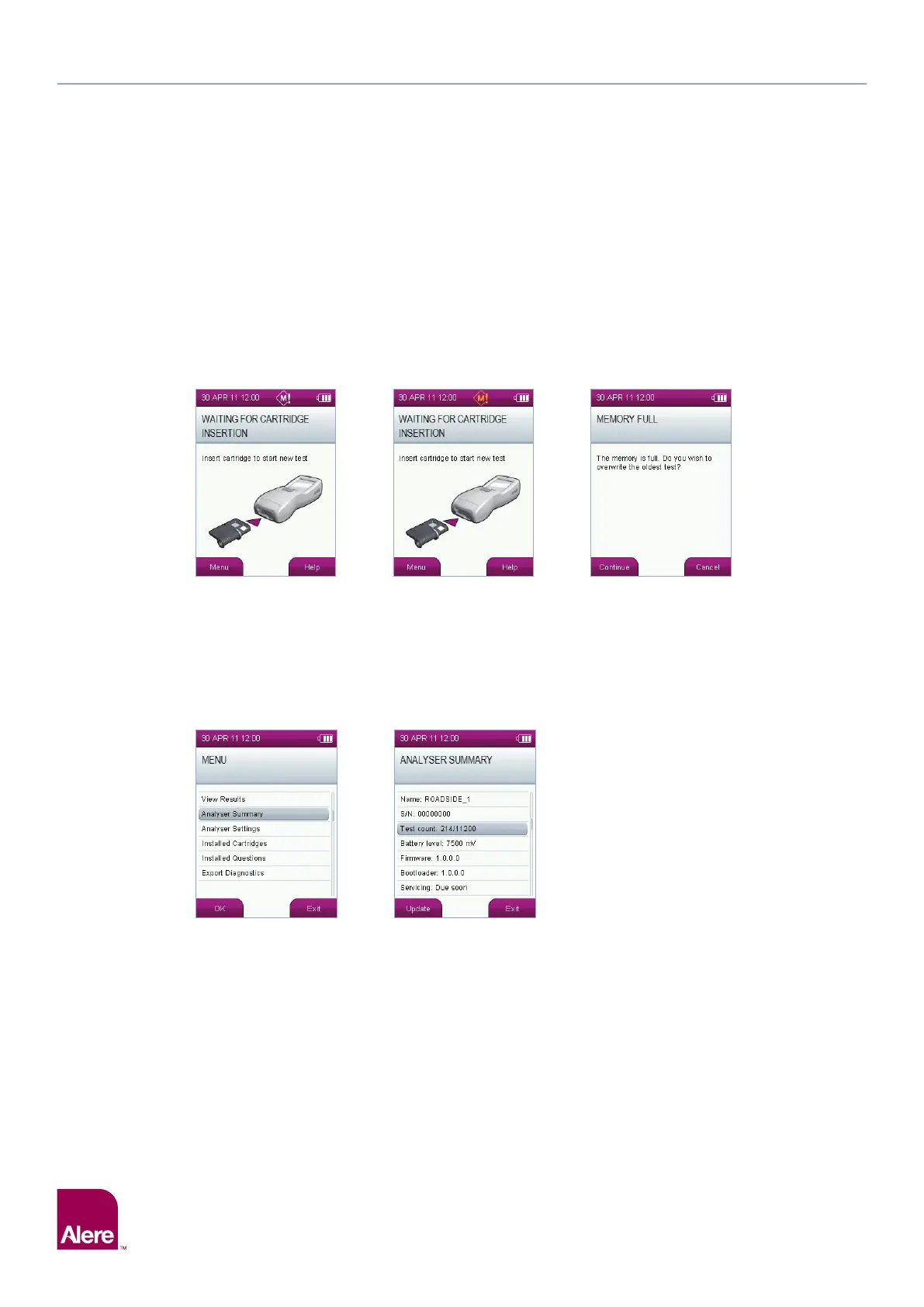
The Alere DDS2 Mobile Analyser can store over 10,000 test results. When storage capacity is nearly
reached, the white memory symbol will be displayed in the status line.
When storage capacity is reached, the orange memory symbol will be displayed. Before saving the next test
result, the memory full screen will be displayed. Select Continue to overwrite the oldest test with the new
result, or select Cancel. Selecting cancel will mean the new test result is not saved.
To find out how much storage space is left, carry out the following steps:
Step 1: From the main menu, select the Analyser Summary option.
Step 2: The following screen will display the number of tests performed under Test count:
To make more memory space available, test data can be downloaded from the analyser to the Alere
Software Application Suite. Refer to section 9.3 Downloading results to the Alere Software Application Suite.
If the data manager is not being used, please contact Product Support.
Step 1 Step 2


 To Next Page