32
How to Configure Breaks for Regular Employees
This section explains how to configure breaks for regular employees. (You can configure up to
four scheduled ("fixed") breaks a day for regular employees.)
・You may not configure breaks so that they run back to back or overlap each other!
・Also, you may not configure breaks so that they overlap Shift Beginning and End Times.
(See page 42 for details.)
1
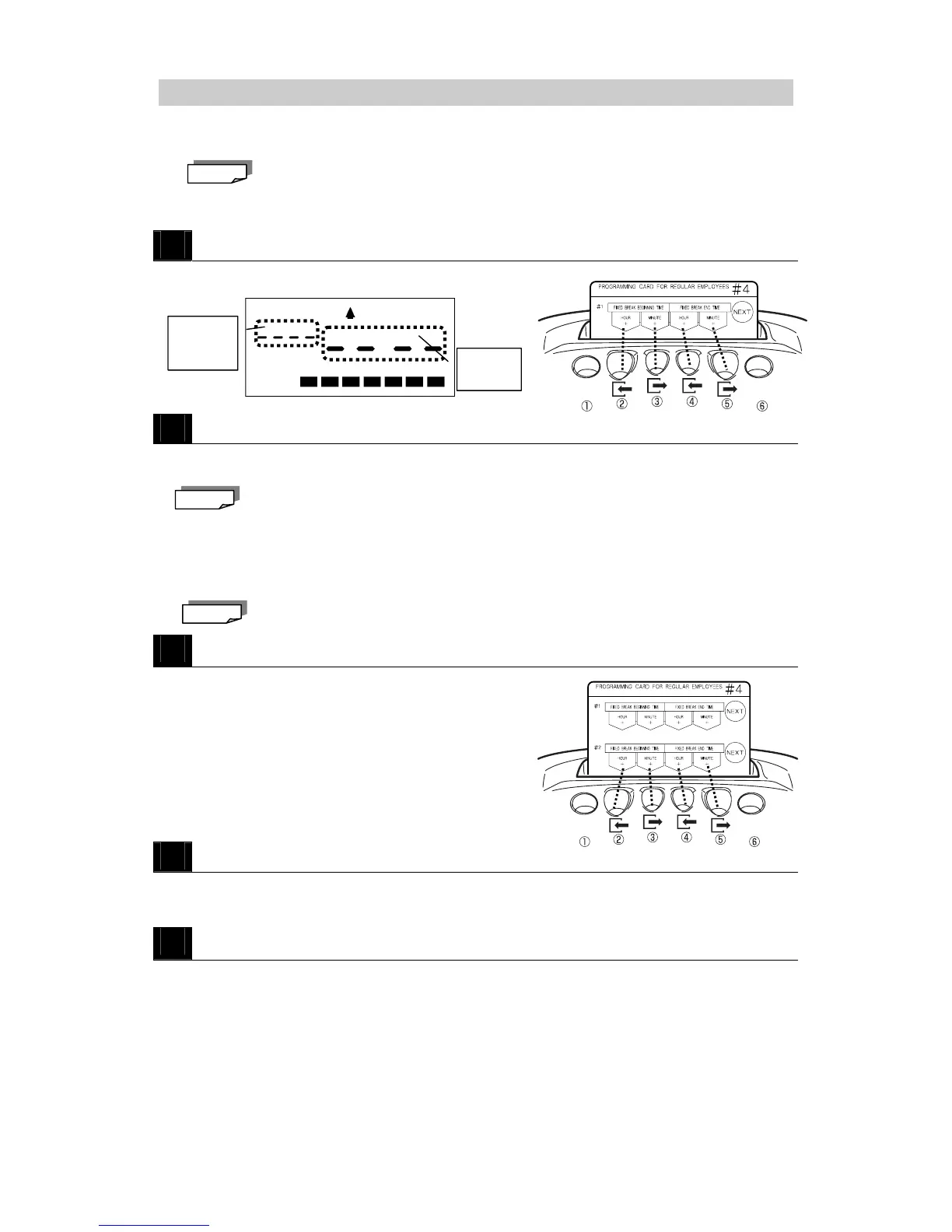
Insert PROGRAMMING CARD FOR REGULAR EMPLOYEES #4.
・The card is automatically scrolled to the #1
FIXED BREAK position.
2
Configure the #1 Fixed Break Time Zone.
・Press HOUR + (button ②) to increase the #1 Fixed Break
Beginning Time one hour at a time.
Select "----" if you don't wish to specify a #1 Fixed
Break Beginning Time.
・Press MINUTE + (button ③) to increase the #1 Fixed Break Beginning Time one minute
at a time.
・Press HOUR + (button ④) to increase the #1 Fixed Break End Time one hour at a time.
・Press MINUTE + (button ⑤) to increase the #1 Fixed Break End Time one minute at a
time.
Keep the corresponding button pressed to speed scroll.
3
Press NEXT (button ⑥).
・The #1 Fixed Break Beginning and End Times are
confirmed and the card is scrolled to the next setting
(#2 Fixed Break). (The card is automatically scrolled
to the #2 FIXED BREAK position.)
<To Set Multiple Breaks>
4
Repeat steps 2 and 3 for #2, #3 and/or #4 Fixed Breaks.
・Press NEXT (button ⑥) to scroll to the break you wish to configure and then repeat the instructions
from step 2 and 3 and then press button ⑥ to confirm the setting.
5
Press NEXT (button
⑥
) until the card is positioned to # 4 Fixed Break and then press END (button
⑥
) to exit.
・The programming card is ejected and the current time is displayed.
Note
Not configured (default setting)
#1 Fixed
Break
Beginning
Time
#1 Fixed
Break End
Time
Note
Note


 To Next Page