19
Incorrect adjustment of the Pay Period Type and Ending Day/Date
might result in incorrect totals. Please follow these instructions when
attempting to change the Pay Period Type and Ending Day/Date.
① Total all time cards currently in use (TOTAL HOURS PRINT - THIS MONTH → page 57).
② Total any time cards that have with times punchs from this month but that yet to be totaled (TOTALIZATION → page 55)
③ Initialize employee registrations (EMPLOYEE REGISTRATION INITIALIZATION → page 26)
④ Change the Pay Period Type and Ending Day/Date (steps
1
to
4
below).
⑤ As necessary, register new time cards for regular employees (EMPLOYEE CARD REGISTRATION → page 53)
How to Adjust the Pay Period Type and Day/Date
This section explains how to adjust the Pay Period Type, Pay Ending Day/Date.
The factory setting for the Pay Period Ending Date is Monthly and the end of the month.
1
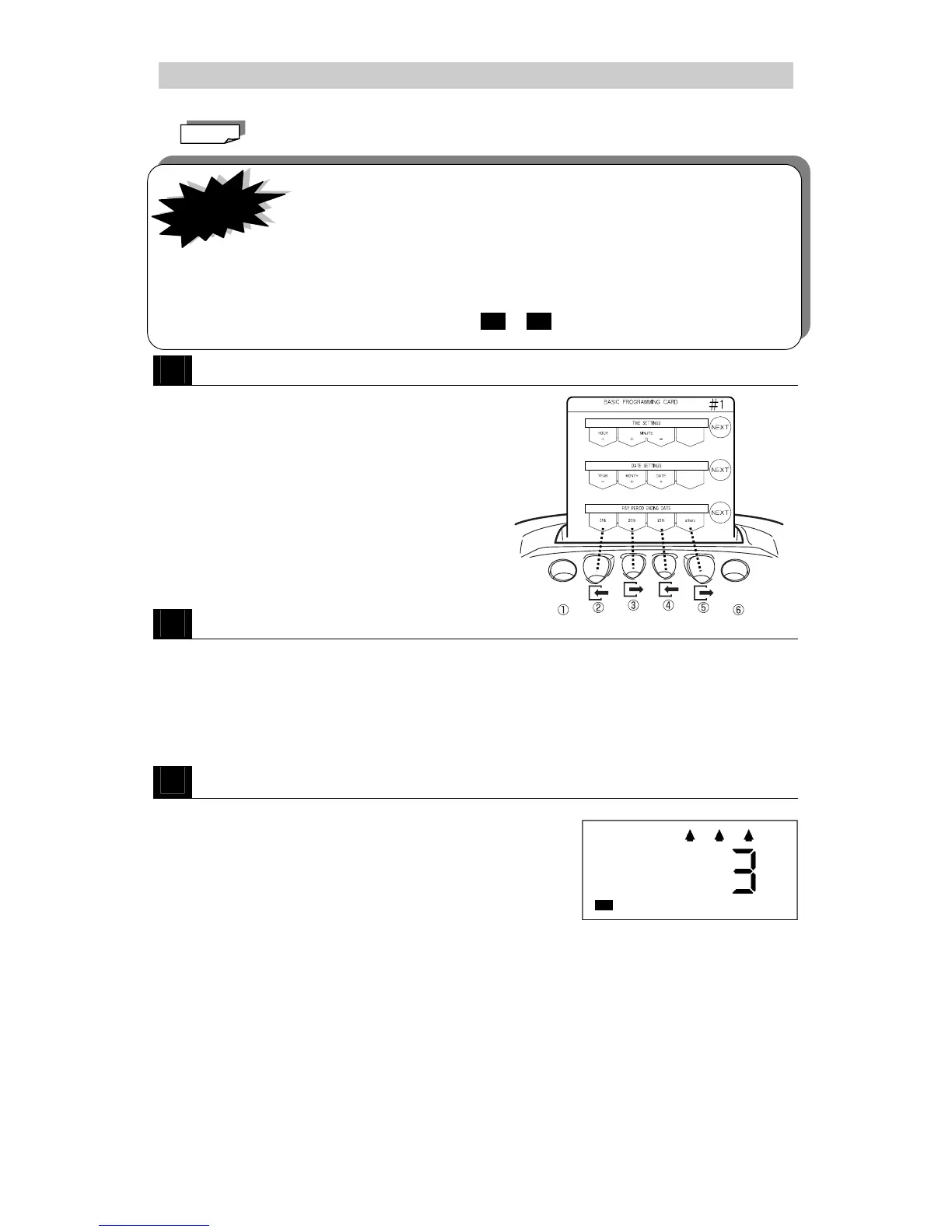
Insert BASIC PROGRAMMING CARD #1 and then scroll to PAY PERIOD TYPE.
・Insert the card and then press NEXT
(button ⑥) twice.
2
Select the Pay Period Type.
・Press Weekly (button ②) to set the Weekly Pay Period.
・Press Bi-Weekly 1
st
(button ③) to set the Bi-Weekly pay period (pay ending day is next week).
・Press Bi-Weekly 2
nd
(button ④) to set the Bi-Weekly pay period (pay ending day is this week).
・Press Monthly (button ⑤) to scroll through all the possible dates (1 to 31) until the desired date is
reached.
3
Press NEXT (button ⑥).
・The Pay Period Type is registered and then the card is
scrolled to the next setting (Pay Period Ending
Day/Date).
Example: If the Monthly Pay Period is selected. The
display shows “3”.
Note
IMPORTANT!


 To Next Page