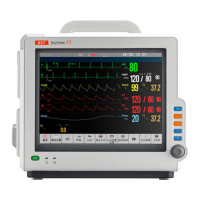
Patient monitor User’s manual
Chapter 21-3
21.2.1 Selecting Review Parameter
——
Select
【
Select Trend Group
】
in the menu which is under the tabular
trends window, then select the parameter group in the pull-down menu. If
needing to add trend groups defined by the user, the following way is
——Select【Trend Group Setup】in the menu which is under the tabular
trends window to enter the Trend Group Setup menu. You can define the trend
group name by yourself based on your need, and then add the parameter label
needing displaying. Last select 【 OK 】 to save the defined trend group by
21.2.2 Selecting Time interval
Select【Interval】in the menu which is under the graphic trends window,
select an appropriate resolution according to your need.
21.2.3 Browsing Tabular Trends
Select or and shift time scale axis leftwards or rightwards to
browse the trends data of this parameter in the previous or the next page.
Selecting or and shifting time scale axis to the first or last, you can
browse the trends data in the first or the last time interval.
Select or and shift time scale axis leftwards or rightwards to browse
the trends data in the previous or the next time interval.
If needing to browse the trend data of this parameter in more time intervals,
please select or and turn page up or down to browse the trends
data of more parameters in this time interval.
21.2.4 Recording Tabular Trends
Select 【 Record 】 in the tabular trends window, you can record tabular
trends of all the parameters in the current interval displayed in the window.
21.3 Reviewing NIBP Measurement Results
Select【Main Menu】smartkey→【Review】→【NIBP Review】, then you
can open NIBP review window as follows.



 To Next Page