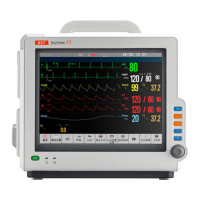
Patient monitor User’s manual
Chapter 6-1
Chapter 6 Patient Management
The monitor displays physiological data and stores it in the trends as soon as
a patient is connected. This lets you monitor a patient who is not yet admitted.
However, it is very important to admit patients properly. If a patient is admitted
in the monitor, it is advised to discharge the current patient before admitting a
new patient. Or else, the data of next patient will be stored in the current
1. Select【Patient Manage. 】 smartkey→【 Admit Patient 】,and then select
【
Yes
】
to discharge the current patient and admit a new patient. The patient info
window will be popped up.
2. Enter or select the patient information:
——MRN: Enter the patient’s medical record number (MRN);
——First Name: Enter the patient’s first name;
——Last Name: Enter the patient’s last name (family name);
——Gender: Choose
【
Male
】
or
【
Female
】
;
——Patient Type: Choose the patient category, either【Adult】,【Pediatric】
(The patient category setting determines the algorithm the monitor uses to
process and calculate some measurements, the safety limits that apply
for some measurements, and the alarm limit ranges.)
——Paced: Choose
【
Yes
】
or
【
No
】
. An icon
patient info area on the screen when choosing【Yes】, if not, will be
displayed. (You must choose【Yes】if your patient has a pacemaker.)
——Room No.: Enter the patient’s room number;
——Bed No.: Enter the patient’s bed number;
——Age: Enter the patient’s age;
——Height: Enter the patient’s height;
——Weight: Enter the patient’s weight;
——Blood Type: Enter the patient’s blood type.



 To Next Page