99
Application Basics
AQUOS zero2
Opening Recent Apps Window
Drag bottom of Display up
Recent apps window opens.
・In Home Screen, even by dragging any part of the screen up,
recent apps window opens.
・In Home Screen, recent apps window does not open by
dragging bottom of Display up.
・
When 3-button navigation is enabled, Tap on
Navigation Bar for recent apps window. See "Navigation Bar"
and "System Settings" for details.
Opening Most Recently Activated
Application
Flick bottom of Display to the right
・
When 3-button navigation is enabled, Tap in
recent apps window.
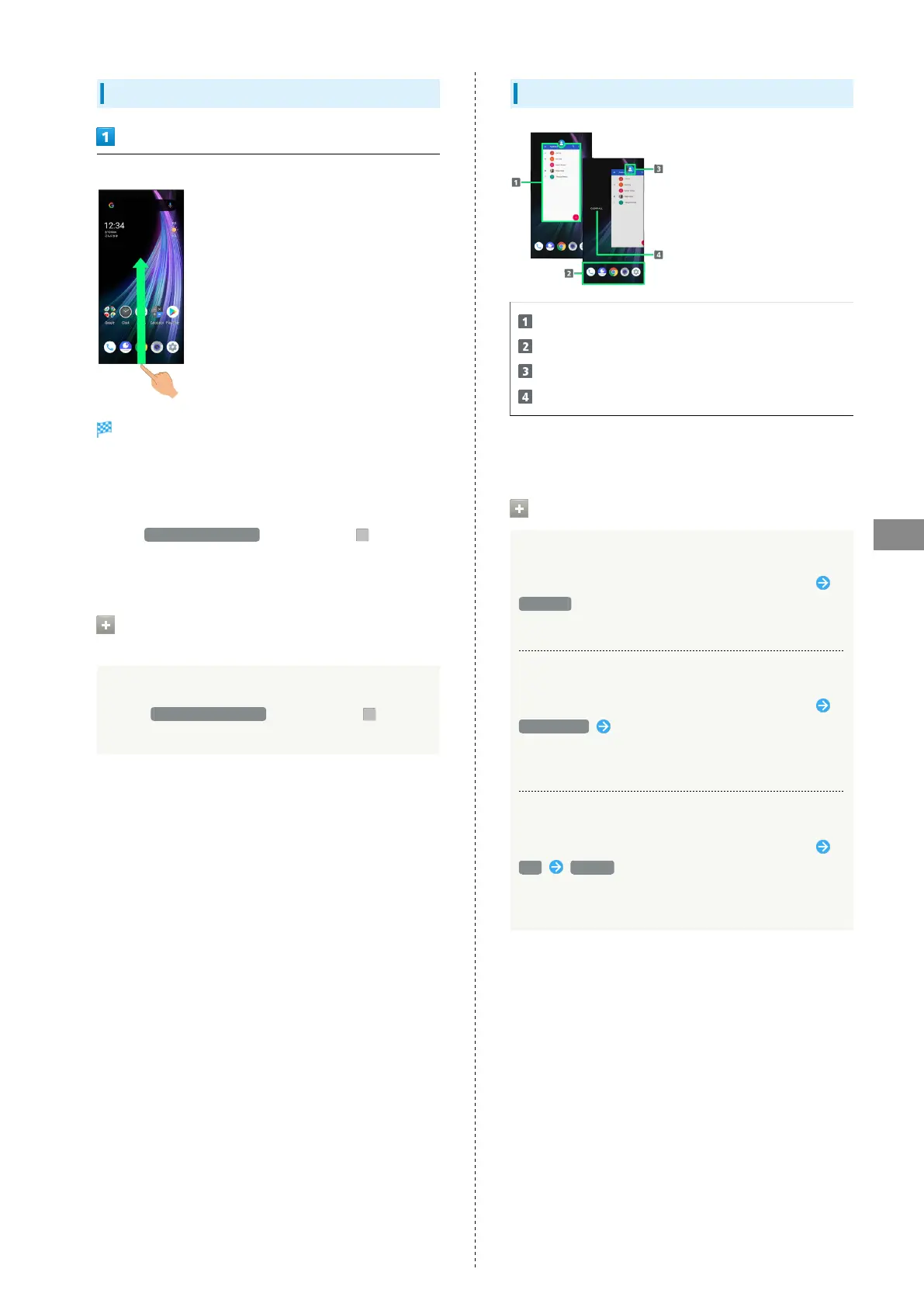
Recent Apps Window Layout
Activate recently used applications.
1
Favorites Tray.
Show application menu.
Remove all applications from the list.
2
1 Flick up to remove from the application list.
2 Appears when Flicking application list to the right.
Application Menu Operations
Checking Application Information
In recent apps window, Tap icon of application in list
App info
・May not be usable with some applications.
Splitting Screen (Multi-Window)
In recent apps window, Tap icon of application in list
Split screen Follow onscreen prompts
・See "Multi-Window" for details.
・May not be usable with some applications.
Pinning Screen
In recent apps window, Tap icon of application in list
Pin GOT IT
・Appears when "Screen pinning" is enabled. See "Security
Settings" for details.



 To Next Page