171
Handset Settings
AQUOS zero2
About Phone
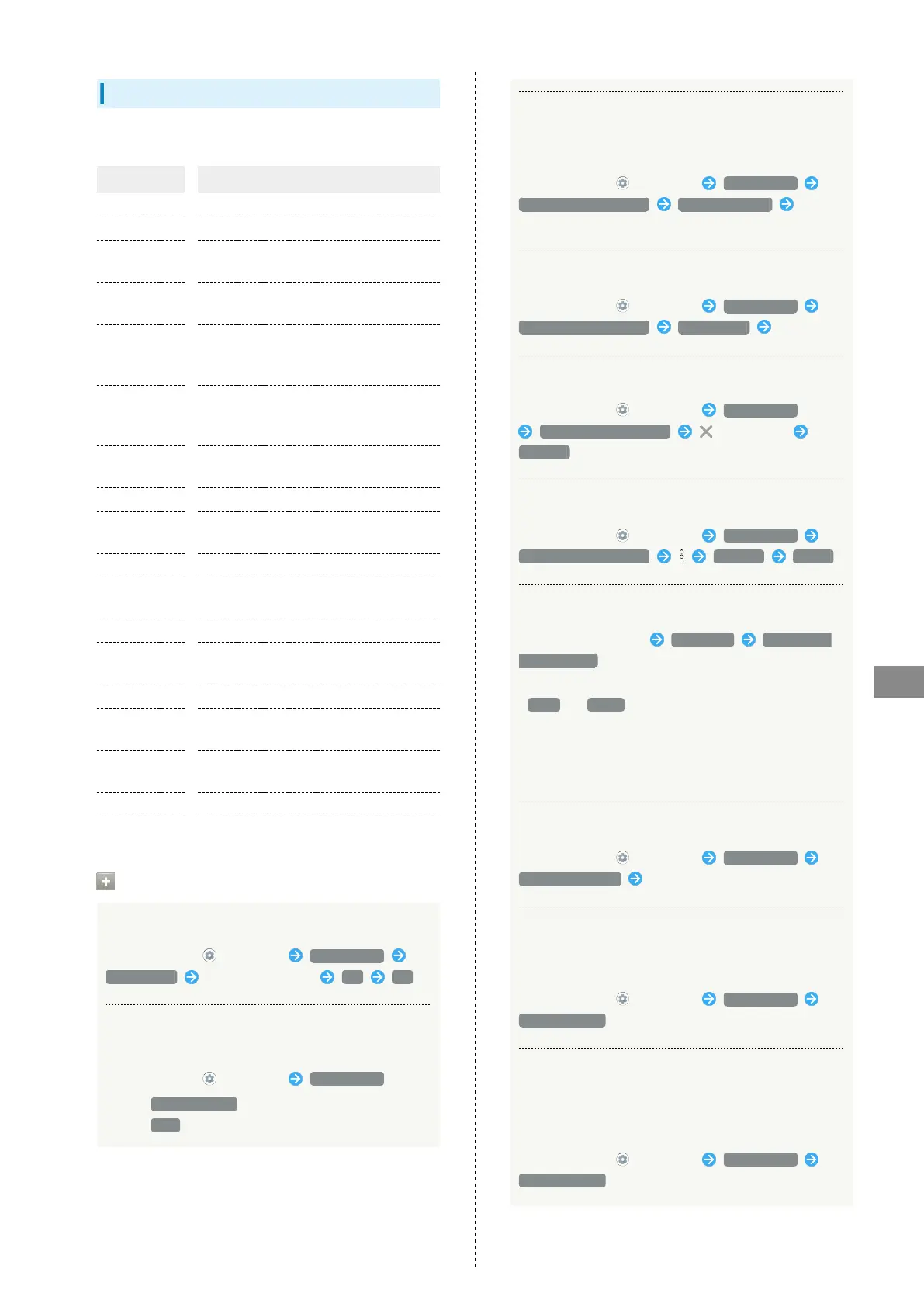
Items that can be set/checked are the following.
Item Description
Device name Change handset name.
Phone number Check phone number.
Emergency
information
Edit emergency information.
Legal
information
Check third-party licenses, Google terms
of service, etc.
Authentication
Check information on Technical
Conformance Certification or Checking
VCCI Information.
Adjust
sensitivity of
sensor
Calibrate motion and electromagnetic
sensors.
Carrier
Setting
Set a cellular provider.
Brand Check brand.
Battery
status
Check depletion of Battery.
SIM status Check SIM Card status.
Model &
hardware
Check model name, serial number, etc.
IMEI Check IMEI barcode.
Android
version
Check the Android version.
IP address Check the IP address.
Wi-Fi MAC
address
Check the MAC address.
Bluetooth
address
Check the Bluetooth address.
Up time Check handset operation time.
Build number Check the build number.
About Phone Operations
Changing Handset Name
In Home Screen, (Settings) About phone
Device name Enter handset name OK OK
Checking Battery Level, Your Phone Number,
and Other Handset Status
In Home Screen, (Settings) About phone
・
Next, Battery status to check battery depletion.
・
Next, IMEI to check IMEI barcode.
Editing Emergency Information
Save your own medical information (name, address, blood
type, allergies, etc.) to handset as emergency information.
In Home Screen, (Settings) About phone
Emergency information Add information Set/
enter each item
Adding Emergency Contact
In Home Screen, (Settings) About phone
Emergency information Add contact Tap contact
Deleting Emergency Contacts
In Home Screen, (Settings) About phone
Emergency information for contact
REMOVE
Erasing All Emergency Information
In Home Screen, (Settings) About phone
Emergency information Clear all CLEAR
Viewing Emergency Information
In lock screen, Flick up Emergency EMERGENCY
INFORMATION twice
・Use if method for unlocking screen is setting other than
None or Swipe . See "Setting Screen to Unlock by
Tracing Pattern," "Requiring Lock No. (PIN) Entry for
Unlocking Screen," and "Setting Screen to Unlock with
Password" for details on setting a method for unlocking
screen.
Checking Legal Information
In Home Screen, (Settings) About phone
Legal information Follow onscreen prompts
Checking Technical Conformance Certification
Handset conforms to technical standards under the Radio
Law and Telecommunications Business Law.
In Home Screen, (Settings) About phone
Authentication
Checking VCCI Information
Handset conforms to technical standards under the VCCI
regulations, and is indicated by the conformance mark on
handset electronic nameplate.
In Home Screen, (Settings) About phone
Authentication



 To Next Page