10.3 Changing Joystick direction
The Joystick direction can be easily changed.
• Press the OK button!
• Press the OK button repeatedly!
• Select: !
„Normal“ - “Inverted“ - „Off“ !
By pressing UP or DOWN!
• Press OK to confirm!
10.4 Pairing of the Remote Control
NOTICE !
Make sure that the wireless remote control is switched off!!
• Press OK!
• Press Down till Remote Pairing
• Press OK
Now TRINITY will start a 10 seconds count down.!
• After 5 seconds the TRINITY will beep.
•
Now switch ON the wireless Remote Control.
•
Done
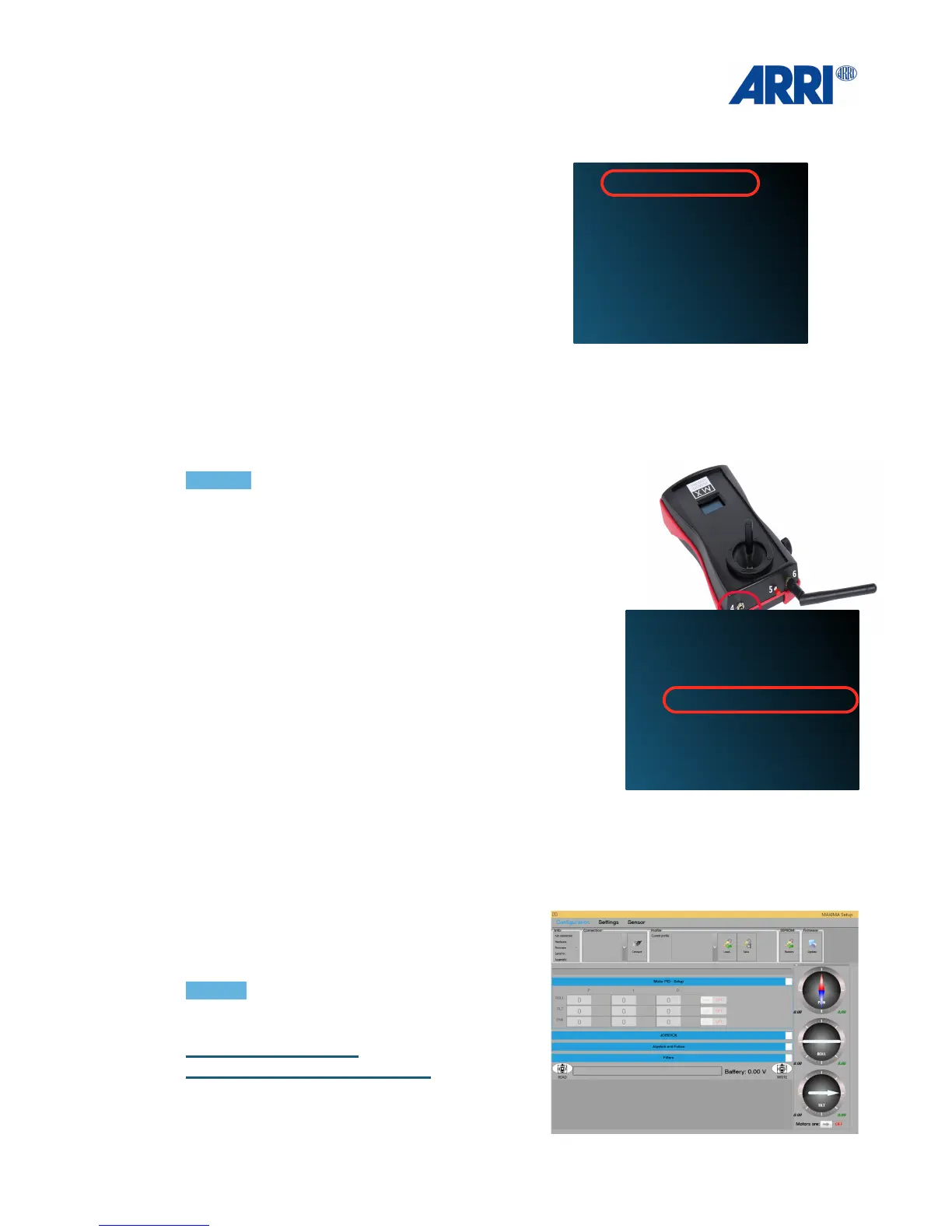
11.0 GUI (TRINITY Software)
All other adjustments have to be done with the
GUI which comes with the USB stick.!
The GUI needs a Windows computer or tablet,
running Windows 8 or 10, or Mac with Parallels.
!
NOTICE
Make sure you are running the latest GUI.
The latest version can be downloaded here:
https://www.arri.com/?
eID=registration&file_uid=16831



 To Next Page