6 Access Levels and Supervisor Tasks
Add User
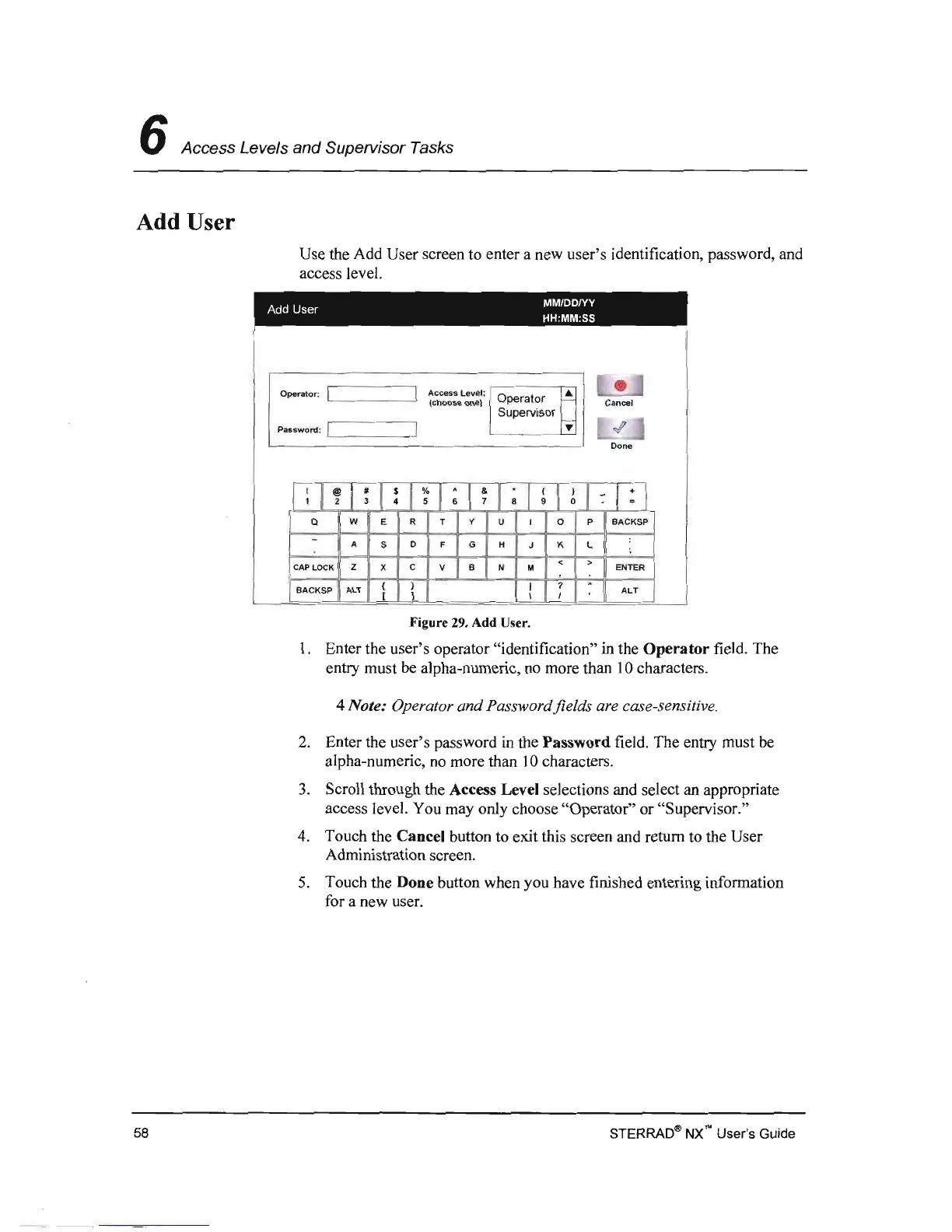
Use the Add User screen to enter a new user's identification, password, and
access level.
MM/DDIYY
Add User
HH:MM:SS
Operator:
I I
Access
Level:
E '
...
•
(choose
one)
perator
~
Cancel
Supervisor
I
~
Password:
I
..(l
Done
1
; 1
~
1
~
1
!
I
~
l
;
l
~
l
;
J
~
l
~
J
~
l
:
J
Q
w E
R
T Y
U
I
0
P
BACKSP
-
:
A
S
D F
G
H
J K
L
CAP
LO
CK
Z
X C V
B
N M
< >
ENTER
.
( )
I
7
BACKSP
ALT
ALT
[
1
\ I
Figure 29. Add User.
1.
Enter the user's operator "identification"
in
the
Operator
field. The
entry must
be alpha-numeric,
no
more than 10 characters.
4 Note: Operator and Passwordfields are case-sensitive.
2. Enter the user's password
in the
Password
field. The entry must be
alpha-numeric,
no
more than
10
characters.
3.
Scroll through the Access Level selections and select an appropriate
access level. You may only choose "Operator" or "Supervisor."
4.
Touch the Cancel button to exit this screen and return to the User
Administration screen.
5.
Touch the Done button when you have finished entering information
for a new user.
58 STERRAD
qp
NX
no
User's Guide


 To Next Page