78
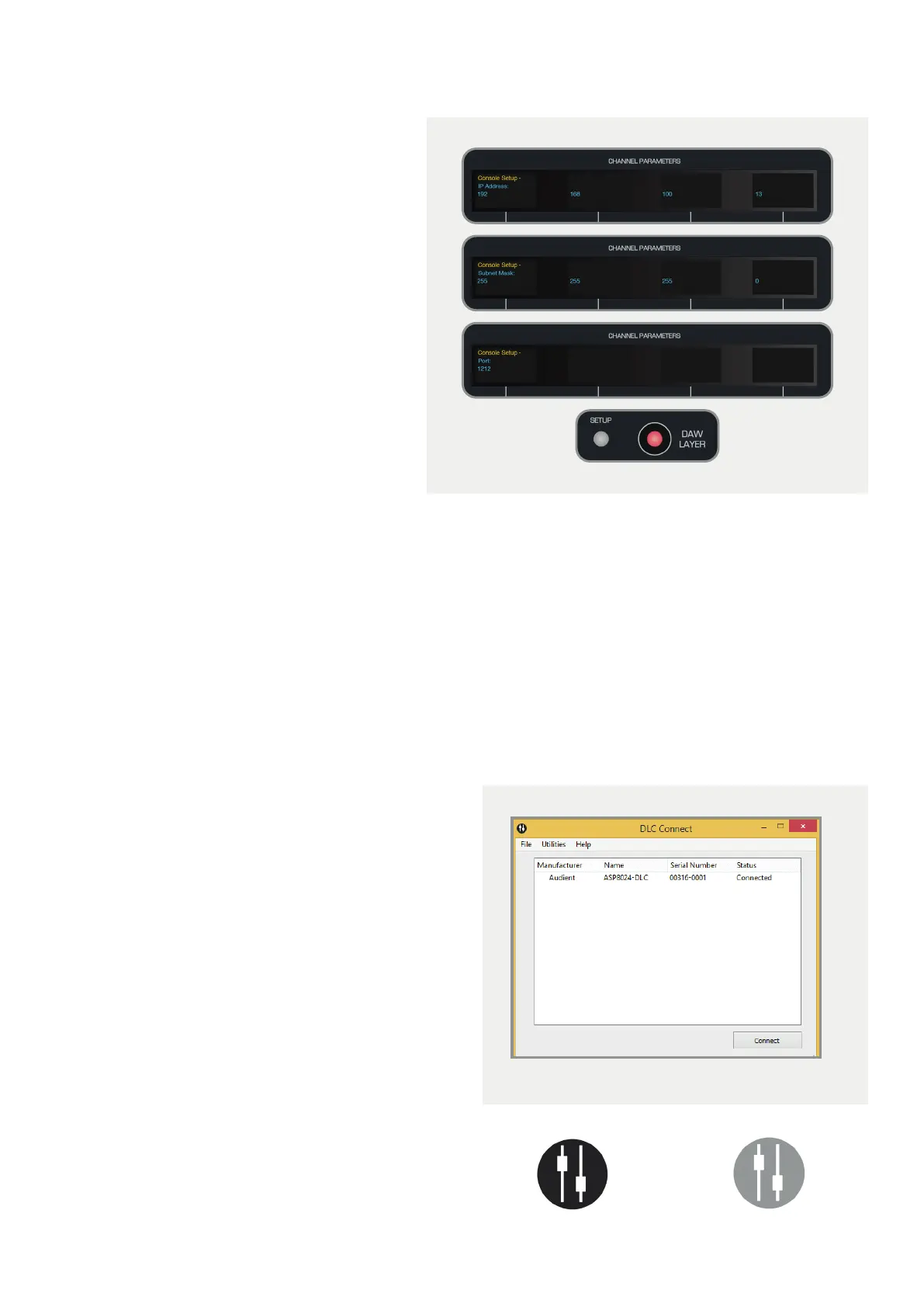
Page right again to reach the IP address screen
and use the encoders to set the IP address to:
192 . 168 . 100 . X
(ensuring that ‘X’ is dierent to that of the
computer).
On the following pages, set the Subnet Mask
to:
255 . 255 . 255 . 0
Set the Port to: 1212
Press the Setup Button again to exit setup and
save these settings.
Setting Automatic IP Address (using DHCP)
If you have connected DLC to a network using DHCP to automatically assign IP addresses, then you will need to set
DLC to use DHCP.
On the second page of the Setup Menu, ensure that the Use DHCP option is set to YES, then press the Setup Button
again to exit setup and save these settings. Make sure your PC is configured to use DHCP in the PC Network settings
(by default your PC should be set to use DHCP).
DLC Connect
Once network settings have been finalised, reboot
the console and the computer. On rebooting, DLC
Connect should open and the console should be
listed. Highlight the console within the app, and click
the connect button.
Your DLC module should now be connected to your
PC and ready for configuration as a HUI control
surface and analogue automation platform.
The DLC connect app icon in the System Tray will
display the connectivity status, with a black icon
indicating DLC is connected, and a greyed out icon
indicating DLC is disconnected.
Connected
Disconnected



 To Next Page