Chapter 4 --- Operation
40
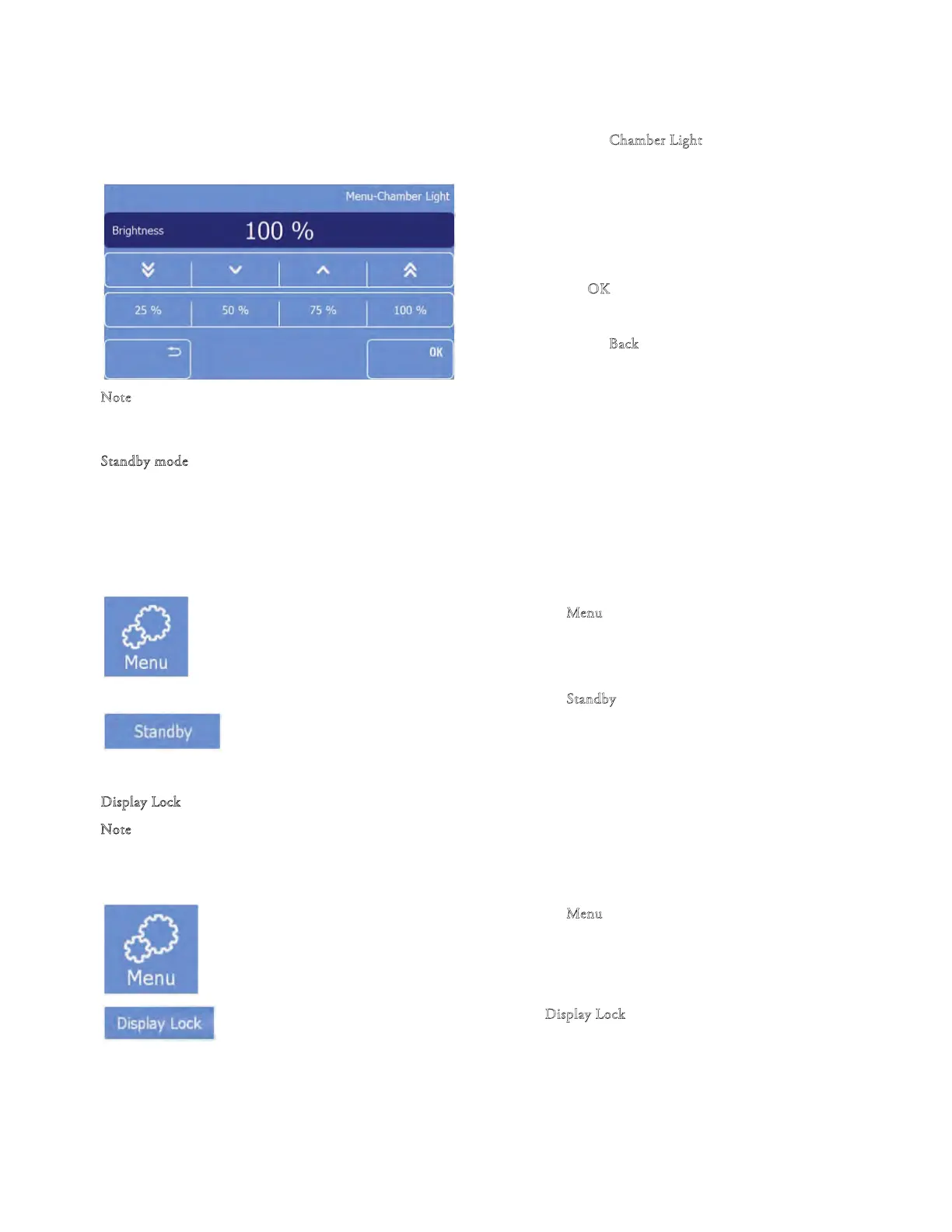
• Press the "C
hamber Light" button.
• e Chamber Light screen will be displayed
• Select one of the preset values (25%, 50%,
75% or 100%) or adjust the brightness using
the arrow keys.
• Press "O
K" to conrm the setting and to
return to the Main screen.
• Press the "B
ack" button twice to exit back to
the Main screen without saving the changes.
N
ote
e chamber illumination can be adjusted; from the lowest (0%) to the highest (100%) level.
S
tandby mode
When the QS12 is switched on but has been inactive for 1 hour, it will automatically enter the Standby mode. e
QS12 maintains the user adjusted temperature during Standby.
In Standby mode the chamber light switches o and the touch screen display will dim:
To enter the Standby-mode manually
• Press the "M
enu" button on the Main screen.
• e Menu screen will be displayed.
• Press the "S
tandby" button to switch the instrument
immediately into the Standby mode.
• Press the touch screen to exit the Standby.
D
isplay Lock
N
ote
e display lock is used to avoid unwanted changes to the settings of the QS12. To
activate the Display Lock:
• Press the "M
enu" button on the Main screen.
• e Menu screen will be displayed.
• Press ‘‘D
isplay Lock’’ to activate the display lock
immediately.


 To Next Page