AVerTV 6
35
(This picture is only for reference.)
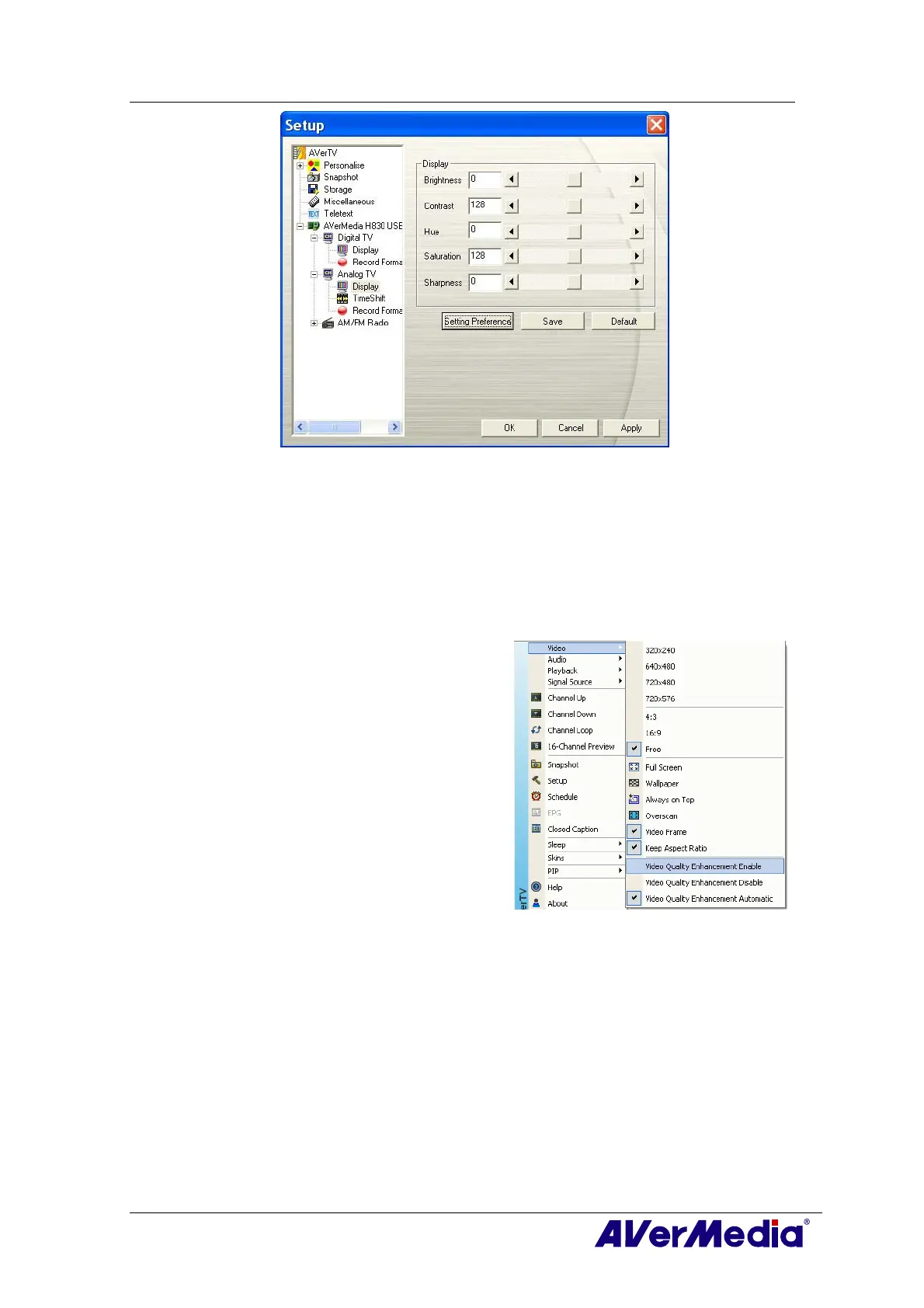
3. Then you can adjust the Brightness, Contrast, Hue, Saturation and Sharpness
sliders until you get an accurate color.
Click Save to create your own settings. Next time, you can simply click Preference
Setting to get your preferred settings.
4. If you want to revert to default settings, please click Factory Setting.
4.1.5 Enhancing the Video Quality
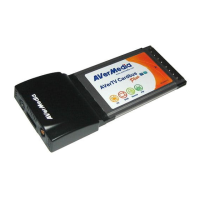
This function can reduce noise. Choose an
appropriate option listed below.
z Video Quality Enhancement Enable:
Activate to improve the video quality.
z Video Quality Enhancement Disable:
Disable the video quality enhancement
function.
z Video Quality Enhancement Automatic:
Automatically adjust video quality
depending on the video screen size.




 To Next Page