AVerTV 6
63
4. To modify more channels, repeat step 2 to 3.
5. Click Apply to save the settings and click OK to exit the current dialog box.
5.8 Adding and Deleting Channel Groups
Selecting a Channel Group allows you to switch between the channels of the selected group
only when pressing the Channel Up/Down button. If you want to add or delete an AM/FM
channel group, do the following:
To add a new channel group:
1. Click the Setup button and in the Setup dialog box, click AM/FM Radio icon in
the left pane.
2. Click New and the Program List dialog box appears. Type in a group name and click
OK.
3. Now you can start to scan AM/FM radio channels and manage the scanned AM/FM
data for this new channel group. For more information, refer to How to Auto Scan
AM/FM Radio Channels.
4. To add more channel groups, repeat steps 2 to 3.
To delete a channel group:
1. Click the Setup button and in the Setup dialog box, click on the AM/FM Radio
icon in the left pane.
2. From the drop-down list, select the name of the group that you want to remove.
3. Click Delete to remove the selected group.
5.9 Customizing Audio Recording Settings
To customize audio recording settings:
1. Click the Setup button
and in the Setup dialog box, click on the AM/FM Radio
icon in the left pane.
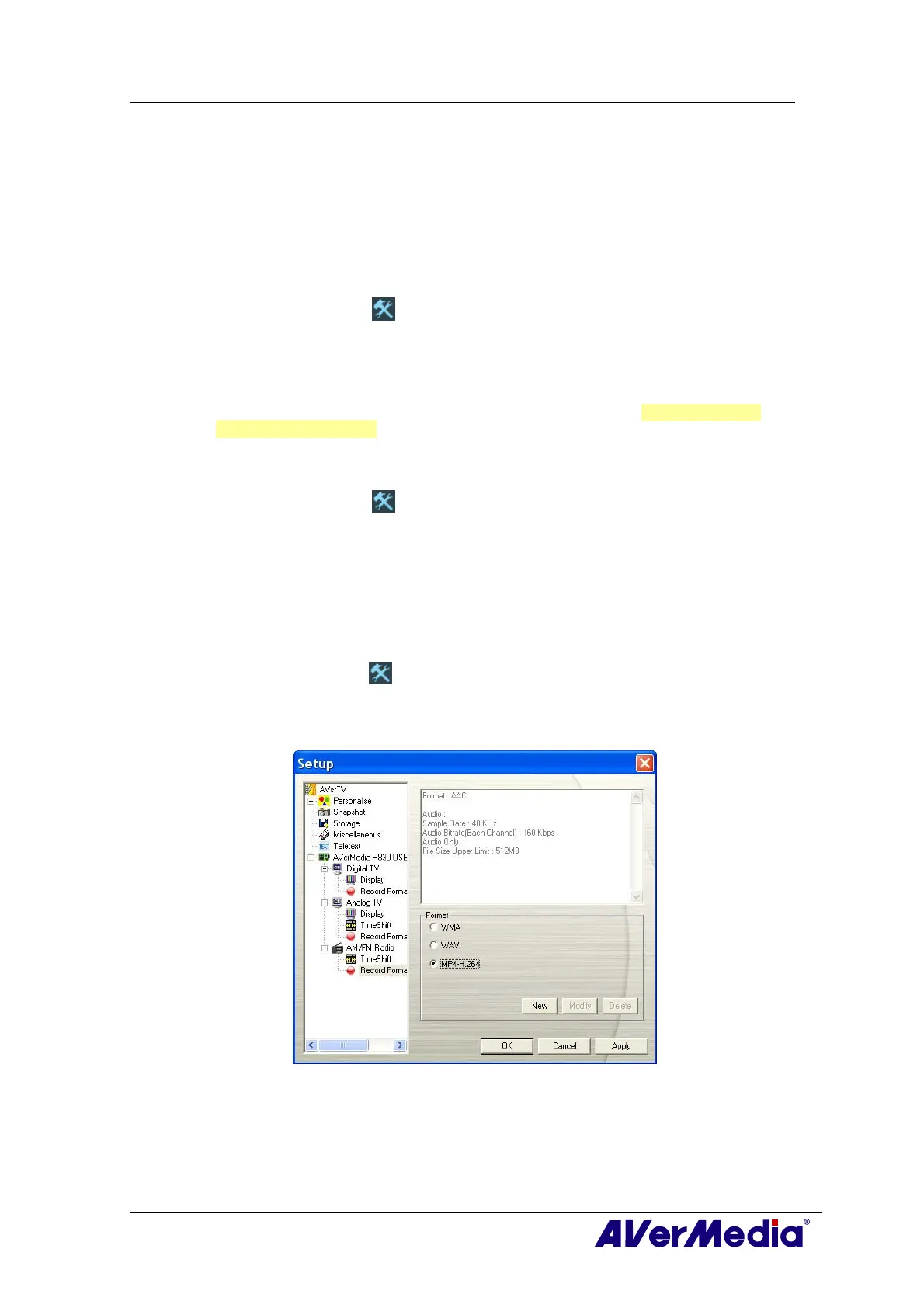
2. Then select Record Format. You can use the default format or select New to create
your own file format.
(This picture is only for reference.)
3. Click New and the Format dialog box appears. In the Format dialog box, select the
file format you want and enter the desired name in the text box. Then click Next.




 To Next Page