AVerTV 6
30
Note: After Media Center Edition scan, you may not be able to lock channels with
AVerTV 6. Please restart the computer to make it function normally.
4.1.2 Scanning Channels (For Advanced Users)
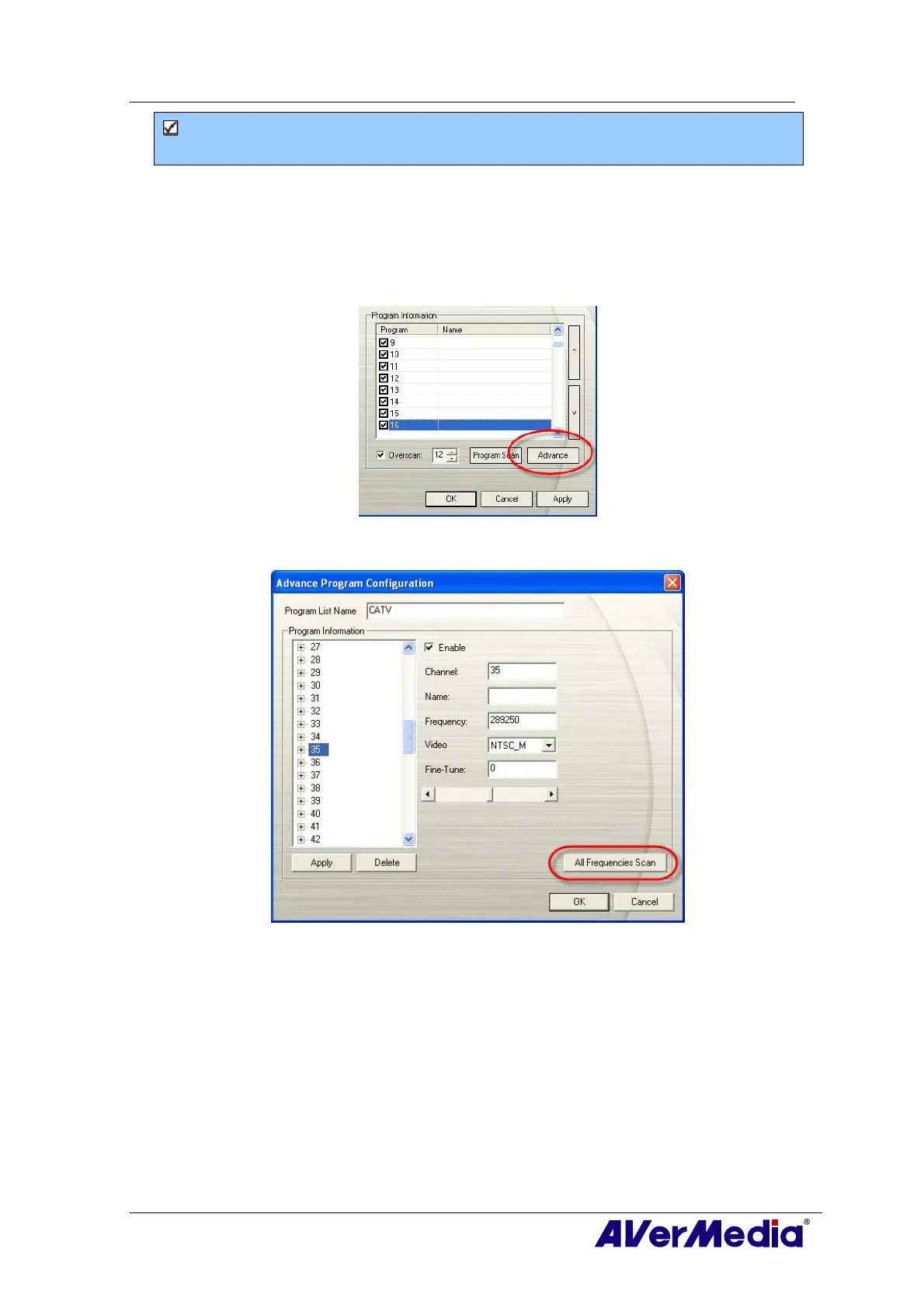
1. Click Advance located at right-lower corner in the Programs Information section.
Then the Advance Program Configuration dialog box will appear.
2. If you don’t want to miss any channels, click All Frequencies Scan.
3. When a warning message appears, click Yes to continue the procedure or click No to
abort this operation.
4. After scanning, new active channels/programs will be memorized and listed in the left
pane of the dialog box.
5. Click Apply to save the scanned channel.
4.1.3 Customize Video Recording Settings
To customize the video recording settings, please do the following.





 To Next Page