AVerTV 6
81
10.2 Adding Schedules
To create a new schedule:
1. Click the Add button .
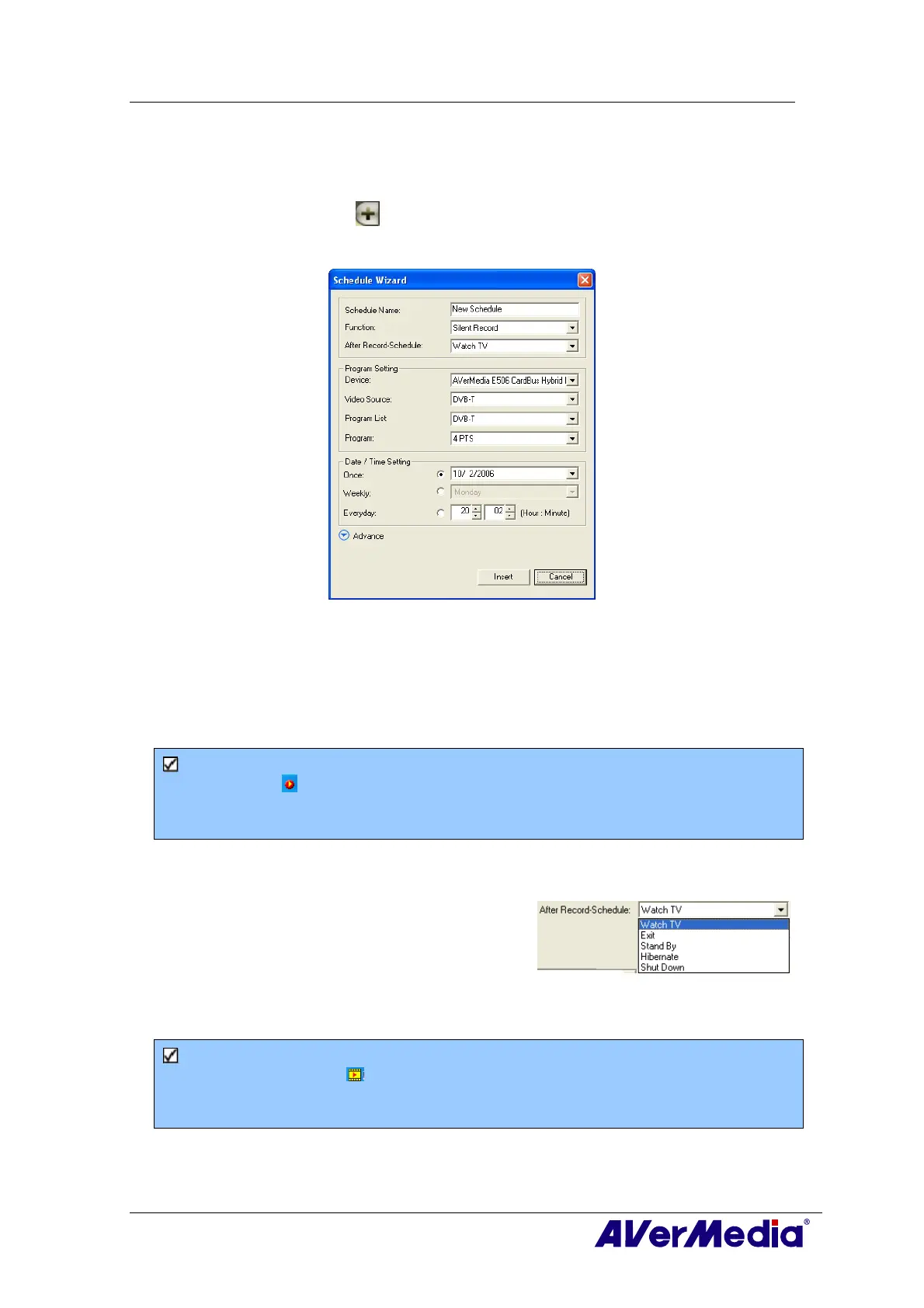
2. The following dialog box will then appear:
(This picture is only for reference.)
3. Type the desired name in the Schedule Name text box.
4. From the Function drop-down list, select Activate AVerTV to watch a TV program or
listen to a radio broadcast. Otherwise, select Record to save a TV/Radio program for
future viewing/listening. You can also select Silent Record which means the system
will perform background recording instead of activating the TV/Radio program.
Note: If you select Silent Record, when the application is performing the recording
task, the icon will appear on the task bar (the lower right corner of the screen). To
immediately watch or listen to the TV/Radio program which is being recorded, just
double-click this icon.
5. In the After Record-Schemes, it automatically switches to the selected power control
mode when the schedule recording is completed. Choose an appropriate power control
status listed below:
‧ Watch TV: Switch to real-time TV mode.
‧ Exit: Turn off the AVerTV Application.
‧ Stand By: Turn off your monitor and
hard disks.
‧ Hibernate: Save everything and then turn off your computer.
‧ Shut Down: Turn off your computer.
Note: If you choose Watch TV from the drop-down list, after completing the Silent
Record task, the icon will appear on the task bar (the lower right corner of the
screen). Just double-click this icon, you can immediately watch live TV or listen to the
radio.
6. In the Program Setting section, select the device, video source, group and channel you
want.







 To Next Page