AVerTV 6
61
5.2 How to Auto Scan AM/FM Radio Channels
If you are using AM/FM radio for the first time, perform an auto scan to search and
memorize active AM/FM radio stations in your area.
To auto scan AM/FM radio stations:
1. Click the Setup button
and in the Setup dialog box, click AM/FM Radio icon on
the left pane.
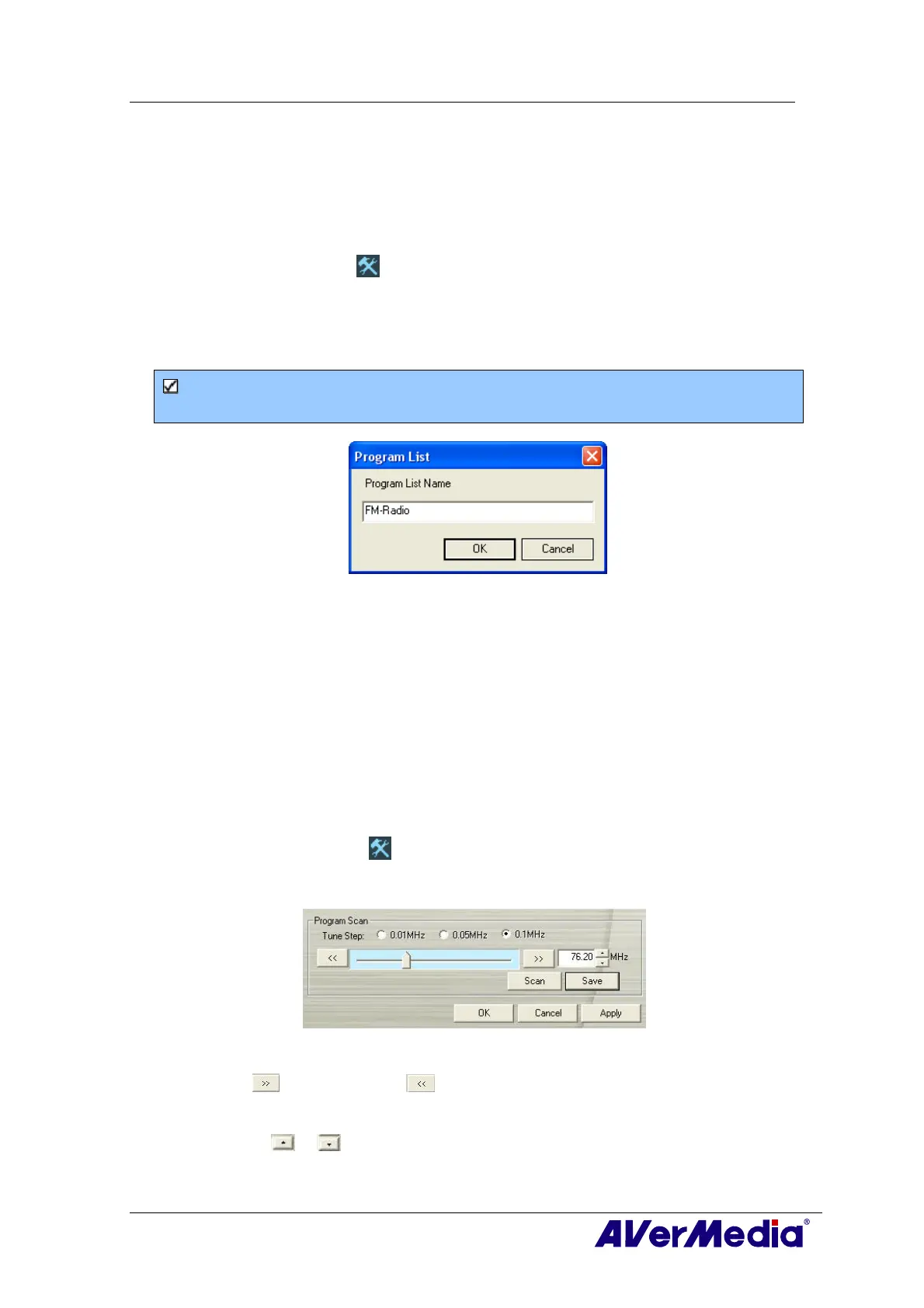
2. Click New and the Program List dialog box will appear. Type in the desirable name
and click OK.
Note: The system will assign a default name (AM/FM-Radio) if you don’t create a new
program list before scanning.
3. Click Scan. All active channels will be automatically scanned and memorized.
4. To terminate the scanning, click Stop.
5. Click Apply to save the settings and click OK to exit the current dialog box. To abort
the settings, click Cancel.
5.3 Manually Scanning Specific AM/FM Channels
Instead of scanning all channels, you can choose to manually scan one or a few channels
only. To do this, follow this procedure.
To manually rescan specific AM/FM radio channels:
1. Click the Setup button and in the Setup dialog box, click AM/FM Radio icon on
the left pane.
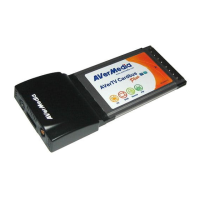
2. Enter the channel frequency that you want to start scanning in the text box.
(This picture is only for reference.)
3. Select 0.01 MHz, 0.05MHz or 0.1MHz as your tuning increment.
4. Click
to scan upward or to scan downward from the selected channel
frequency. The scanning will stop when the application finds the closest ACTIVE
AM/FM frequency.
5. Or click
or to increase/decrease the frequency to search your preferred
channel.
6. Click the Modify button if you’d like to keep the newly scanned frequency.




 To Next Page