AVerTV 6
86
Different lamp indicates different status:
․Dark Red indicates your satellite configuration is at wrong setting.
․Dark Green indicates the satellite signal is available but no
Internet data transmission occuring that time.
․Light Green indicates you have connected to the Internet
successfully.
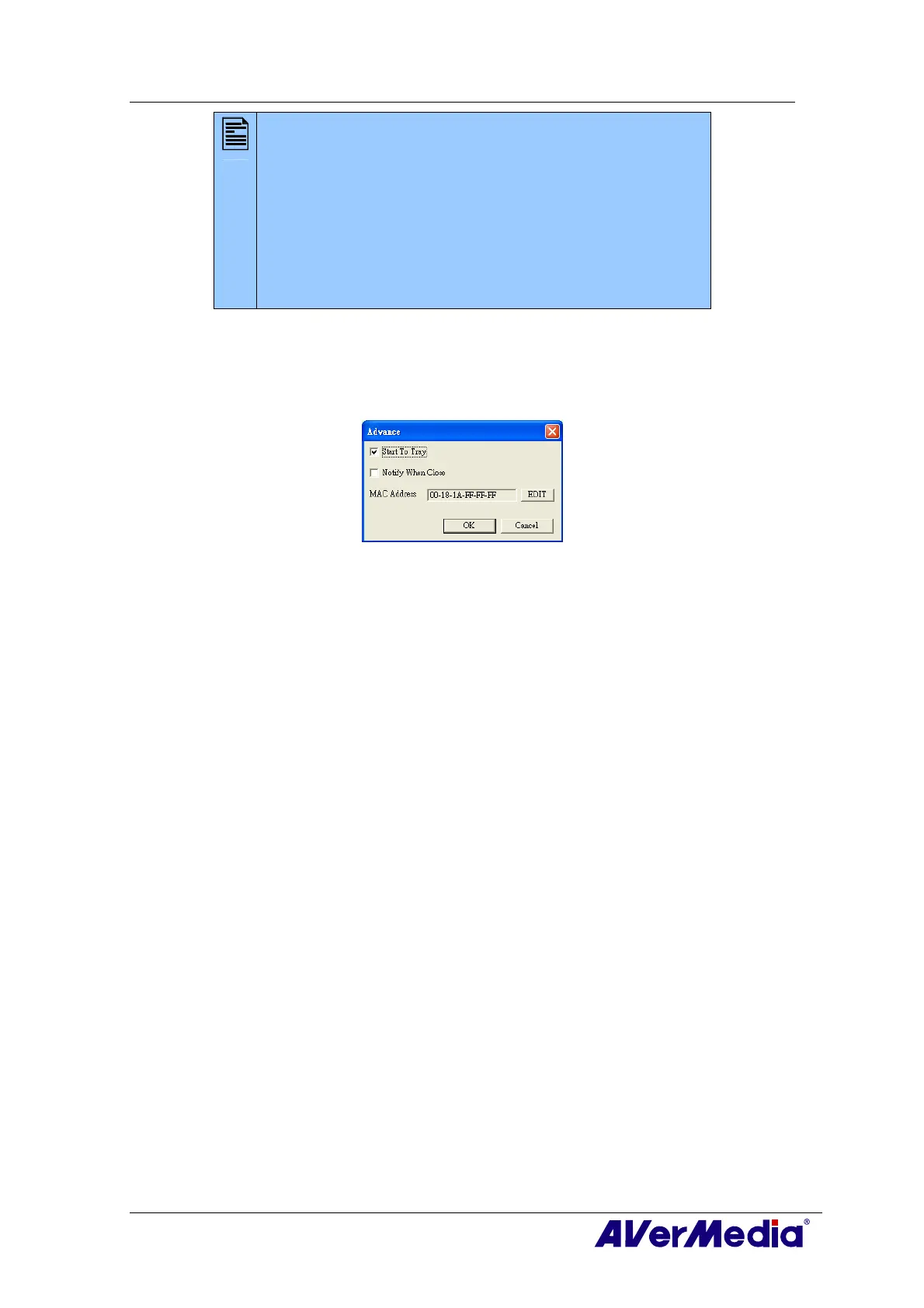
9. Click Advance to customize the Satellite Internet Access.
- Start to Tray: Select to minimize the application and an icon will appear in the
notification area.
- Notify When Close: Select to inform you when exiting the application.
- MAC Address: By default, the system detects MAC value automatically. Or click
EDIT to enter your MAC value.
FAQ
Q : Before setting up, what should I prepare?
A : Satellite Internet Service requires you to have an ISP account and a Modem for
sending commands to the Internet.
Q : Should I pay for Satellite Internet Access?
A : The charge for the service will be mainly determined by your Internet Service
Provider (ISP). For details about the fee rate, please contact your ISP.
Q : Why can’t I activate Satellite Internet Access?
A : You cannot activate AVerTV 6/AVer MediaCenter and Satellite Internet Service at
the same time so please make sure you have already exited the AVerTV 6.0/ AVer
MediaCenter.
Q : Why can’t I still access the Internet after setting up?
A : Our default IP address is 192.168.14.61. If there is something wrong with connecting
to the website, please make sure that there is no IP address conflict in your computer.
Q : How can I get the PID value?
A : Please contact your ISP to obtain the related data.
Q : Where can I find the LNB information?
A : Refer to the documentation that comes with your LNB device.




 To Next Page