77
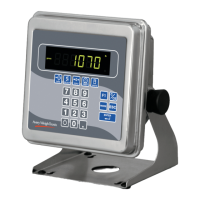
Model E1070 Indicator Service Manual
(NETS) ETHERNET 4
TCP/ IP Server
1. If you selected E-NET4 (ETHERNET 4 TCP/IP Server) at the beginning
of the NETS setup. .
IP is displayed.
2. Press the PRINT key to configure the IP address of the indicator. . .
The first octet of the IP address is shown.
3. Key in the desired number for the first octet of the IP address. (###.
xxx.xxx. xxx). . .
The second octet of the IP address is shown.
4. Repeat step 3 above for all 4-octet numbers of the IP address. (###.
###. ###. ###). After all four parts of the IP address have been entered.
IP is displayed.
5. Press the UNITS key. . .
SUBNET is displayed.
6. Press the PRINT key to enter the Subnet mask. This will be a numeric
entry in four parts just like the IP address. (###. ###. ###. ###)
7. After all four parts of the subnet mask have been entered. . .
SUBNET is displayed.
8. Press the UNITS key. . .
GATE is displayed.
9. Press the PRINT key to enter the gateway address. This will be a
numeric entry in four parts just like the IP address. (###. ###. ###. ###)
10. After all four parts of the gateway have been entered. . .
GATE is displayed.
11. Press the UNITS key. . .
SMTP is displayed.
12. If you are connecting to a mail server and you plan to send e-mails from
the indicator, press the PRINT key to enter the IP address of the (host)
mail server. This will be a numeric entry in four parts (###. ###. ###.
###) just like the IP address. The E-tools PC application must be used
to enter the indicator’s user name, domain name, recipient address, and
sender address.
13. After all four parts of the SMTP Address have been entered. . .
SMTP is displayed.
14. Press the UNITS key. . .
PORT is displayed.
15. Press the PRINT key to enter the port number of the indicator. This is a
numeric entry (####). After the Port number has been entered. . .
PORT is displayed.
Service Menu—OPTION submenu (continued)


 To Next Page