User Manual 52
• Then sign in with the BCN3D Cloud account.
• Find the preferred printer on the list.
How to print the file
In order to use this functionality, the printer must be in the Ready state.
• Click on Upload a file and select the printing file previously stored.
• Wait for the process to upload the file and wait until the printer downloads it correctly. The printer will start
automatically as soon as the printing file is downloaded.
To know more about the features available on BCN3D Cloud, read the manual.
(HINT) Do not forget to apply a thin and uniform layer of printing adhesive (Magigoo included in the Upper Box) on
the entire glass to ensure that your print adheres reliably to the printing surface.
i
i
From the BCN3D Cloud dashboard
• Slice the project in BCN3D Cura as shown in Preparing a print and a Save file button will appear on the right
bottom panel. Click Save file and store the printing file (.GCode) somewhere in the computer.
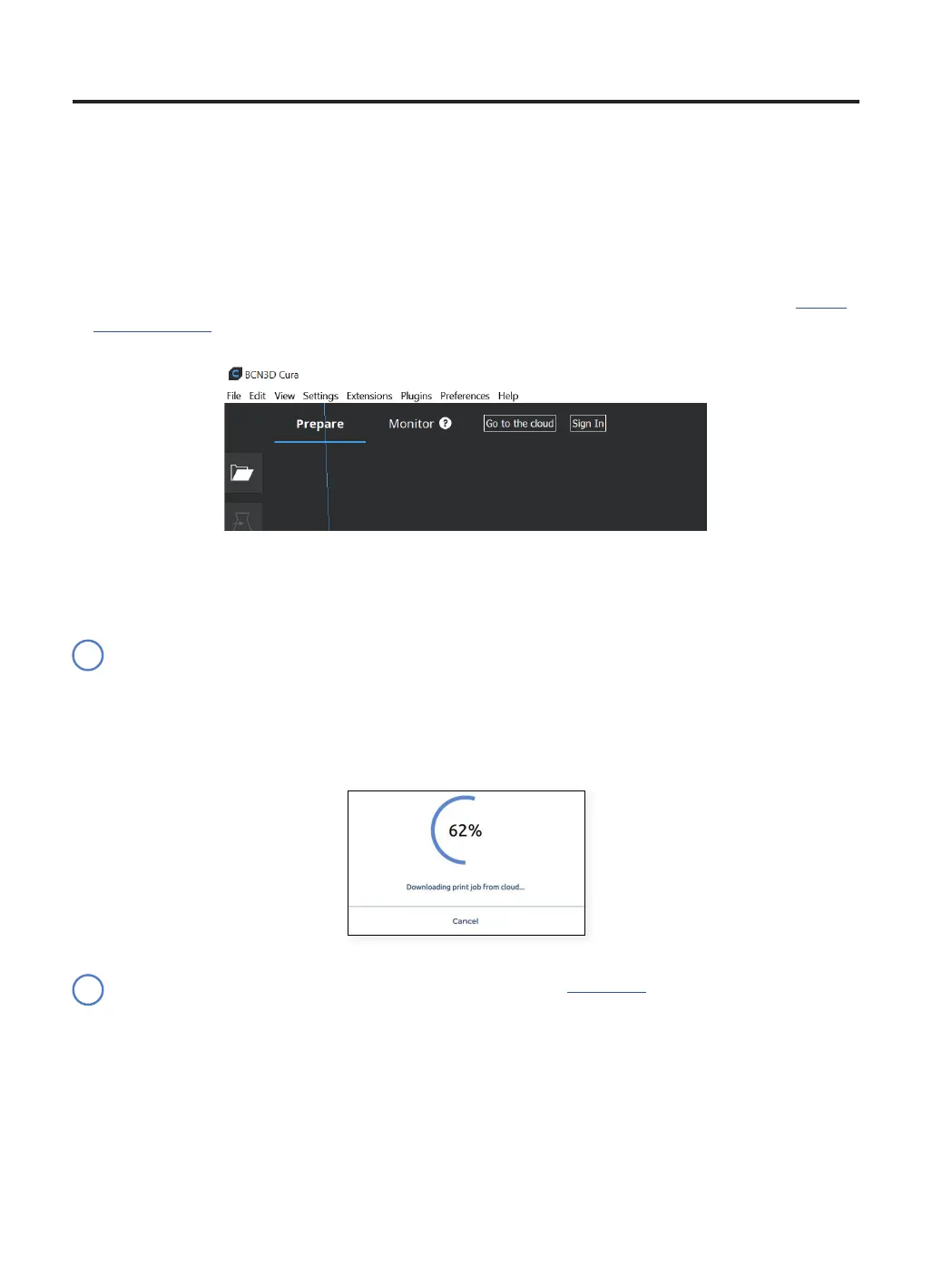
• Select either Go to the Cloud button from BCN3D Cura dashboard or open a browser window and go to https://
cloud.bcn3d.com.


 To Next Page