47
NAVIGATIONAL MODE >>>
> D
> GB
> F
> I
> E
> P
> NL
> DK
> S
> N
> FIN
> TR
> GR
> PL
> CZ
> H
> SK
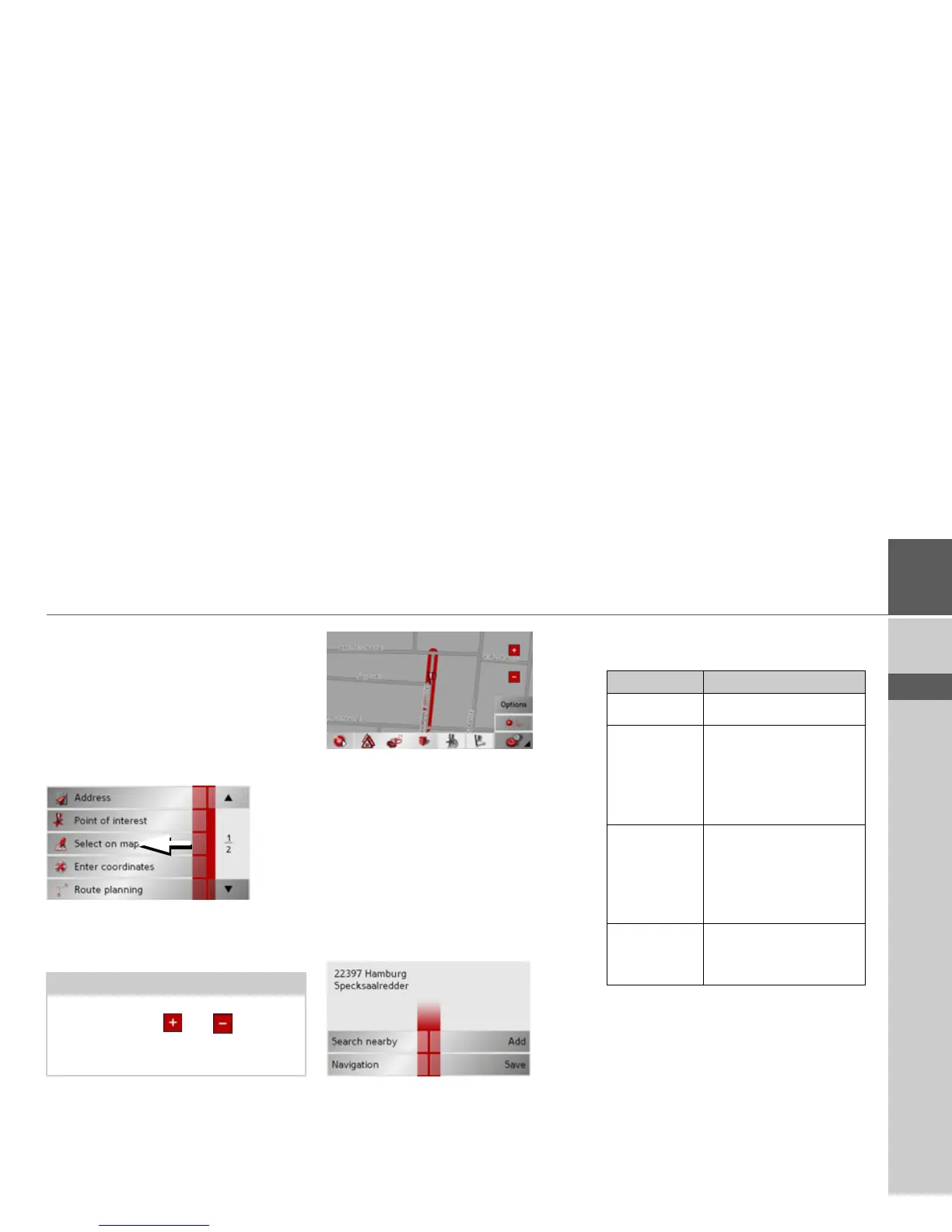
Navigation menu: Select on
map
If the destination required cannot yet
or can no longer be found in the destina-
tions memory, the
Select on map button
allows you to select it directly.
No address details are asked for in this
case.
> Press the
Select on map key to make a
direct selection.
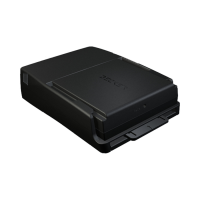
The map display appears.
> Gently press the screen surface until
a circle of dots is drawn around the des-
tination requested. The destination is
recorded.
Information on the point selected
is loaded from the set of data and dis-
played. There are buttons under the infor-
mation box which can be used to call up
several functions which are provided for
the route point selected.
When route guidance is deactivated, the
following buttons are available:
When directions to the destination is ac-
tive, the
Interim destination button
is also still available. You can add the se-
lected destination as a stopover for your
route guidance from the map.
> Press a key to undertake the action re-
quested.
Note:
You may have to enlarge the area using
the zoom buttons and in order to
find the desired street. You can also find
the desired point by moving the map
Button Meaning
Navigation Starts navigation
Add Adds the destination of
the stored route last used,
See “Navigation menu:
Route planning” on
page 48..
Save Allows your destination
to be given a name
via the entry menu and
saves this in the destina-
tions memory
Search near-
by
Entry menu as for normal
POI entries


 To Next Page