53
NAVIGATIONAL MODE >>>
> D
> GB
> F
> I
> E
> P
> NL
> DK
> S
> N
> FIN
> TR
> GR
> PL
> CZ
> H
> SK
> Confirm your selection by pressing the
OK key.
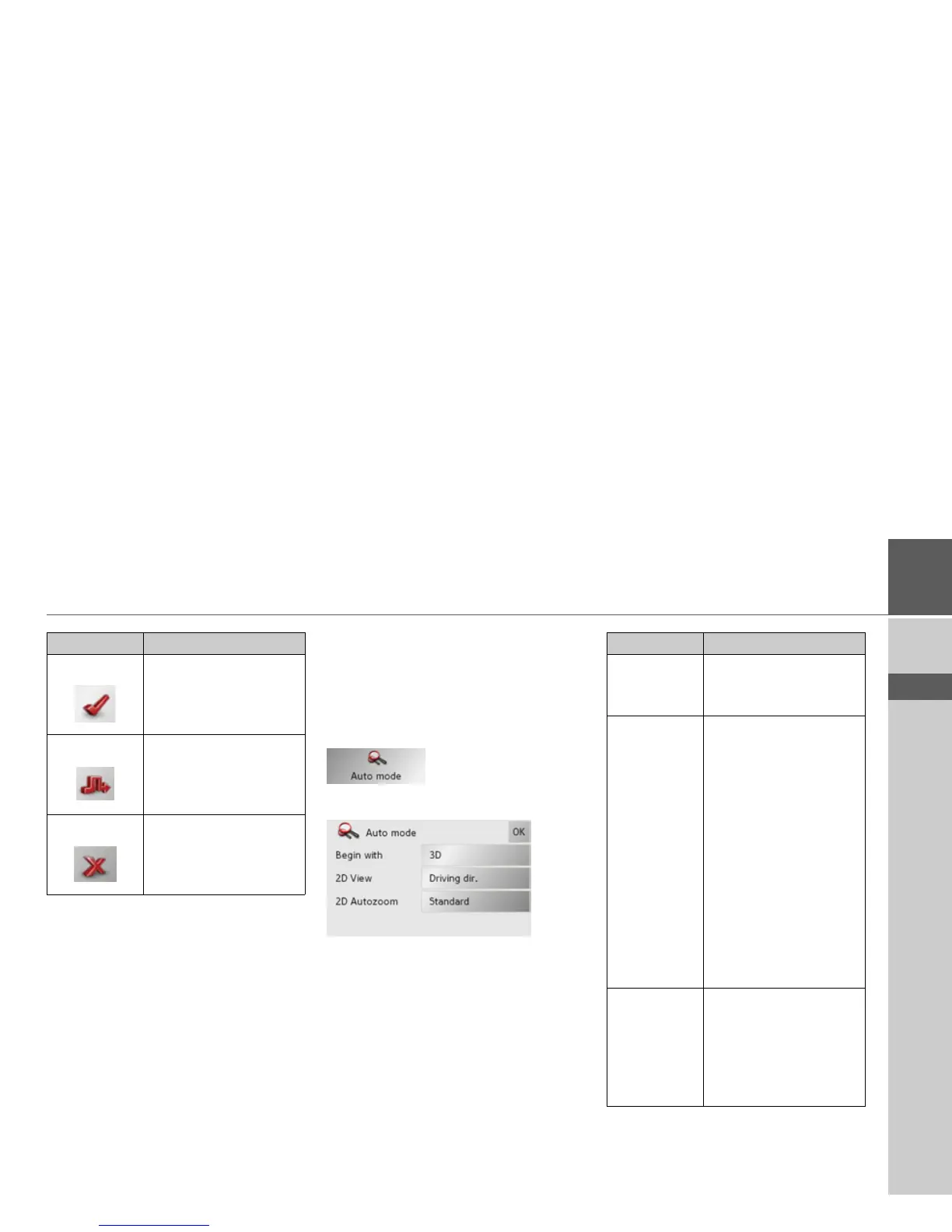
The Auto mode key
You can change the map view settings
(2D/3D display, auto zoom and map
orientation) in the Auto mode settings
window.
> Press
Auto mode in the settings menu.
The Auto mode settings menu appears.
> Confirm your selection by pressing the
OK key.
Setting Meaning
Allowed With this option, the
corresponding road type
is included in the route
calculation.
Avoid With this option, wher-
ever possible, the corre-
sponding road type is
avoided.
Not permitted With this option, the
corresponding road type
is not included in the
route calculation.
Setting Meaning
Begin with Select whether the stand-
ard map view is to be the
3D or the 2D view.
2D Autozoom In the case of 2D view
navigation, select wheth-
er you would like the
auto zoom
low, normal,
high or no auto zoom
view as standard.
With the Autozoom op-
tion, the zoom range var-
ies according to your
speed: When you drive
slowly, the scale is de-
creased. When you drive
faster, the scale is in-
creased.
2D View In the case of 2D view
navigation, select wheth-
er the map should be ori-
ented
to the north or in
the direction of travel as
standard.


 To Next Page