79
PICTURES MODE >>>
> D
> GB
> F
> I
> E
> P
> NL
> DK
> S
> N
> FIN
> TR
> GR
> PL
> CZ
> H
> SK
A prompt appears once all images have
been displayed.
> If you wish to repeat the slide show,
press
Yes.
> If you wish to end the slide show, press
No.
The slide show will be repeated automati-
cally if no buttons are pressed.
Press the key to end the slide show.
Full screen
In full screen mode, the current picture is
enlarged to fill the entire touch screen.
Full screen mode can be started using the
following keys.
> Press the key featuring the full screen
icon.
The image display changes to full screen
and initiates the slide show with the dis-
played image of the current folder level.
By pressing the left-hand or right-hand
touchscreen surface, the previous or next
image in the current folder level is dis-
played.
You can return to the standard screen by
pressing the key .
Shutting down the Picture Viewer
Press the key to shut down the Picture
Viewer. The main menu appears.
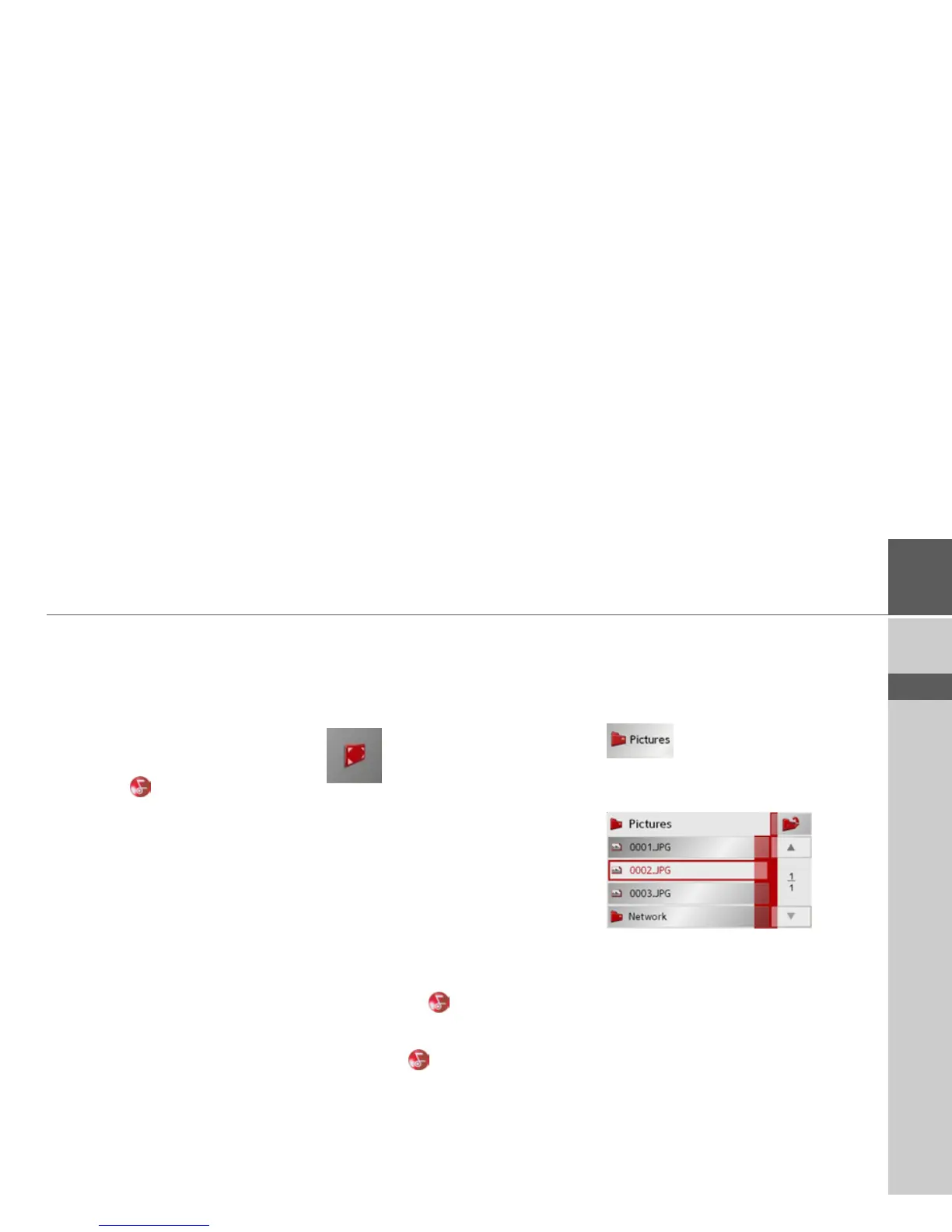
Folder viewing mode
Under the picture displayed in the Picture
Viewer, the picture's folder level is dis-
played in a key panel.
> Press the key panel.
Folder viewing mode appears.
In this viewing mode, the name of the cur-
rent folder level is displayed in the top
line. It content appears in the list provided
below the line.
The list fields are also displayed as but-
tons. Pictures and sub-folders are dis-
played along with their names.


 To Next Page