48
>>> NAVIGATIONAL MODE
> D
> GB
> F
> I
> E
> P
> NL
> DK
> S
> N
> FIN
> TR
> GR
> PL
> CZ
> H
> SK
Navigation menu: Route plan-
ning
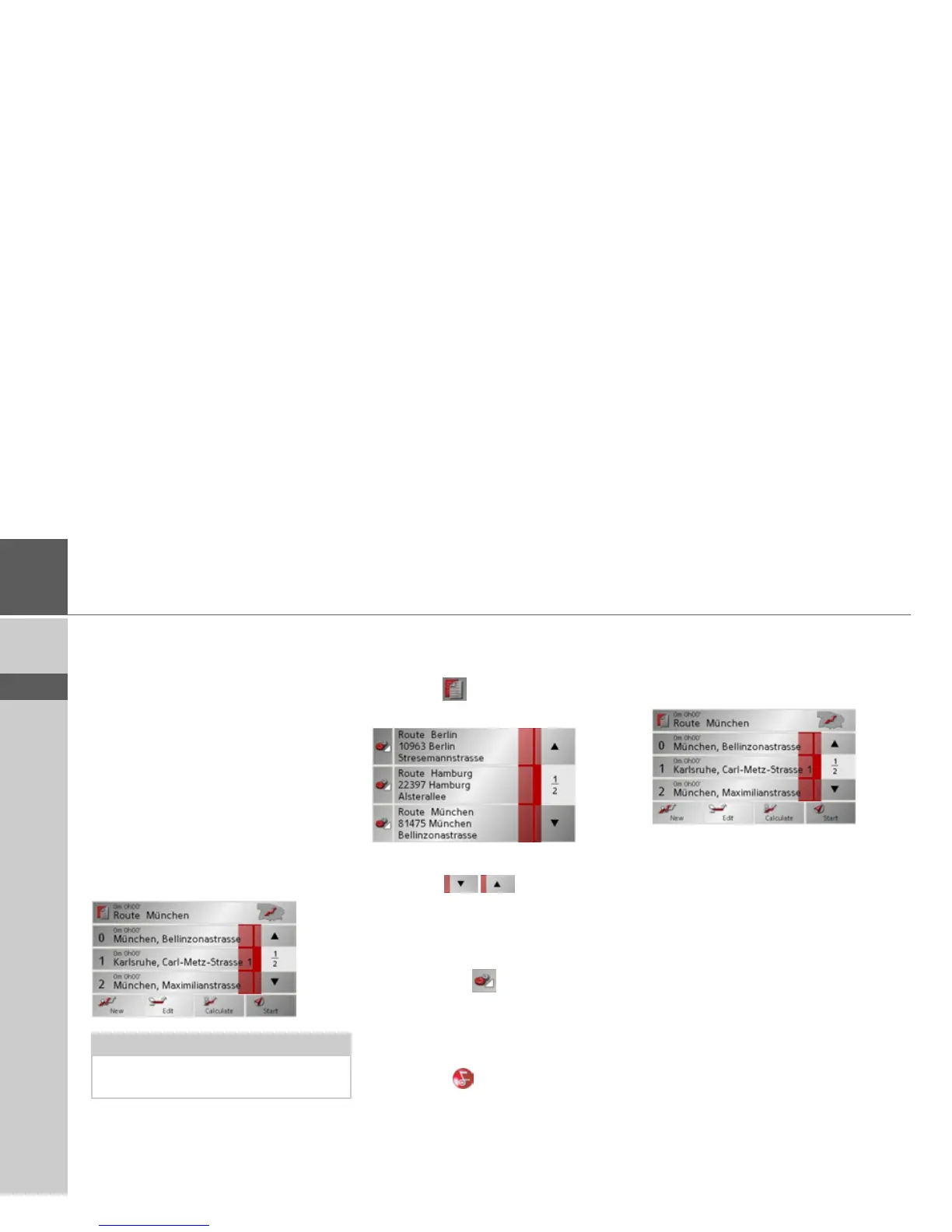
The route planning menu allows you to
create and select individual routes. In ad-
dition to selecting and setting a wide range
of details, you can also define legs of the
journey.
> In Navigation menu, press the
Route
planning
key to access the route menu.
The map symbol appears at the top right
of the route menu. The name of the last
programmed route is displayed at the top
left and the individual stages of this route
appear underneath.
Route list
Routes already stored in the system are se-
lected from the route list.
> Press the
button in the route menu.
The route list opens.
Scrolling through the list of routes
> Press the arrow keys on the
right hand side of the screen to scroll
through the list of routes.
Displaying route details
> Press button to display the route
details.
The Route details window opens. You
can also rename or delete the route in this
window.
Press the key to return to the route list.
Selecting a route
> Press a route to select it.
The route is loaded and displayed in the
route menu.
Note:
The route menu is empty following a
reset, or if no route has yet been planned.


 To Next Page