8
7 General operation
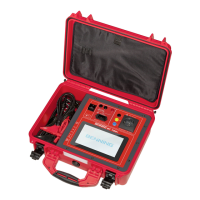
The BENNING ST 755/ ST 760 is operated via the integrated
touchscreen. Capacitive detection enables the touchscreen to
respond to touch by your fingers or the rubber coating of the
supplied stylus.
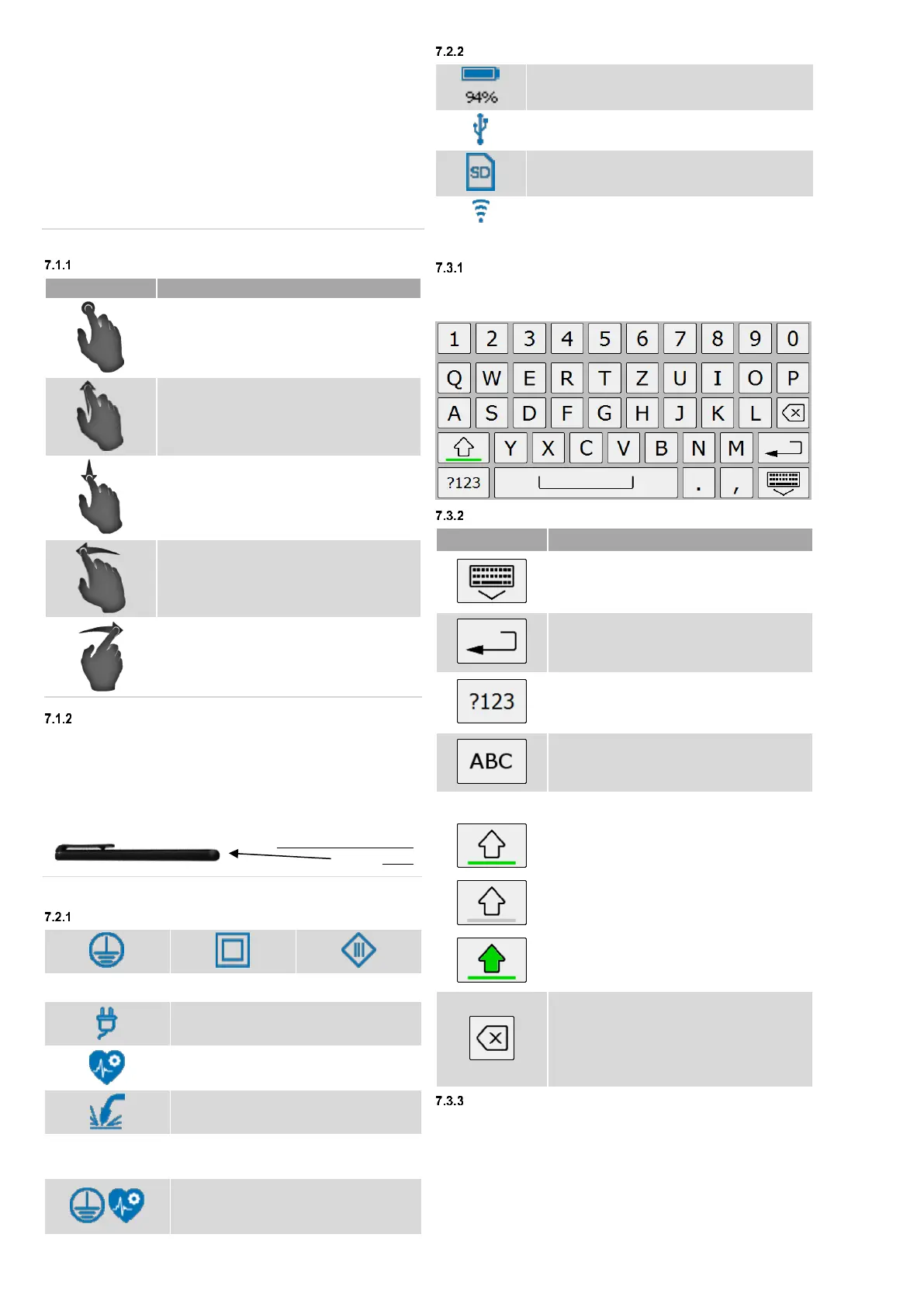
Icons and buttons are displayed that allow you to navigate through
the menu structure. You can go to the desired menu item by tapping
on the corresponding button or the corresponding icon.
For listings that exceed the display area of the touchscreen, you can
scroll the list via “Swipe up or down".
7.1 Operating the touchscreen
Touch gestures
Tap
Select buttons/icons
Confirm selection
Swipe up
Scroll up
Push up
Swipe down
Scroll down
Push down
Swipe left
e. g. change display brightness
Swipe right
e. g. change display brightness
All touch gestures can be carried out with the enclosed stylus in
the same way as finger movements.
Carry out the corresponding touch gesture with the rubberized
surface of the stylus.
rubberized surface of the
stylus
7.2 Info icons of the header
Test sample and protection class
Test sample acc. to VDE 0701-0702
Test sample acc. to VDE 0751-1
Test sample acc. to VDE 544-4
Combinations of icons indicate the common protection class and
standard.
Example:
Testing according to Class I and
VDE 0751-1
7.3 Text input
Input via soft keyboard
To enter text, the following soft keyboard appears on the display.
By "tapping" on the displayed soft keys, you can make your entries.
Key functions
Hide keyboard
“Tap” the "Hide keyboard" soft key on
the left.
Confirm entry
“Tap” the "Confirm entry" soft key on
the left.
Show special characters
“Tap” the "Show special characters"
soft key on the left.
Show letters
“Tap” the "Show letters" soft key on the
left.
Write upper and lower case letters
Beginning of word with upper case:
The key status changes automatically to
lower case after the first letter.
Permanent upper case:
Press and hold the soft key for
2 seconds.
Delete entries
“Tap” the “Delete entry" soft key on the
left.
Press and hold the soft key to delete your
entire entry in one operation.
Text input via USB/wireless keyboard
See chapters 23 and 24.



 To Next Page